

From sluggish startups to nonstop ad interruptions, Windows 11 can be incredibly frustrating. I felt the same way-until I did what most users never bother with: fine-tuned key settings, changed some defaults, and reined in ads and notifications. Within an hour, my PC stopped fighting me at every click.
Speed Up the Boot Process
Windows 11 frustrations begin the second you hit the power button-you wait... and wait... just for the system to load. Even after it finally boots, random apps jump into action, making the delay even more irritating. I've dealt with this for years, but a few simple tweaks helped me cut seconds-and sometimes minutes-off my boot time.
Popular Now: PS6 could be faster than the RTX 5080, claims analysis, but 80 TFLOPS math doesn't add upEnter the BIOS using the appropriate key or shortcut and set the drive containing your operating system as the first option in the boot order.

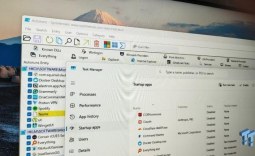
After that, turn off unnecessary startup apps. Open Task Manager, navigate to "Startup Apps," right-click any app you don't need at startup, and choose "Disable."

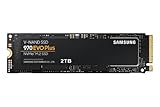
Best Deals: Samsung 970 EVO Plus SSD 2TB
Price Trend:
Prices last scanned 4 minutes ago


You can speed things up even further by upgrading from an HDD to an SSD and, if you run multiple operating systems, by reducing the OS selection timeout.
Back to the Classic Right-Click Menu
One thing I didn't like after moving to Windows 11 was the new, more compact right-click context menu. Sure, it's sleeker and doesn't dominate the screen, but it hides some useful options, forcing you to take extra clicks whenever you need them. To fix this, I switched back to the classic context menu, keeping all my options exactly where I expect them.
It might seem like a minor tweak, but it can have a surprisingly big impact on daily workflow. You can restore the classic menu in a few ways, the easiest being a simple Registry Editor tweak via Command Prompt. Just type Command Prompt in Windows Search, right-click, and select "Run as Administrator," then paste the following command and press Enter:
Our Latest TweakTown Guides
- I stopped reaching behind my monitors after PowerToys added this brightness control
- I stopped trusting the Startup apps tab after I opened this utility on my PC
- I audited every credential Windows had stored for me and deleted three-quarters of them
- The Complete Windows 11 Tweaking Guide for 2026: What to Change and What to Avoid
- Using Multiple Monitors? Change these Windows settings for a Better Experience
reg add "HKCU\Software\Classes\CLSID\{86ca1aa0-34aa-4e8b-a509-50c905bae2a2}\InprocServer32" /f
Adjust the Lock Screen Timeout
Do you step away from your PC for a short break, only to come back and find it locked? That means re-entering your password or PIN, or using Face ID, just to get back in. This usually happens because the default lock screen timeout is set too aggressively. At the same time, turning off the timeout entirely isn't a good idea, as it would leave your PC accessible to anyone.
To fine-tune the lock screen timeout, open Settings, go to "System," then head to "Power & Battery." Expand "Screen and Sleep" and set "On Battery Power, Turn Off My Screen After" and "When Plugged, Turn Off My Screen After" to a longer timeout. If you work in a shared workspace and prefer a longer timeout, you must manually lock the screen when you step away.

Remove Annoying Ads and Suggestions
Windows has a habit of constantly "suggesting" things-apps you don't want, services that don't fit your workflow, and features you'll likely never use. These promos appear everywhere: the Start menu, lock screen, notifications, and even File Explorer. The result feels intrusive, clutters the interface, and breaks your focus. Thankfully, most of it can be easily turned off.
To disable Start menu recommendations, open Settings > Personalization > Start, then turn off "Show recommendations for tips, shortcuts, new apps, and more."

To remove ads from File Explorer, click the three-dot menu, select "Options," go to the "View" tab, and uncheck "Show Sync Provider Notifications."

Next, open the Settings app, go to System > Notifications, and turn off "Get Tips and Suggestions When Using Windows."

To turn off ads on the lock screen, go to Personalization > Lock Screen, choose "Picture" or "Slideshow," and uncheck "Get fun facts, tips, tricks, and more on your lock screen."

Similarly, you can turn off ads and suggestions in Windows Search, the Microsoft Store, widget panels, and other areas to enjoy a cleaner, far less distracting Windows 11 experience.
Get Fewer User Account Control (UAC) Prompts
User Account Control (UAC) is designed to protect your system from unauthorized changes by apps or other users on your device. While it's useful, it can feel overly intrusive, popping up constantly even when you're making routine changes or launching trusted programs. These full-screen prompts disrupt your workflow and quickly become frustrating.
You don't need to disable User Account Control (UAC) entirely, as that would compromise security. Instead, you can reduce how often the prompts appear while keeping essential protections active. Simply type UAC into Windows Search, open the result, and move the slider to set your preferred notification level, which controls how frequently these prompts appear.

Who would've thought that just an hour of tweaks could transform your PC from a constant source of frustration into a surprisingly smooth experience? If your computer feels chaotic, try the tips above to bring order and stop your system from working against you. Once applied, that single hour of effort rewards you every time you work, play, or simply get things done.