


Our Verdict
Pros
- Aesthetics and availability
- Low noise and 5" LCD screen
- iCUE pre-programmed controls
- Performance at full-go
- Cleaner proprietary wiring and LINK hub included
Cons
- No horizontal screen-mount in samples to test
- Proprietary cabling in general
- iCUE being iCUE
- Performance with presets
Should you buy it?
Introduction, Specifications, and Pricing
Thinking back to when Corsair got into AIOs, we look back at things like the H50 or the Hydro series in general; things were so much simpler then. Round head units, single 120mm radiators, fans that drove your ears insane, and, shockingly, at this point in AIOs, performance was king and drew a line in the sand that CPU air coolers of the time couldn't cross.
In the time AIOs have been around, we have seen a complete flop from what the market was then to what it is today. Out of the gate, it was function over form. To be blunt, the first few years of AIOs were ugly, but to be fair, it was black, and it blended in. Now, if your AIO doesn't look like a nighttime walk through Times Square, video screens and all, you don't stand a chance of covering buyers' desires, it seems. Noise is a major concern, aesthetics, options, control, and all other things to follow suit, all of which did not hinder earlier designs. While we have given Corsair a lot of crap in our previous reviews, even with the full market reversal, they have something you will want to ponder.
Popular Now: Developer abandons PS5 Linux project after people found a Hypervisor bug and reported it to SonyWhen Corsair releases a new flagship cooler, we know it has all the current offerings, the latest tech inside, and, of course, every feature available to the market at the time of release. This instance is no different. The lengthy-named iCUE LINK Titan II 360 RX LCD AIO is ready, willing, and more than able to deliver everything you could ever want in an AIO, just that some points are harder to settle than others. Either way, we have a solid cooler on deck for review, and we think Corsair may have something that drives customers to their shops.
| Item | Details |
|---|---|
| Model | TITAN-II-360-RX-LCD-PK |
| MSRP | $239.99 |
| Compatibility | Intel: LGA 1954 / 1851 / 1700 AMD: AM5 / AM4 |
| Color | Black or White |
| Radiator Dimensions | 394 x 120 x 27mm |
| Material | Aluminum |
| Cold Plate Material | Copper |
| Pump Type | Direct Drive Flowdrive 2 |
| Tubing Length | 450mm |
| Materials | Black Sleeved Low-permeation Rubber |
| Included Fans | 1pcs - RX Series RGB |
| Dimensions | 360 x 129 x 26mm |
| Speed | 400 - 2100 RPM ±10% |
| Airflow | 14.1 - 64.7 CFM |
| Air Pressure | 0.21 - 3.57 mmH2O |
| Noise Level | 37 dB(A) |
| Bearing Type | Magnetic Dome |
| Connector | Proprietary |
| Power Draw | 1.39A MAX |
| LCD Display | 5-inch IPS |
| Resolution | 720 x 1280 |
| Brightness | 500 cd/m² |
| Color Depth | 24-Bit |
| Software | iCUE |
| Warranty | 6-Years |
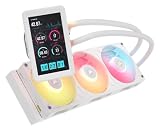
The iCUE LINK Titan II 360 RX LCD comes to your door ready to fit any Intel LGA1954, 1852, or 1700 socket, and it also includes hardware for AM4 and AM5 use. These coolers are available in both black (as shown) and white for clean, sterile builds.
The radiator is made of aluminum and uses a much lower FPI than we typically see in AIOs. Dimensionally, it is 394mm long, 120mm wide, and 27mm thick. There isn't much on the head unit, other than that the cold plate is made of copper and Corsair used a Direct Drive, FlowDrive 2 pump, but it mentions nothing about the dozen or more LEDs on top under the clear plastic bubble. Things progress to the tubing next. Corsair says we get 450mm of length between the radiator and the head unit, made of low-permeation rubber and covered with black sleeving.
A single RX Series RGB fan cools the radiator, with three sets of 120mm fan blades. It measures 360mm long, 129mm wide, and 26mm thick. These fans spin from 400 to 2100 RPM, delivering up to 64.7 CFM at 3.57 mmH2O per fan. Noise is rated at 37 dB(A) at the top end, and this fan assembly uses magnetic dome bearings and is connected to the LINK hub with proprietary cabling; it is not shown as PWM, but it is.
Best Deals: CORSAIR iCUE Link Titan II 360 RX LCD AIO Liquid CPU Cooler – White
Prices last scanned 20 hours and 52 minutes ago


We mentioned a 5" screen coming with this cooler, and we saw on site that it is an IPS screen for starters, and with a 720 x 1280-pixel resolution, the definition is very good. Brightness is decent at 500 cd/m², and it offers 24-bit depth and full control of what shows on it via iCUE.
Our Latest CPU Liquid Coolers Review Coverage
To be blunt about the MSRP, we are shocked. Most coolers of this type, flagship products from Corsair, tend to teeter on that $300 mark, or at least they have in the past, but not this time. Even though this AIO is fully stacked with features, Corsair is selling it for $239.99. On top of that, it comes with a six-year warranty, making that investment more secure and giving users peace of mind if they decide to click "buy" on this new Corsair iCUE LINK Titan II 360 RX LCD AIO they dropped on us.

Frequently Asked Questions
Open a question for an answer from TweakTown's coverage of this review, or ask your own below.
Which Intel and AMD sockets does the Corsair iCUE LINK Titan II 360 RX LCD support?
What software and system requirements are needed to use the cooler’s LCD and iCUE LINK features?
How does the 5-inch LCD get its video signal, and does it mirror the main desktop or extend it?
What do the included CapSwap options do, and which replacements are available for the Titan II LCD?
Have a question that isn't listed here? Ask below, and TweakBot will answer it.

Packaging

In their typical black-and-yellow, Corsair packs the iCUE LINK Titan II 360 RX LCD into a box, with the image taking up most of the front panel. Around it are notes on AMD and Intel support, iCUE control, and Capswap, which lets users buy different caps and swap them onto the head unit.

The bottom of the box has information on it, mostly about the six-year warranty, company information, iconography, and a product sticker on the left; on the right, we see renderings of all the bits inside the box and the four things required from the user to get full functionality. The right socket, an extra 6-pin PCIe, an open native USB 2.0 port, an open DisplayPort, along with Windows 11 and iCUE 5 or newer.

One of the smaller sides shows Corsair, the logo, LINK support, the cooler's name, and another image of it; at the bottom, it mentions the HD IPS display, the FlowDrive Gen 2 pump, and the inclusion of next-gen RX RGB fans.

At first, you might assume this longer side just mimics the last panel we looked at, and for the most part it does. Looking closer, we see the cold plate with pre-applied thermal paste, and the backlighting on the LCD module.

For those keeping track, the second of the smaller sides of the box does copy exactly what we just saw, but with less room.

The back covers the IPS screen, Flowdrive Gen 2 pump, RX RGB fans, the optimized radiator for slower fan speeds, and DisplayPort control of the screen. Below those features, we also see specifications listed in just as many languages as those offered for the features above.

As expected, Corsair uses recycled cardboard to keep the components apart in transit, and plastic bags on all major components to protect the finishes. Hardware and goodies ship between the radiator and the head unit, so everything arrives in stellar condition.
Corsair iCUE LINK Titan II 360 RX LCD

With AMD hardware strapped to the head unit, or half of the head unit as it appears now, there is quite a bit to take in. A clear cover sits over the white PCB, sporting no less than twenty ARGB LEDs, plus a 12-pin pad to connect the LCD.

To the right are the swivel fittings we would expect to find, but the capture sleeves have the new design imprinted on them at this end of the tubes. The sleeve is expected to cover the plain-looking rubber tubing and runs to the radiator, but it does not share these upgraded covers on that end.

The top of these head units offers two connections to use the Titan II LCD fully. A USB-C port sits above a proprietary card-style connector. You must use both and connect them to get full use of these coolers.

Under the head unit, we find the finely machined circular copper pattern, which is slightly convex and ships with pre-applied paste in the same pattern seen on the fittings. Of course, we will remove this and reapply a different paste, but for buyers, this makes life easy, and it wasn't full of debris this time.

The radiator is 18 1/4 inches from the head unit, and while we cannot see the fitting covers, they are plain. As you can also see, the RX series fan assembly is already attached to the radiator, eliminating yet another task for their potential customers.

We mentioned the aluminum 27mm-thick radiator and said the covers were simple at this end, but if you look at the side of the fan, there is a card-style connection like the one we saw on the head unit. While they're only for fan control and power, these proprietary connections simplify wiring and make it much easier to hide.

Even at the other end of the fan assembly is yet another connector. Yes, you can use either end to connect to the LINK hub and power the fans, but you can also daisy-chain from this fan into the exhaust fan, or, if this is in the front of the chassis, you could connect another of these RX modules to the top of the chassis.

On either side of the radiator is a chromed sticker of the Corsair logo. Most times, that would be the end of it, but the RX series fans are wider, allowing the large milky white RGB diffusers to sport their full Corsair name and ensure everyone knows who built your AIO immediately.

The RX fan assembly is well designed, with embossed structural supports that eliminate flex and vibration on these 13 FPI radiators. Opting for a lower FPI lets you run fans at lower speeds for similar cooling results as a higher-FPI layout, keeping noise much lower in normal use.
Accessories and Documentation

All the hardware and goodies come packed inside waxed paper envelopes. Most made it without issue, but some have holes from mounting hardware poking through. It is all good though, as none of this was anywhere near the main components.

First from the envelopes is the LCD portion of the Titan II LCD. A thick, textured black surround encases the five inches of IPS goodness, and it ships with a plastic cover to ensure the screen arrives in impeccable condition.

Flipped onto its face, we can see the central portion is the top half of the head unit, where the nine pins rest to connect to the pin array we saw on the head unit. Wrapped around it is a sleeved DisplayPort cable, which carries the signal to the LCD screen. The underside is also ventilated, as Corsair includes a VRM fan which you can almost make out under the central bit of this cover.

LGA1700 users get a special backplate. This bottom view shows the socket label at the top; the taped bits that keep it attached to the motherboard are on the reverse.

Intel mounting brackets that slide into the head unit are also included, and these are marked LGA1851 on top of the mounting screws.

Mounting screws for the radiator are also included in two forms. The short set lets you mount the radiator directly to the chassis. The longer set lets users hang the unit in front of the case or add another set of fans for push-pull airflow between the radiator and the chassis.

Because the DisplayPort cable delivers functionality to the LCD screen, Corsair includes a clean way out of the chassis. The Titan II LCD includes a PCIe slot passthrough bracket that you add to the back of the chassis and slide the cable through the gap at the top edge.

The iCUE LINK hub handles connectivity and control through various cables and attachments. Power is supplied via a 6-Pin PCIe cable, USB connectivity for readings and control, and a tach wire to calm your motherboard warnings down. Both sides offer connectivity to their proprietary cabling to daisy-chain connections to any of the RX series RGB fans.

Speaking of the proprietary cabling, here is what Corsair sends. At the top are a trio of cables that connect the hub to the RX RGB fan or the head unit, and another to daisy-chain off the other end of the radiator. The tach cable is a wire for reading the pump's RPM on the CPU fan header to eliminate BIOS warnings, and a USB-C to native USB 2.0 cable that connects the head unit to your motherboard.

You get the manual from a code on the packaging, but you also get the safety, compliance, and warranty info insert. With so much information to cover on the AIO and what iCUE can do, it would be a small book in every box, and we see why it isn't in print; instead, it's a simple, easy-to-follow scrollable page with everything you could want to know.
Installation and Finished Product

As you do when installing an aftermarket cooler on an AM5 motherboard, we removed the factory clips and screws, leaving the backplate in place. Corsair designed the Titan II so you can screw down the head unit with its pre-applied paste and go from there.

After alternating between the four screws a few turns each until we ran out of threads, we saw the head unit was installed off-center, ensuring full RAM clearance while also snugging it up so the VRM fan could blow down on it.

After connecting the USB-C and the proprietary cable to the lower part of the head unit, we clicked the LCD screen onto it, needing a bit of force to lock them together. We also ran the DisplayPort cable around the rear I/O cover, and it exits the chassis at the top slot via the provided PCIe slot passthrough cover.

We also installed the radiator with its RX series RGB fans attached to the top of the chassis, and we have plenty of tubing length to reach the socket without issue. We are told that there is a horizontal LCD bracket for a widescreen approach to the visuals, but it is not included with our sample.

With one of the sticky tape bits supplied by Corsair, but sadly we found it on the floor much later, we tacked the iCUE LINK hub to the back of the motherboard tray and made all the connections needed to enable the Titan II 360 RX LCD.

You will also need an extra DisplayPort on your GPU. Most modern cards don't have this issue unless you already run multiple screens, but older GPU users should keep it in mind. Keep in mind, DisplayPort also lets the IPS LCD extend your desktop by default, without iCUE involved.


As we started things up and began to take pictures, without anything connected to this PC but the power cable, it comes to life with a view of our AMI BIOS screen, our ASUS boot logo, and a spinning circle at the bottom, then BAM, sign in to Windows, please. Technically, with a pair of magnifying glasses, a keyboard, and a mouse, you could consider this it.

We also wanted to show a bit of what iCUE delivers in the basic sense. You could upload pictures, videos, GIFs, whatever you desire, but their default layout is more based on Widgets. You can have clocks, weather, calendars, all live with an internet connection, as well as others in the presets iCUE delivers, but we are more interested in its fan and pump controls than anything else.
Test System Setup, Thermal Tests, and Noise Results
Chad's CPU Cooler Test System Specifications
| Item | Details |
|---|---|
| Motherboard | ASUS ROG STRIX X870E-E Gaming Wi-Fi (Buy at Amazon) |
| CPU | AMD Ryzen 9 9900X (Buy at Amazon) |
| RAM | Patriot Viper Elite 5 32GB @ 7000MT/s (Buy at Amazon) |
| GPU | GIGABYTE GeForce RTX 4070 Ti Super Windforce OC 16G (Buy at Amazon) |
| SSD | Patriot Viper 2TB VP4300 PCIe m.2 Gen4 x4 (Buy at Amazon) |
| Case | be quiet! Light Base 900 DX (Buy at Amazon) |
| Case Fans | be quiet! Light Wings White 140mm PWM High-Speed ARGB (Buy at Amazon) |
| Power Supply | be quiet! Dark Power Pro 12 1500W (Buy at Amazon) |
| OS | Microsoft Windows 11 Home 64-bit (Buy at Amazon) |
| Software | AIDA64 Engineer 7.60.7300, and CPU-z 2.14.0 x64 |
To see our testing methodology and to find out what goes into making our charts, please refer to our 2025 CPU Cooler Testing and Methodology article for more information.
Thermal Results
Because we used iCUE, we could run preset profiles for all iCUE coolers, or the ones specific to the Titan II coolers; we chose the latter. It offers Quiet, Balance, and Extreme presets, but for fun, we ran the cooler with all spinning components at their maximum speeds (100% in the charts), using -Q, -B, and -E to denote the three preset profiles.

At idle, only the Noctua AIOs delivered better results than the Extreme preset, where Corsair drops into the chart at 37.3°C. Balance mode and Quiet mode were very similar, at 38.1°C and 38.2°C, respectively. If you are willing to push the controls to the max, you can see temperatures surpassing Noctua, where Corsair topped this chart at 35.9°C.

Loaded average thermals aren't great for Corsair, while Noctua, SAMA, Lian Li, Ocypus, Montech, and Cooler Master all deliver better numbers; however, 68.6°C in Quiet mode isn't horrible either. We bumped that down to 66.3°C in Balance mode, and Extreme mode gets us to 63.6°C, which is good but still not great. Letting the Titan II lose, we saw a drastic performance increase, dropping almost five more degrees to a chart-best 58.9°C.

Fewer manufacturers beat Corsair on maximum thermals, or the spikes we tend to see under load. We find the maximums are about 2 °C higher than the average, showing how efficiently the Titan II pulls in extra heat and dumps it out the back of the radiator.
CPU Speed

Using the Titan II LCD in Quiet mode, the average core speed was 5.224GHz, and Balanced only got us to 5.225GHz. If you select Extreme, your average goes up to 5.249GHz, but that 5.270GHz at full blast sure is attractive.
VRM Thermal Results

To put it bluntly, under the three options of control set by Corsair, the fan doesn't do much of anything but move the warm air around a little bit. 61 to 62°C, which is average for an AIO without a VRM fan included. There was still hope, though, and as we cranked up the fans, we hit 55°C with everything at 100%, coming close to Noctua with their much larger VRM cooling solution.

Quiet and Balance share the same fan profile, but the pump and VRM fan increase speeds, leaving them idle at 405 RPM and averaging 730 RPM in testing. Extreme mode pumps idle at up to 525 RPM, with an average of 861 RPM. With the RX RGB fans running at full speed, we averaged 2158 RPM at idle and under load.

Since Quiet and Balanced modes share a fan profile, they both land equally at 23 dB, which is very quiet. Even under the extreme setting, at just under 900 RPM, the noise stays at 25 dB with the iCUE preset offerings. However, and that word can not be big or bold enough, if you want the best that the iCUE LINK Titan II 360 RX LCD has to deliver, you will experience 68 dB of noise in the room, which is loud to say the least.
Final Thoughts
The RGB of the RX series fans may not be the best display of ARGB Corsair has, but they deliver a ton of lighting into the chassis, and with many modes of control via iCUE, they fit the part and do their job well. There is a bit of a tradeoff there. To help keep costs down on an AIO that also delivers an IPS 5-inch LCD screen that can do anything you'd like to try, including extending the desktop via its DisplayPort connection. Software options for things like weather, a calendar, PC specs, graphs- all of it is cool and all, but we'd likely load a GIF file and let it play. Either way, the options are there to get the most out of that 720 x 1280-pixel resolution.
Installation is easier with pre-installed fans on the radiator, pre-applied thermal paste, and, if you are an AMD user, socket hardware already in place. You literally mount the radiator, mount the head unit, install the LCD, wire it, and go. While we are not fans of proprietary connectivity, Corsair does a great job with the iCUE LINK hub, with sturdy, thick wiring and bits to keep your PC from complaining. We also like that Corsair thought beyond the AIO, and RX series fans can daisy-chain from this cooler to extra fans you buy. We also like the Capswap design: if the LCD gets old, or you just want to swap things out, Corsair offers four options from $9.99 to $99.99, plus the LCD screen as the fifth option online.
Performance is, well, average using the presets Corsair offers in iCUE, but they are just that: presets. There is a happy balance somewhere between the Extreme preset and our 100% runs that will suit your thermal needs better without making your ears regret choosing that option. To get the best from the Titan II LCD, you must endure a ton of noise, but for an old-schooler like us, noise isn't an issue; we want the best possible results. To be blunt, the VRM fan is virtually worthless unless you run it at full speed. As a bonus, the VRM fan doesn't drive noise levels through the roof, so you can run it at 100% and get the benefits of its eating power, rather than spinning with no gains and little noise difference from a foot away from our PC.
Corsair uses the pump to create the differences between the presets, and again, like the VRM fan, it's controllable and can be adjusted to run anywhere you wish. The direct-drive pump system they employ is virtually silent once it runs for a few moments and won't bother you at whatever speed you set it to. Take advantage of these two settings, as you can gain a lot without pushing the fans past 1000 RPM for better results than we showed in the charts with the presets used as default.
On top of being easy to use, fully controllable, and one of the coolest ways to connect an LCD for screen extension or mirroring, it's exciting to see this happening. While a cooler like this has a few prerequisites and may not suit every system, it brings all the fanfare and glow of a walk down the Vegas Strip. Lights from the fans, lights in the head unit, the glow of the LCD- there isn't a single bit of this cooler that isn't on full display. Neither is your system after installing it. The best part, at least in our minds, is that it didn't launch at $279.99, where most other Corsair flagship AIOs do. At $239.99 and backed up with six years of Corsair support to keep you contented, Corsair makes for one hell of an argument as to why buy their AIO over the plainer but better-performing Noctua options, or some of the other less visually appealing solutions it competes with. Our advice: if you do buy one, don't settle for the presets in iCUE and play around; the iCUE LINK Titan II 360 RX LCD liquid cooler has a ton of potential, but it's up to you to find it.