

Can't find the Bluetooth toggle in Settings or turn it on? It might seem like the feature has disappeared, but it's usually due to simple issues such as a disabled service, driver problems, leftover power, or Bluetooth being turned off in the BIOS. The good news is that it's typically easy to diagnose and fix - here's a step-by-step guide to help you sort it out.
Run the Built-In Troubleshooter
Before applying any manual fixes, you should run the Bluetooth and Hardware & Devices troubleshooters to see if Windows can automatically detect and resolve the issue. To run the Bluetooth troubleshooter, type Get Help in Windows Search and open the app. Then search for Fix Bluetooth problems and follow the on-screen instructions.

If that doesn't help, you can try the Hardware and Devices troubleshooter. Press msdt.exe -id DeviceDiagnostic, and press Enter. Click "Next" and allow Windows to scan for issues. If it detects any problems with the Bluetooth device, follow the suggested steps to fix them. If neither troubleshooter resolves the issue, you can proceed with the remaining fixes.

Check That Your Device Supports Bluetooth
One common reason the Bluetooth option could be missing or grayed out in Settings is that the device may not have built-in Bluetooth hardware - this is especially common in desktop or custom-built PCs. In some cases, the Get Help troubleshooter may already point this out if Bluetooth is not detected at all.
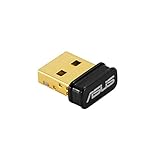
Best Deals: ASUS USB-BT500 USB Adapter
Price Trend:
Prices last scanned 16 hours and 37 minutes ago

7 days ago: $9.99 USD30 days ago: $9.99 USD

7 days ago: $19.4 USD30 days ago: $18.8 USD
7 days ago: $24.99 CAD30 days ago: $19.99 CAD
7 days ago: $36.52 CAD30 days ago: $24.98 CAD
7 days ago: £17.6730 days ago: £13.97

To confirm it manually, right-click the Start button, open "Device Manager," and look for a "Bluetooth" category. If you see it listed, your device supports Bluetooth.

If you're using a desktop PC, you can also open the case and check physically for a Bluetooth module. If it isn't there, your system may not have a Bluetooth adapter installed. In that case, you'll need an external USB Bluetooth adapter to enable the feature. However, if Bluetooth was working before and you're sure your device supports it, move on to the other fixes below.
Try Turning On Bluetooth From the Quick Settings Panel
If the issue isn't at the feature level, Bluetooth may be missing from Settings but still available in the Quick Settings panel. To check this, click the network/volume/battery icon in the taskbar and look for the Bluetooth tile. If it's there, the issue is likely minor, and you can still turn Bluetooth on or off directly from Quick Settings in the meantime.
Our Latest TweakTown Guides
- Snipping Tool handles most of my screenshots, but this open-source app still does the jobs it can't
- I almost uninstalled 7-Zip after File Explorer learned RAR, and then I hit the gaps
- Your Windows PC is enforcing policies you never set, and one command lists them
- Here's the four Windows 11 components I only add when a job calls for them
- I stopped reaching behind my monitors after PowerToys added this brightness control

However, if the Bluetooth tile is also missing from Quick Settings, it usually indicates a deeper problem related to system settings or drivers.
Make Sure Bluetooth Services Are Running
Bluetooth services in Windows handle device detection, pairing, and overall functionality. If these services are stopped, Bluetooth may not appear at all. So, after confirming your device supports Bluetooth, it's worth checking this next.
Type Services in Windows Search and open the "Services" app. Then look for Bluetooth-related services such as Bluetooth Support Service, Bluetooth User Support Service, and Bluetooth Audio Gateway Service.

For each one, make sure the status is "Running." If not, right-click the service and select "Start." Next, double-click the service, set the Startup Type to "Automatic," then click "Apply" and "OK."
Install or Update Your Bluetooth Drivers
Drivers act as a link between Windows and your Bluetooth hardware, so if the device appears in Device Manager but the Bluetooth toggle is missing in Settings, the drivers may be outdated or corrupted. To check this, open Device Manager, expand the "Bluetooth" section, right-click your Bluetooth adapter, and select "Update Driver." Then choose "Search automatically for drivers."

If that doesn't resolve the issue, or if the Bluetooth category is missing from Device Manager, download the latest drivers from the manufacturer's website and install them manually.
Enable Bluetooth in BIOS/UEFI Settings
If none of the previous fixes work, Bluetooth may be disabled at the hardware level in your system's BIOS. To check this, restart your computer and enter the BIOS/UEFI setup by pressing the appropriate key for your device (depending on the manufacturer). Once inside, look under sections like Advanced, Onboard Devices, or Wireless Configuration for a Bluetooth option.
If it is disabled, simply set it to "Enabled." Then save the changes and exit the BIOS. Restart your computer, and Bluetooth should reappear in the Settings app.

Perform a Power Reset on Your Computer
Residual power in your system can sometimes interfere with hardware components, such as the Bluetooth adapter, especially on desktop computers. To resolve this, you can perform a power reset. Shut down your PC and unplug the power cable. If you're using a laptop, disconnect the charger and remove the battery. Then press and hold the power button for about 30 seconds.
This helps discharge any leftover power in the system. After that, reconnect the power source, reinsert the battery, and turn your device back on to check if the issue is resolved.

Stop Windows From Disabling Your Bluetooth Adapter
If the Bluetooth option disappears only intermittently and reappears at other times, Windows may be turning off the adapter to save power - this is more common on laptops. To rule this out, open Device Manager, expand the "Bluetooth" section, right-click your Bluetooth adapter, and select "Properties." Then go to the "Power Management" tab.

Uncheck the option that says "Allow the computer to turn off this device to save power." Click "OK" to apply the changes. After that, check if the issue occurs again.
By applying the above fixes step-by-step, you should be able to narrow down the exact cause and restore the Bluetooth toggle. However, if nothing works, your last resort should be to check for any pending Windows updates and install them. A faulty Windows update can also cause this issue, so check official forums for reports and, if confirmed, uninstall the latest update.
If the issue persists, you can use a System Restore point to roll your system back to a previous state where everything was working correctly - but only use this as a final option.