

Does your Windows PC display a black screen before the login screen loads? Or does the screen go black right after you enter your credentials? Corrupted graphics drivers, a faulty Windows update, hardware problems, or other factors can cause this issue. Here's how to identify the cause and restore your display.
Start With Basic Checks

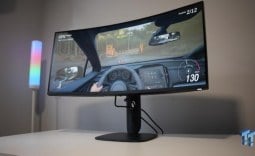
Before trying more advanced fixes, start by ruling out simple hardware or connection issues. Ensure your monitor is powered on and the display cable is securely connected at both ends. Check for any visible damage and loose connectors, and confirm that the monitor is set to the correct input source (HDMI, DisplayPort, etc.).
Since faulty ports or cables can also cause display problems, try switching between HDMI, DisplayPort, or VGA ports, and use a different cable if available. If you're using a desktop with a dedicated graphics card, make sure the cable is plugged into the GPU rather than the motherboard. For multi-monitor setups, disconnect all displays except the primary one.
Reset the Graphics Driver Using a Keyboard Shortcut
If your system appears to be running but the screen remains black, the issue may be a temporary graphics driver glitch. In such cases, you can try resetting the graphics driver using the built-in shortcut:
This action refreshes the connection between Windows and the GPU and can often resolve minor driver crashes, potentially fixing the black screen issue.

Best Deals: ASUS Dual GeForce RTX 4060 Graphics Card (Renewed)
Price Trend:
Prices last scanned 2 hours and 5 minutes ago


Boot Into Advanced Recovery Mode
If the basic fixes don't resolve the issue, you'll need to access Advanced Recovery Mode, which allows you to troubleshoot more serious problems. If you can reach the login screen, click the power icon, then hold the Shift key and select "Restart" to boot into the recovery environment.
If your system goes straight to a black screen, you can force Windows into Recovery Mode.
Our Latest TweakTown Guides
- Here's the four Windows 11 components I only add when a job calls for them
- I stopped reaching behind my monitors after PowerToys added this brightness control
- I stopped trusting the Startup apps tab after I opened this utility on my PC
- I audited every credential Windows had stored for me and deleted three-quarters of them
- The Complete Windows 11 Tweaking Guide for 2026: What to Change and What to Avoid

Press and hold the power button to turn off your computer, then turn it back on. As soon as Windows begins to load, force it to shut down again. Repeat this process three times, and Windows will automatically enter Recovery Mode after detecting failed startup attempts. From there, you'll have access to the tools needed to diagnose and fix the black screen issue.
Run Startup Repair
Startup Repair is a useful tool that can fix corrupted boot files, repair startup configuration issues, and restore normal boot behavior if something is preventing Windows from loading correctly. It's a good first step to see if it resolves the display problem. To run it, go to Advanced Options > Troubleshoot > Advanced Options, then select "Startup Repair" and press Enter.

Follow the on-screen prompts and choose the user account you want to repair. Allow the process to complete. Once it's finished, Windows will restart, and you can check whether the issue is resolved.
Uninstall Recently Installed Windows Updates
Did the black screen issue begin after a recent Windows update? If so, the update may be buggy or incompatible, which could be causing the problem. You can check Microsoft forums online to see if other users are reporting the same issue. If the update is identified as the cause, you can remove it through Recovery Mode.
To do this, first enter Advanced Recovery Mode as shown earlier. Then navigate to Troubleshoot > Advanced Options and select "Uninstall Updates." From there, choose either "Uninstall latest quality update" or "Uninstall latest feature update," depending on which update is causing the issue. Follow the on-screen prompts, then restart your PC.

Remove the latest quality update first, and only uninstall a feature update if you're certain it is responsible for the problem.
Update or Reinstall Drivers in Safe Mode
If the previous fixes don't resolve the issue, try booting into Safe Mode and updating or reinstalling your drivers there. To access Safe Mode, go to Troubleshoot > Advanced Options > Startup Settings, and click "Restart." After your PC restarts, press 4 or F4 to enter Safe Mode. Once you're in Safe Mode, you can update or reinstall your drivers.

Right-click the Start button and open "Device Manager," then expand "Display Adapters." Right-click your graphics driver and select "Update Driver," then choose "Search Automatically for Drivers." To reinstall the driver, right-click it again and select "Uninstall Device." Restart your PC afterward, and Windows will automatically reinstall a basic display driver.

Perform a Power Reset
Leftover electrical charge in your system can sometimes trigger a black screen, so performing a power reset may resolve the issue. To power reset a laptop, shut it down, disconnect the charger, and remove the battery. Then press and hold the power button for 30 seconds to discharge any remaining power. After that, reconnect the battery and try turning it on.

For a desktop PC, shut it down, unplug the power cable from the wall socket, and press and hold the power button for about 30 seconds. Then plug the power cable back in and start the computer. This process clears residual power from the components and resets the motherboard and hardware states, which may help resolve the issue.
Rule Out Hardware Issues
If none of the above fixes work, it's time to check for possible hardware issues. To determine whether the monitor is the problem, connect your computer to a different monitor or TV. If the display works, your original monitor may be faulty and should be inspected. However, if the issue persists across other displays, the problem is likely with your PC.

In that case, ensure the GPU is properly seated and connected, test your RAM by booting with one stick at a time, and try booting from a bootable drive to rule out Windows corruption or storage drive issues. Also, check for any loose or improperly connected hardware components that could be causing the problem.
Seeing a black screen when you start your computer can be frustrating, but if a hardware issue doesn't cause it, the fixes above should help resolve it. However, if the problem still appears to be software-related and none of the methods work, you can consider using System Restore or resetting Windows - but only as a last resort when all other options have been exhausted.