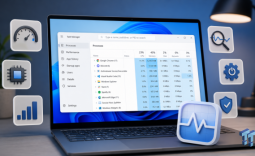
Most of us use the default right-click menu for tasks like opening files and apps, copying items, changing properties, or deleting them. But with the right customization, it can do much more: launch apps, resize images, convert files, send files to your phone, and beyond. Here's how you can expand its options and boost your productivity.
Convert Files Into Different Formats
As a writer who works with images, text documents, and other file types, I often rely on online tools or desktop apps for file conversions. That approach left me with unexpected duplicate files scattered across random folders. Then I came across File Converter, an open-source tool that lets you convert audio, video, images, and documents directly from the context menu.
Popular Now: Modder implements DLSS 5 into Control using DLL from NBA 2K 27, mod drops performance from 71 FPS to 35 FPS on an RTX 5070 TiTo get started, download the tool from its official website. After installation, simply right-click any file(s), choose "File Converter," and select the desired format. You can also add or remove conversion presets from the context menu or customize existing ones. Since the converted files are saved in the same folder, you can keep track of them and delete what you no longer need.

To keep the context menu compact, Microsoft has tucked some options under "Show More Options." If you don't see any new options in the default view, simply expand the menu.
Add Shortcut to Apps, Folders, and Actions
Every time we want to open a tool or folder, we end up digging through the Start menu, searching for it, or navigating via File Explorer, which is hardly an efficient use of time. With the Easy Context Menu (ECM) app, you can add shortcuts to your most-used system tools, third-party apps, and actions, giving you instant access from anywhere.

Best Deals: Samsung 9100 PRO 1TB SSD
Price Trend:
Prices last scanned 12 hours ago

7 days ago: $249.99 USD30 days ago: $249 USD

7 days ago: $248 USD30 days ago: $248 USD
7 days ago: $464.97 CAD30 days ago: $399.97 CAD
7 days ago: $464.99 CAD30 days ago: $399.99 CAD

7 days ago: $49930 days ago: $499
7 days ago: $397.69 AUD30 days ago: $397.69 AUD
To enable this, install the Easy Context Menu (ECM) app. Once opened, you'll see a ready-made list of common system tools and actions. Just check the boxes next to the apps or actions you want, click the mouse-with-a-plus icon, and they'll instantly appear in your right-click menu. It's a small tweak, but it can make a noticeable difference in your productivity.

Quickly Transfer Files to Folders and Your Phone
By default, the Send To menu in the right-click context menu only lets us send files to the desktop, a Bluetooth device, or a few other options. But what if you need to send a file to a specific folder? Normally, you'd have to copy and paste it manually or use drag-and-drop. You can skip all that hassle by pinning your most-used folders directly to the Send To menu.
Our Latest TweakTown Guides
- The Complete Windows 11 Tweaking Guide for 2026: What to Change and What to Avoid
- Using Multiple Monitors? Change these Windows settings for a Better Experience
- Windows Sandbox is The Windows Security Feature Most People Never Use
- I ditched the Windows 11 context menu for this open-source tool, and here's why
- Windows 11 may be encrypting your drive already, and I checked where my recovery key went
To set this up, download and install the Right-Click Enhancer tool. Open the app and go to the "Send To Manager" option. Click "Add Folder," navigate to the folder you want to pin, select it, and hit "OK." Now, when you right-click a file and go to "Send To," your chosen folder will appear. You can pin multiple folders here for quick access.

You can also install Microsoft's Phone Link app and connect your phone to your device. After linking, you can send files to your phone simply by right-clicking and choosing "Send to Phone."
Resize Images With Image Resizer and Rename Them With PowerRename
As someone who regularly works with images, I often need to rename and resize large batches of files. I used to rely on an image resizer tool and manually rename each file, which was both tedious and time-consuming. That changed once I started using PowerRename and Image Resizer, two built-in features of PowerToys.
First, open the Microsoft Store and install PowerToys. Then, select "Image Resizer" and turn on the "Enable Image Resizer" toggle. Similarly, turn on "PowerRename."

To resize images using Image Resizer, simply right-click the files, choose "Resize With Image Resizer," and set your preferred dimensions.

To bulk rename using PowerRename, select all the files you want to rename, then right-click and choose "PowerRename." From there, you can modify names or apply other changes.

Scan Your Files With Microsoft Defender or Antivirus Tool
How often do we download files from the internet or via email, or copy them from external drives, and open them without considering the risk of malware? Many people assume they have to manually open Windows Defender or a security app to scan a file, so they often skip it-but that's not the case.
What most users don't realize is that they can scan files directly from the right-click context menu. You have two options. The first requires no setup: simply right-click a file and select "Scan With Microsoft Defender." The second is to install a third-party antivirus tool, such as Malwarebytes, which also adds a scan option to the context menu.
As soon as you click it, Microsoft Defender or your chosen antivirus launches immediately, runs the scan, and displays the results.

Customizing your right-click context menu might seem like a small change, but it can noticeably improve your productivity. By installing the right apps and adding these shortcuts, you can save time on tasks that would otherwise take much longer. Experiment with the apps mentioned above-you might discover even more useful ways to customize the context menu.