

Most of us assume our antivirus will protect us from anything suspicious we download. While Windows Defender and other antivirus programs do a good job of detecting known threats, they aren't foolproof. A safer option is Windows Sandbox, a built-in Windows feature that lets you safely test untrusted apps and files in an isolated environment without putting your main system at risk. Here's how it works.
What Is Windows Sandbox?

Windows Sandbox is like a disposable PC that runs inside your existing Windows installation. It gives you a completely isolated environment where you can safely run apps, open files, or test software without affecting your main system. If a file turns out to be malicious, any malware running inside the Sandbox is isolated from your main Windows environment.
The best part is that everything inside the Sandbox is temporary. As soon as you close it, the entire environment - including any apps you installed, files you downloaded, and settings you changed - is permanently deleted. The next time you open Windows Sandbox, you get a fresh, clean copy of Windows.
This makes Sandbox an excellent tool for testing suspicious apps, opening files from untrusted sources, or experimenting with Windows settings before making changes to your main PC.
Why More People Should Use Windows Sandbox
One reason many people overlook Windows Sandbox is that they assume a virtual machine (VM) is the only way to safely isolate testing from their main PC. While VMs work well, they require much more setup. You need to install a separate operating system, allocate storage and memory, keep it updated, and manage virtual disks.

Best Deals: Windows 11 Pro USB Flash Drive
Price Trend:
Prices last scanned 48 minutes ago

7 days ago: $139.97 USD30 days ago: $149.99 USD

7 days ago: $168.99 USD30 days ago: $159 USD
7 days ago: $260.98 CAD30 days ago: $209 CAD
7 days ago: $276.43 CAD30 days ago: $284.36 CAD
7 days ago: £189.9930 days ago: £179

7 days ago: $30930 days ago: $309
Windows Sandbox offers the same core benefit - an isolated environment - without all that overhead. Just launch it, wait a few seconds for it to load, and you'll have a fresh Windows environment ready to use. If you simply want to test an app, open a suspicious file, or experiment with a setting, it's much faster and more convenient than setting up a VM.
That said, Windows Sandbox isn't a replacement for a VM in every situation. Since everything is deleted when you close it, it's not suitable if you need to save your work between sessions. It also doesn't let you install a different operating system, customize virtual hardware, or create snapshots to restore later.
Our Latest TweakTown Guides
- Snipping Tool handles most of my screenshots, but this open-source app still does the jobs it can't
- I almost uninstalled 7-Zip after File Explorer learned RAR, and then I hit the gaps
- Your Windows PC is enforcing policies you never set, and one command lists them
- Here's the four Windows 11 components I only add when a job calls for them
- I stopped reaching behind my monitors after PowerToys added this brightness control
Another limitation is that Windows Sandbox isn't available on Windows Home, so you'll need Windows Pro, Enterprise, or Education to use it.

Guide Q&A
Powered by TweakBot
From TweakTown's coverage of this guide.
How do I check if hardware virtualization is enabled on my PC before enabling Sandbox?
What exactly happens to apps and files inside the Sandbox when I close it?
When should I choose a full virtual machine instead of using Windows Sandbox?
Can I use Windows Sandbox to test websites or email attachments safely, and how?
Want something else? Ask TweakBot.

How to Enable Windows Sandbox
Windows Sandbox isn't enabled by default, so you'll need to turn it on before you can use it. The process only takes a few minutes.
First, make sure your PC supports hardware virtualization and that it's enabled. Most modern computers support this feature, but it may be disabled in the BIOS/UEFI. To check, type "Command Prompt" in Windows Search, right-click it, and select "Run as Administrator." Then type "systeminfo.exe" and press Enter. Scroll to the bottom of the results.
If you see a message such as "A hypervisor has been detected" or "Virtualization Enabled In Firmware," hardware virtualization is already enabled.

If virtualization isn't enabled, restart your PC and enter the BIOS/UEFI settings. Look for a virtualization option - usually found under the Advanced, CPU, or Security section - and enable it. Save your changes and boot back into Windows.
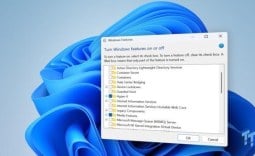
Next, type "Turn Windows features on or off" in Windows Search and open it. Find "Windows Sandbox" in the list, check the box next to it, and click "OK."

Windows will install the required files, after which you'll be prompted to restart your computer. Once your PC restarts, Windows Sandbox will be ready to use.
How to Use Windows Sandbox
Once you've set it up, Windows Sandbox is very easy to use. Type "Windows Sandbox" in Windows Search and open it. Inside the Sandbox, you can download a file or application using Microsoft Edge, or simply copy an executable or another file from your main PC and paste it into the Sandbox. From there, use the file or install the application just as you normally would.

If it behaves unexpectedly, triggers security warnings, or shows signs of malicious activity, your main system has an additional layer of protection because the activity is isolated within the Sandbox. Although it's primarily designed for safely testing untrusted software, Windows Sandbox is useful for much more.
You can use it to try Windows settings before applying them to your main PC, test beta or experimental software, open unfamiliar email attachments, or visit websites you don't fully trust.
When you're finished, close the Sandbox window. Windows will warn you that everything inside the Sandbox - including installed apps, downloaded files, and any changes you've made - will be deleted. Click "OK" to close it, and that's it. There's no cleanup required, and the next time you open Windows Sandbox, you'll get a fresh, clean Windows environment.

Windows Sandbox isn't a replacement for a virtual machine, but for quickly testing untrusted apps, files, or Windows tweaks, it's hard to beat. It requires almost no setup, gives you a fresh Windows environment every time, and keeps your main system safe. If your Windows edition supports it, it's a feature worth enabling - even if you only use it occasionally.