










Did you accidentally delete an important file on your Windows computer and now need it back? First - don't panic. The good news is that files aren't immediately wiped from your system, and even permanently deleted ones can often be recovered. Whether the file was deleted just now or some time ago, these methods can help you restore it.
Undo the Deletion Immediately
Did you just delete a file by mistake? If so, the quickest and easiest way to recover it is by undoing your last action. Windows keeps track of recent actions and allows you to reverse them instantly. However, this may only work if you haven't done anything else after deleting the file and haven't restarted your computer.
To undo the deletion, press Ctrl + Z, or right-click inside the folder where the file was deleted and choose "Undo Delete." The file will be restored to its original location immediately. However, if you've already taken other steps, restarted your computer, or the file was deleted earlier, you can try the other recovery methods.

Check the Recycle Bin
There are two ways to delete a file or folder in Windows: the standard method, which moves the file to the Recycle Bin, and the permanent method, which bypasses the Recycle Bin and deletes the file permanently. If you used the standard method, your file may still be in the Recycle Bin and can be easily restored.
To recover recently deleted files, open the Recycle Bin from your desktop, locate the file, or use the search bar to find it quickly. Once found, right-click the file and select "Restore." The file will be returned to its original location. If the file was permanently deleted or the Recycle Bin has been emptied, it won't be there, so you'll need to try the next recovery method.
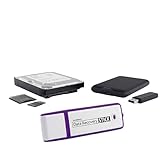
Best Deals: Data Recovery Stick - Recover Deleted Files from Windows


Restore Files Using Previous Versions
File History automatically backs up your personal files, making it possible to recover them if they're accidentally deleted or modified. If the deleted file isn't in the Recycle Bin, you can use this feature to restore it. By default, File History backs up your Desktop, Documents, Pictures, Music, and Videos folders, though you can add or remove folders as needed.
Keep in mind that this only works if File History was set up to back up to an external drive or network storage before the file was deleted. To recover the file, navigate to the folder it was deleted from, right-click it, and choose "Restore Previous Versions." If previous versions exist, select a snapshot, click "Open" to preview its contents, and then click "Restore."
Our Latest TweakTown Guides
- How to fix Wi-Fi Adapter Not Working on Windows laptops: troubleshooting tips
- 6 underrated Microsoft Word features worth using to boost your productivity
- 7 Windows settings to change right after installation for better privacy, security, and performance
- I stopped Windows 11 notifications from interrupting me with Do Not Disturb, Focus, and a priority list
- 7 ways to transfer data from Android to Windows PC quickly and easily

Search for the Files in Your Backup
If you use a third-party backup service, such as Backblaze, or if you manually back up files to an external drive or cloud storage, your deleted files might still be stored there. So, if you haven't been able to restore the file using the previous methods, you should check your backup to see if the deleted items are available.
Connect the external drive that contains your backup and look for the missing files. If you use a cloud storage service like OneDrive, Google Drive, or a similar platform, don't forget to check the Trash or Deleted Files folder, where deleted items are temporarily stored. When restoring files from a backup, always check the version to ensure you recover the latest copy.
Use the Windows File Recovery Tool
If none of the previous methods work, try Microsoft's Windows File Recovery tool. It is a command-line utility designed to help recover deleted files, so unlike many third-party recovery apps, it does not include a graphical interface. To install it, open the Microsoft Store, search for Windows File Recovery, and click Install.
Once it is installed, press Win+S, type Windows File Recovery, and open it. You can then use the following command structure:
winfr <source-drive>: <destination-folder>: /mode /switchesIn this command,
<source-drive><destination-folder>The /mode parameter controls the scan type, while /switches lets you add optional filters to narrow the recovery. For example, you can use the /n switch to recover a specific file or folder:
/n <path>Or use it to recover all JPG files:
/n *.jpg
Try a Third-Party Data Recovery Tool
If all else fails, your final option is to use a third-party data recovery tool that employs advanced scanning techniques to recover deleted files. Some popular options include Recuva, EaseUS Data Recovery Wizard, and Disk Drill. Simply download and install the recovery software of your choice. I personally use Disk Drill.
After installing, launch the program and choose the drive or folder you want to scan. You can start with a quick scan to see if it locates the deleted files. If not, run a deep scan for a more thorough search. Once the scan completes, preview the recoverable files, select the ones you want to restore, and save them to a different drive to avoid overwriting any other lost data.

If the deleted file is still recoverable, one of the methods mentioned above should help you restore it. However, if these steps-and even third-party recovery tools-don't work, the file is likely unrecoverable. Data recovery is easier on Hard Disk Drives (HDDs), while Solid State Drives (SSDs) make recovery more challenging due to their faster data overwriting.


 How to fix Wi-Fi Adapter Not Working on Windows laptops: troubleshooting tips
 6 underrated Microsoft Word features worth using to boost your productivity
 7 Windows settings to change right after installation for better privacy, security, and performance
 I stopped Windows 11 notifications from interrupting me with Do Not Disturb, Focus, and a priority list
 7 ways to transfer data from Android to Windows PC quickly and easily
 Sony deleting over 500 movies from PS5 libraries is a reminder that you don't really own anything in the digital age
 Apple wants to buy memory from CXMT, a Chinese company that's currently blacklisted by the US government
 Analysts predict another massive memory price increase in Q3 2026, and another in Q4
 Sony President says live service games are still a big push for PlayStation's first-party studios
 Microsoft disputes claims that GTA 6 pre-orders on PS5 are out-selling Xbox 8-to-1
 Vanguard no longer has to run at startup thanks to Riot's new On-Demand mode
 A new battery restoration method can bring lithium-ion batteries back to 95% of their original capacity
 Vietnamese repair shop received an RTX 5090 with its 16-pin connector blown clean off
 Suspicious Steam Machine clone from China costs just $688, has a Ryzen 5 5500 with an RX 6750 GRE GPU
 A modder just got Windows 11 running on a DDR1 system from the early 2000s
 Lian Li B4-mATX Review: a compact mATX SFF case with excellent airflow and premium features
 MSI MPG 322UR QD-OLED X24 Review: A Brighter, Tougher 4K 240Hz QD-OLED for $1099
 UGREEN NASync DXP4800 GT Review: powerful 4-bay NAS with AMD Ryzen and dual 10GbE ports
 Dell XPS 14 (2026) Laptop Review - Premium Quality, Impressive Performance
 Ocypus Sigma F36 BK ARGB Cooling Fan Review: high airflow and unified design in one frame
 PCCooler CPS RZ820 Display Review: a flagship-level CPU air cooler with an LCD screen
 UGREEN FineTrack Mini 2 Air Tracker Tag Review - Long battery life, lesser performance
 Speed Racer (2008) 4K Ultra HD Blu-ray Review: a stunning remaster of the cult classic
 MOAIPLAY ORA PRO G1 850W ATX 3.1 PSU Review: high efficiency and 10-year warranty for $119.99
 Navman MiVue Smart True 4K Surround Dashcam Review - Seeing In All Directions At Once
 Hisense U7SG 4K TV: Modern Entertainment for the New Age
 Level Up Your PC Gaming with these Fantastic ASUS Prime Day Deals on GPUs, Motherboards, and More
 GIGABYTE Wants to Kickstart Your New Gaming PC or Upgrade with These Limited-Time Deals
 I read the Windows Backup app screen carefully, and it does not back up what most people think
 Low Sound Volume on Windows 11? How to fix audio issues and restore normal volume