

Is your Windows laptop unable to connect to the internet over Wi-Fi? While router issues, network outages, and other connectivity problems can often be the cause, the Wi-Fi adapter itself may also be to blame. If you've already ruled out other potential causes, here's how to determine whether the adapter is causing the issue and what you can do to fix it.
Check Wi-Fi Is Enabled and Airplane Mode Is Off
Before you start troubleshooting, check that Wi-Fi is enabled and Airplane Mode is off. To see whether Airplane Mode is on - which disables all wireless connections - press Win + A to open Quick Settings and ensure it is turned off.

Next, go to Settings > Network & Internet > Wi-Fi, and confirm that the Wi-Fi toggle is switched on. Also, make sure the Wi-Fi option is not greyed out or disabled.

Ensure the Wi-Fi Adapter Is Properly Detected
After confirming that Wi-Fi is enabled, the next step is to check whether Windows can properly detect your wireless adapter. If you're using an external adapter, unplug it and reconnect it securely to ensure it's properly seated. To check if it's detected, press Win + X and open "Device Manager." Then expand the "Network Adapters" section and locate your Wi-Fi adapter.
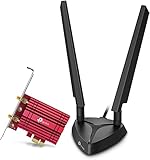
Best Deals: TP-Link Archer TXE75E WiFi 6E PCIe Wireless Adapter
Price Trend:
Prices last scanned 1 hour and 43 minutes ago

7 days ago: $49.99 USD30 days ago: $44.94 USD

7 days ago: $49.99 USD30 days ago: $49.99 USD
7 days ago: $115.54 CAD30 days ago: $106.69 CAD

If the adapter appears normally, it means the hardware is being detected correctly. If it's missing, your computer doesn't recognize the adapter. So, properly reseat it again.
If you see a yellow exclamation mark, it may indicate a driver issue - right-click it and select "Uninstall Device," then reinstall the driver manually.

If the adapter appears greyed out, it means it is disabled. To turn it back on, just right-click it and select "Enable Device."
Our Latest TweakTown Guides
- I almost uninstalled 7-Zip after File Explorer learned RAR, and then I hit the gaps
- Your Windows PC is enforcing policies you never set, and one command lists them
- Here's the four Windows 11 components I only add when a job calls for them
- I stopped reaching behind my monitors after PowerToys added this brightness control
- I stopped trusting the Startup apps tab after I opened this utility on my PC
Ensure You Have the Compatible Adapter Driver Installed
A Wi-Fi adapter only works properly when the correct drivers are installed. If this is the first time you're using the adapter, make sure you download and install the appropriate driver. To do this, identify the model number of your Wi-Fi adapter, find the matching driver, and install it on your system.

Frequently Asked Questions
Open a question for an answer from TweakTown's coverage of this guide, or ask your own below.
If my internal Wi‑Fi adapter is missing from Device Manager but appears in BIOS/UEFI, what software steps from the article should I try before replacing the hardware?
How will performing a Network Reset affect my saved Wi‑Fi networks and what must I do afterward according to the guide?
When using a USB Wi‑Fi adapter that intermittently works, how can I use a second computer to determine whether the adapter is faulty as described in the article?
If Device Manager shows a yellow exclamation mark on the adapter, what precise sequence does the article recommend for resolving the driver issue?
Have a question that isn't listed here? Ask below, and TweakBot will answer it.

If the driver is already installed, open Device Manager and expand the "Network Adapters" section. Then right-click your Wi-Fi adapter and select "Properties." In the window that appears, go to the "Driver" tab to view the driver version and provider information. If it's already the correct driver, simply right-click it and choose "Update driver.

Turn Off Wi-Fi Adapter Power Saving
Windows may turn off the Wi-Fi adapter when it's not in use to conserve power. While this can help extend battery life, it may also cause your connection to drop during idle periods or fail to reconnect properly. To turn off this setting, press Win + X and open "Device Manager." Expand "Network Adapters," locate your Wi-Fi adapter, right-click it, and select "Properties."
Then go to the "Power Management" tab, uncheck "Allow the computer to turn off this device to save power," and click "OK." After making this change, check whether the issue is resolved.

Check Whether the Wi-Fi Adapter Is Faulty
If none of the above solutions work and your Wi-Fi adapter doesn't appear in Device Manager, doesn't detect any networks even with Wi-Fi enabled, or functions only intermittently, it may indicate a hardware issue. To confirm, if you're using an external adapter, connect it to another computer, install the necessary drivers, and check whether it works.
If it also fails on the second device, the adapter could be faulty. However, if it works on another computer but not yours, the issue is software-related.
If you're using an internal adapter and suspect hardware failure, restart your computer and enter the BIOS/UEFI settings. If the Wi-Fi option is missing, it may indicate a hardware issue, and replacing it could resolve the problem.
Check Windows Update/Optional Drivers
Windows updates include network drivers, but they are placed under Optional Updates, which many users overlook. So, you should check for any available network adapter updates and install them if needed. To do this, right-click the Start button and open "Settings." Then go to Windows Update > Advanced Options > Optional Updates.
Under this section, expand "Driver Updates" and look for any network or Wi-Fi-related drivers. Select the ones you want to install, then click "Download & Install."

Run a Network Reset
If none of these solutions work, you can perform a network reset, which restores all network settings to their default. This can help resolve issues where a setting prevents your adapter from working properly. To do this, open the Settings app and go to Network & Internet > Advanced Network Settings. Then select "Network Reset," click "Reset now," and confirm.

Then, restart your PC and check whether the adapter is now detected. This process will remove saved Wi-Fi passwords and custom settings, so you will need to set them up again afterward.
Whether your network adapter is not being detected due to software or hardware issues, the fixes above can help you identify the root cause and resolve the problem. Even if you suspect a hardware fault, you should try software solutions first. If you're unsure about anything, consider seeking professional assistance.