












Our Verdict
Pros
- Comparatively inexpensive
- Easy app-based setup
- Range of Gaming priority features
- USB for file and print sharing
Cons
- 2.4GHz and 5GHz only
- Many advanced features are subscription-only
- Poor performance in challenging locations
Should you buy it?
Introduction & Specification Details and Close-up
While plenty of Wi-Fi 7 routers will proclaim their greatness, often that's greatness that comes with a cost, and it's one that's directly financial. If you want the absolute best Wi-Fi 7 performance, it will cost you.
That's not the same thing as saying all Wi-Fi 7 routers are expensive, however. The TP-Link BE6500 (AKA the TP-Link Archer GE400 in some markets, and indeed under the hood as this exact designation) is a lower-cost gaming router for those on a more constrained budget. As you might expect, that does get you a slightly less feature-rich and speedy router, but for smaller homes or apartments, this might be all that you really need.

Specifications & Close Up

| Item | Details |
|---|---|
| Model | TP-Link BE6500 |
| Wi-Fi | Wi-Fi 7 |
| Wi-Fi Speeds | 5 GHz: 5765 Mbps (802.11be) | 2.4 GHz: 688 Mbps (802.11be) |
| Wi-Fi Capacity | Dual Band, MU-MIMO, OFDMA |
| Working Modes | Router Mode / Access Point Mode |
| Guest Network | 1x 5 GHz Guest Network | 1x 2.4 GHz Guest Network |
| VPN Support | OpenVPN Server, PPTP VPN Server, L2TP VPN Server, WireGuard VPN Server |
| WiFi Encryption | WPA, WPA2, WPA3, WPA/WPA2-Enterprise (802.1x) |
| Ethernet Ports | 1x 2.5 Gbps WAN | 1x 2.5 Gbps LAN | 3x 1 Gbps LAN |
| USB Ports | 1x USB 3.0 |
| WPS Support | Yes |


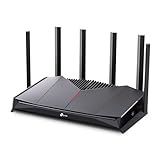
Best Deals: TP-Link Archer GE400 BE6500 Dual-Band Wi-Fi 7 Router
Price Trend:
Prices last scanned 8 hours and 11 minutes ago

7 days ago: $169.98 USD30 days ago: $169.99 USD
7 days ago: $312.74 AUD30 days ago: $312.74 AUD


Alex's Test System
- HP Omnibook Ultra Flip (Intel Core Ultra 7, 32GB RAM, 1TB SSD)
- Samsung Galaxy S25 Ultra
Design
The TP-Link BE6500 is a remarkably easy router to unpack and physically set up, and that's largely because out of the box, it's all preinstalled with its array of six antennas already fixed into the main router body. If you can unwrap plastic, you're basically set. One feature here I didn't notice for a while is that the individual antennae are all plastic wrapped as well, though this feels like overwrapping to me.

Router unpacked, you also get a few slender pieces of paper covering warranty status, GPL licensing requirements, a sticker to let you append your own wireless details on the router if desired, a quick note about Wi-Fi 7 compatibility issues, and a slender quick installation guide. You also get a single short flat RJ-45 cable and a supplied power adaptor.

The power adaptor is on the longer and larger side, which can sometimes be problematic if you're using a low wall plug or don't otherwise have much space, but there's nothing here that can be called all that complex.

The same is true for the TP-Link BE6500's visual style, though once you do pack in more than a few antennas, there's not much you can do to avoid the cyber hedgehog look. It's a basic black router with a single indicator light strip at the front and a small TP-Link logo facing outwards.

Spin it around, and you'll find a single USB-A 3.0 port on the right-hand side, while at the back it features a single 2.5Gbps WAN port and four Ethernet ports. The leftmost of these is marked out as the solitary 2.5Gbps-capable port for gaming, while the other three are more mundane 1Gbps ports.
Our Latest Routers & Access Points Review Coverage
- MSI Roamii BE Pro Wi-Fi 7 Mesh System Review - Affordable price, good mid-range performance
- ASUS ROG Rapture GT-BE19000AI Gaming Router Review: Shiny and fast (except when it isn't)
- NETGEAR Orbi Wi-Fi 7 370 Dual Band Mesh System Review - Mid-Range Value
- NETGEAR Nighthawk 5G M7 Mobile WiFi 7 Router with eSIM MH7150 Review
- Engenius ECW520 Cloud7 2x2x2 Access Point Review: Serious Management Potential

There are buttons for LED control, WPS, and a typical reset hole to the left, while the right-hand side is where the power plugs in next to the on/off switch. The TP-Link BE6500 is a lower-cost router, and there's not much here that feels premium, though that's not out of scope at this kind of price point.
Software
The TP-Link BE6500 can be set up either via web browser or via smartphone app, though confusingly, TP-Link hasn't opted for a single app approach for its array of routers and mesh systems.
Buy something like the recently reviewed TP-Link Deco BE11000, and you'll need the TP-Link Deco app, but for the TP-Link BE6500, you'll instead need the TP-Link Tether app if smartphone configuration is your style. I do appreciate having the flexibility of web configuration, but in order to test out its robustness, I opted for the smartphone setup routine when first configuring the TP-Link BE6500.

Setting up via the app does require a TP-Link account - as a reminder, burner email accounts are easy to set up as needed to assist with privacy - and the app then walks through the process of connecting up your modem and configuring your Internet account, while also setting a fresh administrator password and creating your primary Wi-Fi network. Most app-based router configurations do tend towards the easy side, and TP-Link Tether is no different in this respect.


Like many router manufacturers, there's a mix of onboard services and also cloud-based subscription services for parental control, time-based access features, and anti-virus software. The app does rather push those to the forefront during the setup process, which does feel on the pushy side; they're not a terrible inclusion if you do happen to want them, but very annoying if you don't when they're shoved down your throat like this.
The Tether app also offers the ability to more directly identify connected client devices; if you've ever had curiosity about some of the ways that smart devices, especially, can connect to networks, being able to pin them down more directly could be useful, but it does warn you that it does so by sharing some of your data with third-party services. I'd rather stay private, so I didn't enable this.

The Tether app keeps it simple with tabs for Gaming performance, Security, Family controls, and a More tab that hides most of the rest of the TP-Link BE6500's Advanced features. It's nice to see that while the Tether app keeps it simple if you just want basic configuration, those who need more subtle tweaks aren't locked out. I'd still opt for a browser-based setup for those kinds of optimisations, but here you can take either route.


Web configuration is also supported, though the TP-Link BE6500 did get cranky with me when I tried to log in there while already logged into the Tether app. That's not a bad approach to ensure general network security by only allowing a single authorized administrator at one time.

In terms of gaming features, you can configure prioritization for gaming applications via bandwidth allocation and port forwarding, as well as Game Server Acceleration via the paid WTFast service - another subscription hook, though it's not enabled by default.


Performance
At a speed level, TP-Link rates the TP-Link BE6500 as being capable of up to 688Mbps over 2.4GHz networks and up to 5,764Mbps over 5GHz. That's nowhere near the peak speeds of Wi-Fi 7 in any way, but that's very much reflected in the price space that the TP-Link BE6500 occupies. This is a router built for the mass market at a more affordable price point, bringing just the base level features of Wi-Fi 7; if you want faster speeds, you'll have to pay a little more in other words.
The TP-Link BE6500 only operates on the 2.4GHz and 5GHz bands with no support for 6GHz operation, but it does support the use of MLO (Multi-Link Operation) to combine those bands into a distinct Wi-Fi 7 compatible network for devices that support it. Setting up an MLO network is not automatic, however, and if you opt to enable it, it does require a router reboot before it's active.
TP-Link suggests that the TP-Link BE6500 is a suitable unit for a small home of around 3 bedrooms; my own domicile is a little larger than that, but this gave me the opportunity to see just how far its network could stretch.
I've used the same location for Wi-Fi network testing for some decades now, and I'll always point out that the nature of Wi-Fi network testing is by definition subjective. What I test in my location takes my environmental factors into account - more on that shortly - but possibly not yours, so what I try to do is present a picture of performance at three ranges; close to the router, effectively in the same room, then a mid-range point a couple of rooms away and then a far point, which is my more brutal challenge scenario.
That's because it's located in my home office, built on an extension to the property, which means there's a hidden wall between it and the router that used to be an external property wall. It's hidden, but it's also very effective at blocking most Wi-Fi signals, which is why it's such a brutal test. Your own circumstances will vary, but the point here is that the far location represents those areas that might otherwise be Wi-Fi blackspots in a home setting.
I did hit the issue when first testing that none of my devices could see the 2.4GHz network if it was left to its default automatic setting; forcing it to channel 6 did resolve this, and it's an issue I've hit before with TP-Link routers. While many newer devices will work on 5GHz without an issue, and the TP-Link BE6500 only presents the one primary SSID (plus its secondary MLO network if enabled), many smart home devices, such as robot vacuum cleaners, are often 2.4GHz only.
The first testing stop was to check the RSSI (Received Signal Strength Indicator) at each location.

Here I hit an immediate but not unsurprising snag. The TP-Link BE6500's networks could be seen in the close and mid-range locations, but only the MLO network was punching through the wall to the far location, and even then at a rate that suggested that signal strength was so low as to be likely unusable. I'd often find, while testing the TP-Link BE6500 in the far location, that even the MLO network would blink out of existence as far as it was concerned. This isn't a new problem for this area, but it's worth pointing out if you've got a particularly bad Wi-Fi blackspot in your home; the TP-Link BE6500 may not be able to pierce through to it.
For a lot of gaming and productivity uses these days, Internet connectivity is a must, so my next test shifted towards testing Internet speed at each location. Here, I used two devices to test, in order to allow for differences in antenna pickup: an HP Omnibook Ultra Flip (Intel Core Ultra 7, 32GB RAM, 1TB SSD) and a Samsung Galaxy S25 Ultra. They're both Wi-Fi 7 capable, but both can (and do) provide slightly different Wi-Fi performance.
Here's how they compared in each location using Ookla's speed test. I've expressed the speeds here as a percentage of the fixed line speed at the time of testing to avoid any comparative issues around fluctuating broadband speeds, but in this case, it was via a 1000/100 Aussie Broadband HFC NBN connection.

The TP-Link BE6500 performs well in close and mid-range spaces, with an expected drop-off at the mid-range, and a very small boost to performance when using the MLO network. I could not get the HP laptop to stay on the MLO network long enough to complete even one speed test in the far location, and while the Samsung could generally see the network, its results weren't particularly useful unless you're a big fan of very slow downloads and lots of video buffering.
I should point out that this was exactly what I expected, as this area is absolutely a dead zone for the vast majority of Wi-Fi routers. I could get around this with the TP-Link BE6500 by enabling EasyMesh and adding a few nodes to punch through to the far area, but it's not like those nodes are included in the box, so I'm focusing on standalone performance instead.
To test out local network performance, I ran a file copy test between the HP laptop and an Ethernet-connected NAS, reading and writing a 1.34GB video file between both systems at each available location. As the HP couldn't reliably see the TP-Link BE6500 in the far location, that meant that I only got test results for the close and mid-range spaces.

Those results aren't the fastest, but they're appropriate enough to the TP-Link BE6500's more mid-range ambitions and price point.
Final Thoughts
The TP-Link BE6500 doesn't sell itself as a top-of-the-range gaming router, and that's certainly not what you're getting here.
It is instead a more affordable unit with performance that scales down accordingly. If you're trying to fill a larger dwelling, or one like mine, where there are some more evident absolute Wi-Fi blackspots, you may be left wanting, especially at longer distances, unless you're using it as the base of a mesh network, or you're willing to use a few Wi-Fi extenders along the way to help with signal propagation.

However, if you're using it in a smaller home or apartment, it could be a decent way to get reasonable performance without making a notably hefty dent in your wallet.


 D-Link F518 5G Wi‑Fi 6 AX1800 Mobile Hotspot Review: All-Day Mobile Hotspot
 MSI Roamii BE Pro Wi-Fi 7 Mesh System Review - Affordable price, good mid-range performance
 ASUS ROG Rapture GT-BE19000AI Gaming Router Review: Shiny and fast (except when it isn't)
 NETGEAR Orbi Wi-Fi 7 370 Dual Band Mesh System Review - Mid-Range Value
 TP-Link Tapo C660 Kit Solar-Powered Pan/Tilt Security Camera Kit Review
 Giveaway: 12 Winners Will Score MONTECH NX400 and NX600 CPU Coolers
 Dave Bautista officially cast as Kratos in Amazon's 'God of War' TV Series, replaces Ryan Hurst
 Take-Two begins the hunt for GTA 6 leaker CyberLeek, subpoenas Microsoft and Discord
 PlayStation 6 handheld not expected to stay under $600, warns leaker
 AMD confirms the Radeon RX 9050 4GB will have a tiny 64-bit bus and just 16MB Infinity Cache
 Intel 'Nova-Lake-S' 28-core CPU with bLLC reportedly draws 296W at PL2
 FSR 4 Frame Generation suffers from frame pacing issues causing the tech to be borderline unusable
 STALKER 2 receives massive performance boost with new 2.0 update, game gets upgraded to Unreal Engine 5.5.4
 Sandisk NAS 800 NVMe SSD delivers PCIe Gen5 speeds for demanding NAS environments
 RayNeo announces new iO Smart Glasses and GT Series with 'cinema-grade' display
 IQUNIX launches premium EC75 Hall Effect keyboard with 0.01mm Rapid Trigger
 Cooler Master MasterFan A120 Fan Review
 GIGABYTE MO27Q2A Gaming Monitor Review: 1440p, 280Hz, and QD-OLED is a winning combination
 Cooler Master V8 ACE 3DHP BLACK CPU Cooler Review
 ASUS ROG Strix XG129C Review: A $199 Gaming Monitor You Don't Play Games On
 Cooler Master HAF II 500 Mid-Tower Chassis Review
 Corsair HS35 v3 Wireless Gaming Headset Review - An Affordable Winner
 Bose Lifestyle Ultra Speaker Review - Impressively Detailed Room-Filling Sound
 MSI Z890 Gaming Plus WIFI6E Review - Z890 for under $200
 Mortal Kombat (1995) 4K Ultra HD Blu-ray Review
 Using Multiple Monitors? Change these Windows settings for a Better Experience
 Windows Sandbox is The Windows Security Feature Most People Never Use
 I ditched the Windows 11 context menu for this open-source tool, and here's why
 Windows 11 may be encrypting your drive already, and I checked where my recovery key went
 GIGABYTE's 40 Days of INFINITY celebrates 40 Years of Innovation with stunning GeForce RTX graphics cards and rewards
 I swapped File Explorer for this free file manager and finally got the layout I wanted
 How to tell if someone has been using your Windows PC without your permission
 6 Task Manager tips for troubleshooting Windows performance problems
 ASUS ROG's 20th Anniversary Line-up of Premium PC Gaming Gear has Arrived - Here's Everything You Need to Know
 Six File Explorer tips every Windows user should know