Most Windows users avoid the Registry Editor, assuming it's too complex and only for power users-but that's a misconception. With just a few simple tweaks, you can make noticeable improvements to how you use Windows. From speeding up everyday tasks to eliminating minor annoyances, here's how the Registry Editor can improve your workflow.
Back Up the Registry Before Making Changes
Those who avoid using the Registry Editor due to its risks aren't entirely wrong. It controls many core system settings, so even a small mistake can break Windows, cause instability, or lead to unexpected issues. That's why you should back up the registry before making any changes, so you can quickly restore it if something goes wrong.
To create a backup, press Win + R, type regedit, and press Enter to open the Registry Editor. Then click File > Export and save the backup in a safe location.

Restore the Classic Context Menu
Microsoft streamlined the right-click context menu by hiding many useful options behind an extra click. While this makes the interface look cleaner, it can slow you down, especially if you frequently use those hidden options. Thankfully, you can restore the classic context menu with a simple registry tweak.
Open Registry Editor and go to HKEY_CURRENT_USER > Software > Classes > CLSID. Right-click "CLSID", select New > Key, and name it "{86ca1aa0-34aa-4e8b-a509-50c905bae2a2}." Then, right-click this new key, choose New > Key, and name it "InprocServer32." Select this key, double-click "Default," leave its value empty, and click "OK."

Best Deals: Samsung 9100 PRO 1TB SSD
Price Trend:
Prices last scanned 17 hours and 51 minutes ago

7 days ago: $248 USD30 days ago: $248 USD

7 days ago: $249.99 USD30 days ago: $249 USD
7 days ago: $274.97 CAD30 days ago: $399.97 CAD
7 days ago: $274.99 CAD30 days ago: $399.99 CAD

7 days ago: $49930 days ago: $499
7 days ago: $397.69 AUD30 days ago: $397.69 AUD

Restart your computer-or just restart File Explorer-and the classic right-click context menu will return, saving you from that extra click.
Bypass the Login Screen
The login screen helps protect your device from unauthorized access, but if you're the only person using your laptop, you can skip it and boot straight to the desktop. To do this, open the Registry Editor and navigate to HKEY_LOCAL_MACHINE > SOFTWARE > Microsoft > Windows NT > CurrentVersion > Winlogon.
Our Latest TweakTown Guides
- Using Multiple Monitors? Change these Windows settings for a Better Experience
- Windows Sandbox is The Windows Security Feature Most People Never Use
- I ditched the Windows 11 context menu for this open-source tool, and here's why
- Windows 11 may be encrypting your drive already, and I checked where my recovery key went
- I swapped File Explorer for this free file manager and finally got the layout I wanted
In the right pane, double-click "AutoAdminLogon" and set its value to "1." If it doesn't exist, right-click in the pane, select New > String Value, and name it "AutoAdminLogon." Then, set "DefaultUserName" to your Windows username and "DefaultPassword" to your account password (create these as String Values if they're missing).

If you're using a Microsoft account, you may need to enter your email as the username. Once everything is set, restart your computer, and Windows will sign you in automatically.
Turn Off Widgets Completely
Windows widgets provide quick access to information like weather, news, calendar events, and more. While they can be useful, many users rarely interact with them, yet they still run in the background and consume system resources. Disabling them can help free up those resources and reduce clutter.
To completely turn off widgets, open the Registry Editor and navigate to HKEY_LOCAL_MACHINE > SOFTWARE > Policies > Microsoft. Right-click the "Microsoft" folder in the left pane, select New > Key, and name it "Dsh." Then, in the right pane, right-click and choose New > DWORD (32-bit) Value, name it "AllowNewsAndInterests."

Double-click this DWORD value and set its value to "0". After that, restart your computer, and you'll no longer see the widgets icon in the taskbar, nor will they run in the background.
Turn Off Bing Results From Windows Search
Windows Search can sometimes feel slow because it not only scans your files and apps but also pulls results from Bing. This can reduce performance and clutter your results with suggestions you may not need. Disabling Bing integration through the Registry Editor can help you achieve a cleaner, local-only search experience.
To do this, open the Registry Editor and navigate to HKEY_CURRENT_USER > Software > Policies > Microsoft > Windows. Right-click the "Windows" folder, select New > Key, and name it "Explorer." Then, in the right pane, right-click and choose New > DWORD (32-bit) Value, and name it "DisableSearchBoxSuggestions." Double-click it, set the value to "1," and click "OK."

Stop Windows From Tracking Recent Files
Windows keeps a record of your recently opened files so you can quickly access them again from File Explorer or the Start menu. While this is convenient, it can also reveal your activity history to anyone who gains access to your computer. If you prefer not to have Windows track this, you can configure the Registry Editor to prevent it from storing recent files.
Open the Registry Editor and navigate to HKEY_CURRENT_USER > Software > Microsoft > Windows > CurrentVersion > Explorer > Advanced. In the right pane, right-click and choose New > DWORD (32-bit) Value, then name it "Start_TrackDocs." Double-click it, set the value to "0," and click "OK." Then, restart your PC, and Windows will stop tracking recently opened files.

Open File Explorer to "This PC"
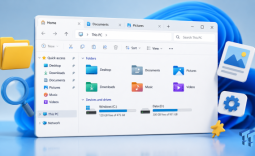
By default, File Explorer opens to Quick Access, which shows your recently used folders and files. However, we often need to access drives and storage locations instead. Thankfully, you can force File Explorer to open directly to "This PC." To do that, go to HKEY_CURRENT_USER > Software > Microsoft > Windows > CurrentVersion > Explorer > Advanced.
In the right pane, right-click and select New > DWORD (32-bit) Value, then name it "LaunchTo." Double-click it, set its value to "1," and click "OK." Restart your PC to apply the changes.

Registry Editor is a powerful tool that, when used carefully, can significantly improve your workflow. As a reminder, you'll always need to restart File Explorer or your computer for any changes to take effect. Also, if any of the tweaks above don't work, it may be because you're using a Windows version that doesn't support that particular change.