












Is your Windows laptop plugged in, but the battery isn't charging at all? While it may seem like a serious hardware issue, that's not always the case. It could also be caused by residual power, corrupted drivers, charging limits, or misconfigured power settings. Here's how to identify the root cause and fix the problem.
Inspect the Charger, Charging Port, and Power Source

Before diving into the main troubleshooting steps, you should first rule out any potential issues with the charger, charging port, and power source. Make sure the charger is securely plugged into both the laptop and the wall outlet. If everything looks fine, try a different outlet to rule out a faulty socket or power strip.
Then, take a close look at the charging port for any dust or debris, as even tiny particles can disrupt the connection. Check for visible damage inside the port as well. After that, inspect the charger for wear and tear - such as frayed cables, bent connectors, or loose wiring-that could affect power delivery.
If all these components appear to be working properly, you can move on to the remaining troubleshooting steps.
Perform a Power Reset


Best Deals: Anker 65W 3-Port USB C Charger
Price Trend:
Prices last scanned 1 minute ago

7 days ago: $29.99 USD30 days ago: $24.99 USD
7 days ago: $37.99 CAD30 days ago: $34.98 CAD


Residual charge in your system can sometimes interfere with the charging process. Performing a power reset (also known as a hard reset) can clear any residual charge and allow your laptop to properly reinitialize its components. If your laptop has a removable battery, shut it down, unplug the charger, and remove the battery.
Then, press and hold the power button for 15-20 seconds to drain any remaining power. After that, reinsert the battery, plug the charger back in, and see if it starts charging.
If your laptop has a non-removable battery, simply unplug the charger and hold the power button for 15-20 seconds before turning it back on.
Our Latest TweakTown Guides
- Using Multiple Monitors? Change these Windows settings for a Better Experience
- Windows Sandbox is The Windows Security Feature Most People Never Use
- I ditched the Windows 11 context menu for this open-source tool, and here's why
- Windows 11 may be encrypting your drive already, and I checked where my recovery key went
- I swapped File Explorer for this free file manager and finally got the layout I wanted
Review Battery Charge Limits
Modern laptops often include a feature that limits battery charging to a certain percentage - such as 80% - to help extend battery lifespan. When this limit is reached, charging may stop and won't resume unless the battery level drops below that threshold. So, if your laptop consistently stops charging at the same percentage, this setting could be the reason.
To check, open your laptop's battery management app and look for options like Battery Health, Battery Care, or Charge Limit. If a charge limit is enabled, you can turn it off to allow the battery to charge to 100%. However, keep in mind that this feature is designed to improve long-term battery health, so turning it off may affect battery longevity.

Check the Battery Health
Over time, a laptop battery degrades and loses its ability to hold or accept a charge. As a result, it may drain quickly or even fail to charge properly. So, if your laptop isn't charging, it's important to check whether the battery itself is failing. You can do this by running a simple command to generate a battery health report.

Press Win + S, type cmd, right-click Command Prompt, and select "Run as Administrator." Then run the following command:
powercfg /batteryreport
Windows will generate a report and provide the file path where it's saved. Open the report and compare the Design Capacity with the Full Charge Capacity. A decent difference between the two indicates battery wear. If the battery health appears poor, you can use third-party apps to run further diagnostics and confirm whether it's time to replace the battery.
Reinstall Battery Drivers
Corrupted battery drivers can also cause charging issues, so it's worth updating them to rule this out. To do this, right-click the Start button and open "Device Manager." Then expand the "Batteries" section, right-click "Microsoft ACPI-Compliant Control Method Battery," "Microsoft AC Adapter," or a similar entry, and choose "Update Driver."

If updating doesn't help, try reinstalling the drivers instead. Right-click each of these drivers and select "Uninstall Device." After that, restart your laptop, and Windows should automatically reinstall them. If it doesn't, open Device Manager, click the "Action" tab at the top, and select "Scan for Hardware Changes."

Adjust Power Settings
Misconfigured power settings can sometimes interfere with proper charging. If none of the above fixes work, resetting your power settings to their defaults may help - especially if you've modified them with third-party software. To reset them, press Win+S, type Control Panel, and open it. Then go to Hardware and Sound > Power Options.
Next, click "Change Plan Settings" next to your active power plan and select "Restore default settings for this plan." Confirm by clicking "Yes" when prompted.

Additionally, if you're using any third-party battery or power management software, consider disabling or uninstalling it, as it may override Windows settings and cause conflicts.
If your charger and battery are working properly, the fixes above should help resolve the issue and get your laptop charging again. If these solutions don't help - even after confirming that the charger and battery are fine - there may be an internal hardware problem. In that case, it's best to have your laptop inspected by a technician.


 Using Multiple Monitors? Change these Windows settings for a Better Experience
 Windows Sandbox is The Windows Security Feature Most People Never Use
 I ditched the Windows 11 context menu for this open-source tool, and here's why
 Windows 11 may be encrypting your drive already, and I checked where my recovery key went
 I swapped File Explorer for this free file manager and finally got the layout I wanted
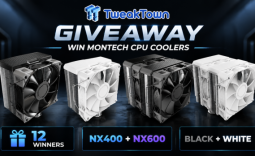 Giveaway: 12 Winners Will Score MONTECH NX400 and NX600 CPU Coolers
 Assassin's Creed Odyssey becomes the highest-rated entry in the franchise, thanks to Nolan's 'The Odyssey'
 PlayStation gamers' planned week-long 'PS Blackout' begins today
 Nintendo Switch 2 will rise to £419.99 in the UK, starting September 1
 One retailer says 91% of attempts to buy DDR5 memory are coming from bots
 Jensen Huang signed NVIDIA RTX Pro 6000 graphics card sells for $57,450 at auction
 GTA 6 leaks have reportedly led to a morale drop at Rockstar, with Netflix frustrated as well
 The Blood of Dawnwalker won't hit 60 FPS on any console, PS5 Pro tops out at 40 FPS
 AMD claws back ground against Intel in the CPU market, climbs to 35% share in desktop CPUs
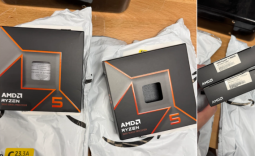 Redditor receives not one but TWO empty boxes of Ryzen 5 9600X from Amazon
 Xbox Series X25 Limited Edition Console is priced at $900, arrives November 2026
 Cooler Master MasterFan A120 Fan Review
 GIGABYTE MO27Q2A Gaming Monitor Review: 1440p, 280Hz, and QD-OLED is a winning combination
 Cooler Master V8 ACE 3DHP BLACK CPU Cooler Review
 ASUS ROG Strix XG129C Review: A $199 Gaming Monitor You Don't Play Games On
 Cooler Master HAF II 500 Mid-Tower Chassis Review
 Corsair HS35 v3 Wireless Gaming Headset Review - An Affordable Winner
 D-Link F518 5G Wi‑Fi 6 AX1800 Mobile Hotspot Review: All-Day Mobile Hotspot
 Bose Lifestyle Ultra Speaker Review - Impressively Detailed Room-Filling Sound
 MSI Z890 Gaming Plus WIFI6E Review - Z890 for under $200
 Mortal Kombat (1995) 4K Ultra HD Blu-ray Review
 GIGABYTE's 40 Days of INFINITY celebrates 40 Years of Innovation with stunning GeForce RTX graphics cards and rewards
 How to tell if someone has been using your Windows PC without your permission
 6 Task Manager tips for troubleshooting Windows performance problems
 ASUS ROG's 20th Anniversary Line-up of Premium PC Gaming Gear has Arrived - Here's Everything You Need to Know
 Six File Explorer tips every Windows user should know