

Is the sound muted on your computer, and when you hover over the speaker icon in the system tray, you see the message, "No Audio Device Is Installed"? While this message suggests that no speakers or headphones are connected, it can also appear due to driver corruption, disabled audio services, or other system issues. Here's how you can fix the problem.
Ensure Your Speakers Are Properly Connected
Before moving on to more advanced fixes, start with the most obvious check: make sure your speakers or headphones are properly connected. A loose connection can prevent Windows from detecting the audio device. So, ensure that your audio output device is firmly plugged into the correct audio port and not the microphone jack.
Next, check for any visible damage to the cable or connector. To rule out a faulty audio port, plug your speakers into a different port. You can also connect them to another device to confirm that the speakers themselves are working properly. If the issue was caused by a connection or speaker problem, the error should disappear, and the sound should work again.
Restart Audio-Related Services
Windows relies on audio services to manage sound playback. If these services stop running, your system may fail to detect the audio hardware even when it's properly connected. To rule this out, you should check that these services are running and restart them if necessary. To do this, press Win + R, type services.msc, and press Enter.
In the Services window, locate the "Windows Audio" service, right-click it, and select "Restart." Then double-click the service, set the Startup Type to "Automatic," click "Apply," and then "OK." Afterward, repeat the same steps for Windows Audio Endpoint Builder and Realtek Audio services to ensure they are also running properly.


Best Deals: Razer BlackShark V3 Pro Wireless ANC Gaming Headset
Price Trend:
Prices last scanned 5 hours and 48 minutes ago

7 days ago: $249.99 USD30 days ago: $249.99 USD
7 days ago: $359.99 CAD30 days ago: $359.99 CAD
7 days ago: £355.8030 days ago: £354.80

7 days ago: $44930 days ago: $369

Update or Reinstall the Audio Drivers
Outdated or corrupted audio drivers can also trigger the "No Audio Device Is Installed" error. Updating or reinstalling the drivers can help Windows detect and communicate with your sound hardware. To update the drivers, right-click the Start button and open "Device Manager." Then expand the "Sound, Video, and Game Controllers" section and locate your audio device.
Right-click the device, select "Update Driver," then choose "Search automatically for drivers." If updating doesn't resolve the issue, you should reinstall the driver instead. Right-click the audio device again and select "Uninstall Device," then confirm the prompt. After that, download the latest audio driver from your device manufacturer's website and install it manually.
Our Latest TweakTown Guides
- I almost uninstalled 7-Zip after File Explorer learned RAR, and then I hit the gaps
- Your Windows PC is enforcing policies you never set, and one command lists them
- Here's the four Windows 11 components I only add when a job calls for them
- I stopped reaching behind my monitors after PowerToys added this brightness control
- I stopped trusting the Startup apps tab after I opened this utility on my PC

Set the Correct Default Audio Device
Do you use multiple audio output devices? If so, Windows might be using the wrong device as the default, perhaps one you recently disconnected, making it seem like no audio device is installed. Although Windows automatically selects the currently connected device, this may not always happen. So, you'll have to set the correct audio device as the default.
To do this, right-click the Start button and open "Settings." Navigate to System > Sound, scroll down, and click "More Sound Settings." In the "Playback" tab, locate the audio device you want to use, right-click it, and select "Set as Default Device." After that, hover over the speaker icon to check if the error has been resolved.

Disable Audio Enhancements
Windows audio enhancements are designed to improve the sound quality of your audio hardware, but they can sometimes interfere with your device and cause unexpected issues. To rule out this possibility, you should disable these enhancements so your system can properly detect and use your audio hardware.
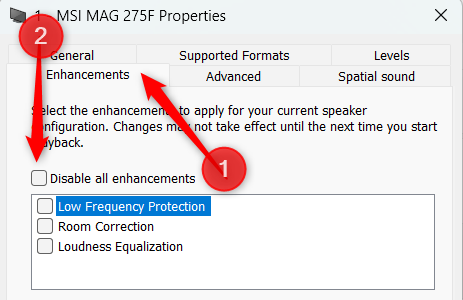
To do this, open the Sound properties window as described earlier. Go to the "Playback" tab, right-click your default audio device, and select "Properties." Next, switch to the "Enhancements" tab and check the box for "Disable All Enhancements." After disabling them, click "Apply," then "OK."
Perform a Power Flush on Your Device
Sometimes, Windows fails to detect your audio hardware because of residual power stored in your laptop or desktop. Performing a power flush can clear this leftover charge and may resolve the issue. To do this, shut down your PC, unplug the power cable, or remove the battery if you're using a laptop. Then, press and hold the power button for about 30 seconds.
This will discharge any remaining power. Afterward, reconnect the power cable or reinsert the battery, turn on your computer, and check if your audio device is now detected.
Install Optional Audio Drivers
While Windows installs most updates automatically, some updates, especially hardware-specific drivers, are marked as optional. You should check whether there's an optional update available for your audio device. To do this, open the Settings app, navigate to Windows Update > Advanced Options > Optional Updates, and expand "Driver Updates."
If you see any audio-related drivers listed, check their boxes and click "Download and Install." Once the downloads finish, click "Install All" and see if this resolves the issue.

Hopefully, following the fixes above will resolve the "No Audio Device Is Installed" error, allowing your sound to work again. If these steps don't fix the problem, you can try using System Restore to restore your computer to a time when audio was working properly. If that still doesn't help, have your device checked to rule out any potential hardware problems.