










Hate waiting forever for a big game, software update, or important file to finish downloading? While slow internet might be the culprit, it's not always the only reason. Before blaming your ISP, you should try a few simple tweaks and tricks to speed things up. Here are a few simple ways to speed up your downloads.
Turn On Parallel Downloading
Usually, when you download a file, your browser establishes just one connection to the server to fetch it. With parallel downloading, the file is split into several smaller parts, each downloaded through separate connections at the same time. Once completed, the browser merges them into one file, speeding up the download process.
To turn this feature on in Chrome or Edge:
- Open your browser and type 'chrome://flags' or 'edge://flags' in the address bar.
- Use the search bar to look for 'Parallel Downloading.'
- From the dropdown menu, select 'Enabled.'
- Restart your browser for the changes to take effect.

Switch to a Faster DNS Resolver
When you download from a website, your computer first needs to locate it. This is handled by a DNS resolver, which translates easy-to-read web addresses into IP addresses computers understand. The DNS from your ISP can sometimes be slow or unresponsive, which may interrupt or delay downloads. Switching to a faster DNS resolver can help.
Google DNS and Cloudflare DNS are among the fastest and most reliable options. To change your DNS on Windows 11:

Best Deals: Crucial T705 1TB PCIe Gen5 NVMe M.2 SSD
Price Trend:
Prices last scanned 1 hour and 26 minutes ago

7 days ago: $265.99 USD30 days ago: $259.99 USD
7 days ago: $354.90 CAD30 days ago: $298 CAD

7 days ago: $24930 days ago: $249

- Open Settings and go to 'Network & internet.'
- Select Wi-Fi or Ethernet.
- Click your active connection, then click the 'Edit' button next to 'DNS server assignment.'
- Change from 'Automatic (DHCP)' to 'Manual.'
- Turn on 'IPv4' and enter your preferred DNS servers (e.g., 1.1.1.1 and 1.0.0.1).
- Save the changes.

Close Unnecessary Tabs, Apps, or Extensions
Every bit of bandwidth matters when it comes to download speed. Cloud storage sync, Windows updates, multiple open tabs loading ads or refreshing content, and extensions running scripts can silently eat into your internet speed. Together, they leave less bandwidth available for active downloads. So, find the process consuming the most network resources and close it.
To do this, right-click the Start button, open 'Task Manager,' switch to the 'Processes' tab, locate the bandwidth-hungry process, right-click it, and select 'End Task.'
Our Latest TweakTown Guides
- 7 ways to transfer data from Android to Windows PC quickly and easily
- I read the Windows Backup app screen carefully, and it does not back up what most people think
- Low Sound Volume on Windows 11? How to fix audio issues and restore normal volume
- 8 Critical Warning Signs You Should Never Ignore in Windows 11
- This Windows security feature protects Documents from ransomware, but it is off by default

Also, close unnecessary browser tabs, disable or remove unused extensions, pause syncing apps like OneDrive, and turn off automatic updates while downloading.
Prioritize Network Traffic for Your Device and Browser
Just like apps, tabs, and extensions can slow things down, having multiple devices sharing the same network also eats into your download speed. The simplest fix is to disconnect other devices from the internet. If that's not an option, you can prioritize your own device so it gets more bandwidth - or even give your browser higher priority over other apps.
To prioritize your device, use your router's QoS (Quality of Service) settings. Log in to your router, find 'QoS' or 'Traffic Management,' and set your device to a higher priority.

To prioritize your browser, open Task Manager, go to the 'Details' tab, right-click your browser, select 'Set Priority,' and choose 'High.'

Stop Download Speed Throttling
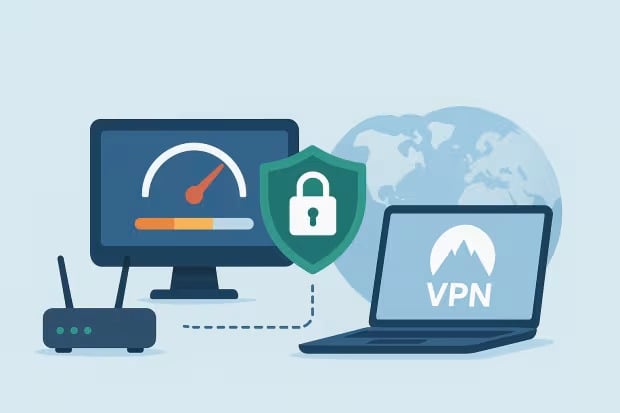
Some Internet Service Providers (ISPs) intentionally slow down your connection when you're downloading large files or games, especially during peak hours. If your internet seems fast for browsing or streaming but crawls when downloading, or slows only at certain times of day, throttling might be the cause.
To check, run speed tests at different times and compare them to your plan's advertised speed. You can also use a VPN to prevent your ISP from detecting downloads. If throttling occurs at specific times, schedule downloads during off-peak hours, such as late at night or early morning. And if it's a persistent issue, consider contacting your ISP or switching providers.
Use a Reliable Download Manager
While features like Parallel Downloading can improve speed, they often fall short for very large files like games or software. That's where a download manager comes in. These tools handle segmented downloading more efficiently by splitting files into chunks and downloading them simultaneously. Plus, they let you pause, resume, or queue multiple downloads with ease.
The big advantage is reliability-you won't have to start over if your connection drops or the internet goes out. There are plenty of options available, but the classic Internet Download Manager (IDM) remains one of the best. Most download managers also offer a browser extension, making it easy to capture and manage downloads directly from your browser.
Keep Your Browser Up to Date
It may seem obvious, but running an outdated browser can slow down your downloads. Updates often improve how the browser manages network connections and handles downloads, while also protecting you from malicious sites or corrupted files that can cause interruptions. Plus, the latest versions are better at supporting modern servers and protocols.
On Google Chrome, click the three-dot menu in the top-right corner, go to Help > About Google Chrome, and it will automatically check for and install updates.

On Microsoft Edge, open the menu, head to Help and feedback > About Microsoft Edge, and it will update itself.

These tweaks help cut out unnecessary slowdowns, ensure your device gets priority bandwidth, and speed up downloads. But if none of them make a difference, the issue might be your internet plan itself. In that case, upgrading to a faster package or switching to a more reliable ISP may be the only real fix, so you finally get the download speed you're paying for.


 7 ways to transfer data from Android to Windows PC quickly and easily
 I read the Windows Backup app screen carefully, and it does not back up what most people think
 Low Sound Volume on Windows 11? How to fix audio issues and restore normal volume
 8 Critical Warning Signs You Should Never Ignore in Windows 11
 This Windows security feature protects Documents from ransomware, but it is off by default
 HDMI 2.2 products are coming in 2027 as chip makers begin sampling FRL2 silicon this year
 Solo dev tries to make his own GTA 6 with AI, as he got tired of waiting for Rockstar
 A HandBrake update just gave Threadripper owners up to a 215% performance boost for free
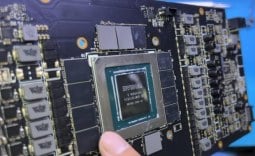 Repair channel buys ASUS RTX 4090 for $222 and finds plastic die with fake NVIDIA markings
 Epic's gen AI use deters partners, Vampire Survivors x Fortnite might get cancelled
 Sony seems to confirm singleplayer first-party PlayStation games will remain console exclusive
 NVIDIA GeForce GTX 1650 modded with 8GB of GDDR6 memory doubles performance in God of War and Unigine Superposition
 Apple will be working with Intel to design and build its chips in the USA, confirms President Donald Trump
 GTA 6 pre-order date revealed by Rockstar
 Anthropic's CEO confirms he can be fired as CEO through the company's own authority
 Speed Racer (2008) 4K Ultra HD Blu-ray Review: a stunning remaster of the cult classic
 MOAIPLAY ORA PRO G1 850W ATX 3.1 PSU Review: high efficiency and 10-year warranty for $119.99
 Navman MiVue Smart True 4K Surround Dashcam Review - Seeing In All Directions At Once
 IQUNIX Magi96 Pro Aluminum Low Profile Mechanical Keyboard Review - Premium Build, Satisfying Sound
 Asetek Forte S-Series Racing Simulator Bundle Review
 Razer Pro Type Ergo Wireless Split Ergonomic Keyboard Review - Built for Comfort and Support
 ASUS ROG Strix Morph 96 Wireless Gaming Keyboard Review - Great Performance, More Affordable
 SAPPHIRE Radeon RX 9070 GRE PULSE OC Review - A New 1440p Challenger Has Arrived
 NZXT H6 RGB+ Compact Dual-Chamber Chassis Review
 ASRock Radeon RX 9070 GRE Steel Legend Review - The RDNA 4 Mid-Range Reshuffle
 Windows 11 already has a voice typing tool, and it is the one most people are not using
 Quick Assist is the only remote-support tool I open when a relative calls about their PC
 The PowerToys utilities I keep enabled on every Windows 11 PC, and the ones I turned off within a week
 TweakTown's Best of Computex 2026 Awards - The Best Hardware, Gaming Gear, and AI
 Phison E37T SSD Controller Exclusive Preview - The Fastest DRAMless SSD Platform Yet