










I have been the designated tech person in my family for as long as I can remember, which means a steady stream of "can you take a look at this?" messages lands in my chats every week. For years, my answer has quietly been the same tool, and it was sitting in Windows the whole time. Most of the people I help still have no idea it exists.
Quick Assist is built into Windows 11, and most people scroll right past it
It's Microsoft's remote-help tool, built for exactly this kind of one-off support rather than permanent access to someone's machine. What surprises me is not that it works well, because I have leaned on it for years, but that so few people realize it is already on their PC.
On Windows 11, it ships ready to go, riding on the Edge WebView2 runtime that is already installed, so the person you are helping never has to set anything up. However, on some Windows 11 systems, you may need to install it from the Microsoft Store if it's not already present, though it's still free. Compare that to talking a relative through finding a website, running an installer, and clicking past warnings, and you can see why I reach for it first.

Starting a session is quick, which is what sold me long ago. As the helper, I press

I read that code out over the phone or paste it into a chat. On the other end, the person I am helping opens Quick Assist, drops the code into the "Get help" box, and approves the connection. That is the entire setup. They never sign in, they never create an account, and the code expires on its own, so every session has to be started fresh. The whole exchange takes less time than it once took me to explain where to find the Start button.

| Today | 7 days ago | 30 days ago | ||
|---|---|---|---|---|
 | $249.99 USD | $249.99 USD | ||
 | - | $249.99 USD | ||
| $464.99 CAD | $464.99 CAD | ||
| $464.97 CAD | $464.97 CAD | ||
| $249.99 USD | $249.99 USD | ||
| $249.99 USD | $249.99 USD | ||
 | $499 | $499 | ||
* Prices last scanned 6/10/2026 at 9:27 am CDT - prices may be inaccurate. As an Amazon Associate, we earn from qualifying purchases. We earn affiliate commission from any Newegg or PCCG sales. | ||||
It shows your screen before it ever touches anything
Here is the part that makes me comfortable using it with people who are not technical at all. When a session begins, I can only see the screen. I cannot click anything, move anything, or change a single setting. That view-only start lets me watch the problem happen and point things out while the other person stays fully in charge of their own PC.

If I actually need to fix something myself, I press "Request control" in the toolbar, and they get a prompt asking them to "Allow" or "Deny" it. Nothing escalates without that explicit yes. And even after they hand over control, they keep it too. They can pause the sharing at any moment to hide a password manager or a banking tab, or end the session outright if anything feels off. That layered approach is exactly how remote help should work.
Our Latest TweakTown Guides
- The PowerToys utilities I keep enabled on every Windows 11 PC, and the ones I turned off within a week
- USB Ports Not Working in Windows 11? Try These Fixes
- Second Monitor Not Detected in Windows 11? Try These Fixes
- Turn Your Old Smartphone Into a Dedicated Webcam for Your Windows PC
- The Send To menu is the right-click feature on Windows 11 that nobody bothers to customize

Once a session is running, I spend my time on the toolbar at the top. The laser pointer and annotation tools let me circle a button or draw an arrow without taking over, which is perfect for the "no, the other menu" moments that used to eat up entire phone calls. There is also a built-in chat channel for sending a link or a setting name when talking it out is awkward.


If the other person has more than one monitor, I can switch between displays to land on the right one. And once I have control, I can open Task Manager or restart their PC, with the session reconnecting automatically after the reboot. Most of what I get asked to fix lives right here: a stubborn printer, a display setting gone wrong, an app that needs to be installed, or an update that stalled halfway through.

Why this beats walking someone through a random remote tool
I am cautious about remote access in general, so the way Quick Assist is built matters to me. The connection runs over Microsoft's own relay on the standard secure web port, encrypted in transit, so there is no fiddling with firewalls or router settings on either end. The other person installs nothing, signs into nothing, and grants control rather than having it taken.
That said, I would be doing you a disservice if I pretended it carried no risk. Quick Assist is a favorite of tech-support scammers precisely because it is powerful and already on the machine. So the rule is simple and not up for debate: only ever run it with someone you genuinely know and trust, and never because a stranger called you or a pop-up told you to.
Quick Assist is one habit away from becoming your default
The hard part was never the tool; it was knowing what to look at once you are in. Keep a short mental checklist for your next session, from startup apps to recent update history, so you fix the actual cause instead of the symptom. Get that down, and a problem that used to mean a long, circular phone call becomes a five-minute screen share.


 The PowerToys utilities I keep enabled on every Windows 11 PC, and the ones I turned off within a week
 USB Ports Not Working in Windows 11? Try These Fixes
 Second Monitor Not Detected in Windows 11? Try These Fixes
 Turn Your Old Smartphone Into a Dedicated Webcam for Your Windows PC
 The Send To menu is the right-click feature on Windows 11 that nobody bothers to customize
 NVIDIA RTX 5000 Super GPU refreshes could arrive Q4 2026, complete with 5060 Super - but don't expect RTX 6000 until 2028
 KIOXIA SSD technology will power data centers on the lunar surface
 Xbox needs help launching next-gen Helix console
 Xbox confirms hardware costs are exploding, and that's bad news for the next Xbox and PS6
 Ubisoft is closing two studios with hundreds of employees on the chopping block
 AMD says its next-gen EPYC 'Venice' processor is over 3X faster than NVIDIA Vera
 Fable's new 30-minute gameplay deep dive shows you how to buy property, fancy clothes, and get a date
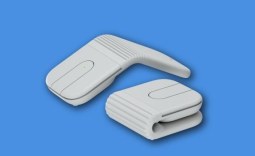 Logitech's new Mobi Fold is a portable mouse that looks like a flip phone
 Rampant fraud forces Valve to cut Steam gift card sales
 Microsoft sets a Patch Tuesday record with 206 fixes, and finally patches every zero-day Nightmare Eclipse disclosed
 MOAIPLAY ORA PRO G1 850W ATX 3.1 PSU Review: high efficiency and 10-year warranty for $119.99
 Navman MiVue Smart True 4K Surround Dashcam Review - Seeing In All Directions At Once
 IQUNIX Magi96 Pro Aluminum Low Profile Mechanical Keyboard Review - Premium Build, Satisfying Sound
 Asetek Forte S-Series Racing Simulator Bundle Review
 Razer Pro Type Ergo Wireless Split Ergonomic Keyboard Review - Built for Comfort and Support
 ASUS ROG Strix Morph 96 Wireless Gaming Keyboard Review - Great Performance, More Affordable
 SAPPHIRE Radeon RX 9070 GRE PULSE OC Review - A New 1440p Challenger Has Arrived
 NZXT H6 RGB+ Compact Dual-Chamber Chassis Review
 ASRock Radeon RX 9070 GRE Steel Legend Review - The RDNA 4 Mid-Range Reshuffle
 ASRock Z890 Taichi Aqua Motherboard Review - Flagship features without the flagship price
 TweakTown's Best of Computex 2026 Awards - The Best Hardware, Gaming Gear, and AI
 Phison E37T SSD Controller Exclusive Preview - The Fastest DRAMless SSD Platform Yet
 ASUS WiFi Routers and Networking Solutions Deliver Long-term Security and Reliability with No Additional Cost
 Windows 11 will not let you pin a folder to the taskbar, but a 30-second workaround does
 ASUS ProArt Displays Unlock Creativity with Professional Monitors for Everyone