

Does your internet feel lightning-fast on your phone but painfully slow on your PC? If so, issues like a weak Wi-Fi adapter, bandwidth-hogging downloads, router restrictions, or even a VPN connection could be slowing things down. Here are the fixes you should try to identify the cause of the slowdown and get your PC's internet speed closer to what you experience on your phone.
Confirm the Internet Is Actually Slower on Your PC
First, make sure your internet is actually slower on your PC and that you're not just assuming it is. Place your computer and phone at roughly the same distance from the router, then disconnect all other devices from the network. After that, use the same reliable speed test website on both devices and compare the results.
If both devices deliver similar speeds, your internet may not actually be slower on the PC - you might just be assuming it is. However, if your PC consistently gets lower speeds, run the same test again at a different time of day. This helps rule out temporary network congestion caused by other users placing additional load on the network while the PC is in use.

After confirming that your computer is genuinely getting slower speeds, move on to the remaining fixes.
Check the Wi-Fi Adapter Your PC Uses
Once you've confirmed that your computer is actually experiencing slower internet speeds, the next step is to check your Wi-Fi adapter, as an older one can limit performance.

Best Deals: Samsung 9100 PRO 1TB SSD
Price Trend:
Prices last scanned 17 hours and 22 minutes ago

7 days ago: $249 USD30 days ago: $249 USD

7 days ago: $249.99 USD30 days ago: $249.99 USD
7 days ago: $464.97 CAD30 days ago: $464.97 CAD
7 days ago: $464.99 CAD30 days ago: $464.99 CAD

7 days ago: $49930 days ago: $499
For example, Wi-Fi 4 can have a theoretical maximum of around 450 Mbps, but often caps real-world speeds at 100 - 150 Mbps. Wi-Fi 5 supports up to about 3.5 Gbps in theory, but in the real world, it is usually 200 - 900 Mbps. Wi-Fi 6/6E theoretically supports up to 9.6 Gbps, though real-world performance is typically around 1.2 - 1.8 Gbps depending on conditions.
Open Device Manager, expand "Network Adapters," then double-click your Wi-Fi adapter to view its details and identify which one you're using. If you see an older standard, it likely explains the speed limitation. In that case, upgrading to a newer Wi-Fi adapter can help you make better use of the full speed your internet connection is capable of delivering.
Our Latest TweakTown Guides
- Snipping Tool handles most of my screenshots, but this open-source app still does the jobs it can't
- I almost uninstalled 7-Zip after File Explorer learned RAR, and then I hit the gaps
- Your Windows PC is enforcing policies you never set, and one command lists them
- Here's the four Windows 11 components I only add when a job calls for them
- I stopped reaching behind my monitors after PowerToys added this brightness control

Switch to a Faster Wi-Fi Frequency Band
Your computer's internet might be slower because it's connected to the 2.4 GHz frequency band, which offers longer range and better wall penetration but slower real-world speeds, while the phone might be using the 5 GHz one, which works better for shorter ranges but offers much higher speeds. So, you should check which band you're using.
To do this, right-click the Start button and open "Device Manager." Next, expand the "Network Adapters" category, right-click your Wi-Fi adapter, and select "Properties." Then, go to the "Advanced" tab, select "Preferred Band" under "Property," and select "5 GHz" under Value. Then, click "OK."

To check which band your PC is using, go to Network and Internet > Wi-Fi > Hardware Properties, and look next to "Network Band." If it still shows only 2.4 GHz, you should enable the 5 GHz band from the router settings and configure separate SSIDs for each frequency, so you can manually connect to the preferred one.
Check for Router Restrictions or Bandwidth Limits
Routers include a Quality of Service (QoS) feature that enables bandwidth management, such as prioritizing certain devices, limiting per-device speeds, or applying traffic rules. If someone else controls your router, they may have configured speed limits or scheduled bandwidth restrictions, which can cause your PC to run slower than your smartphone.
If you're not the admin, ask the person in charge to check whether your device has any restrictions. If you are the admin, log in to the router's control panel, open the "QoS" settings, and confirm that your device isn't being limited. If certain devices are prioritized, you can adjust the settings to distribute bandwidth more evenly, but only if you have permission.

Disconnect Other Devices and Disable VPNs/Proxies
Do you use your computer and smartphone at different times of the day? If so, it's possible that when you're on your PC, other devices - like smart TVs streaming video, phones syncing cloud backups, or background downloads - are consuming most of the bandwidth, leaving less available for your computer.
When you use your phone, those devices may be inactive, which is why speeds feel better. To check this, disconnect other devices from the network and see if the performance improves.
Also, are you using a VPN or proxy? These can increase routing distance, slow down your connection, or create bottlenecks. It's a good idea to disable them temporarily. Go to Settings > Network and Internet > VPN/Proxy and turn off anything active. If you're using a browser VPN extension or third-party security software with built-in VPN features, disable those as well.

Monitor and Control Background Network Usage
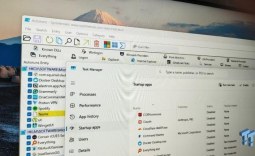
Even if your laptop is receiving the same bandwidth as your phone, background processes can still quietly use up network resources. Phones typically run fewer background tasks, which is why they may feel faster in comparison. To check this, press

This will sort processes by network consumption, so you can easily see which processes are using the most bandwidth. First, stop any active downloads from browsers, game launchers, or other apps running on your PC. If you use cloud storage services like Microsoft OneDrive or Google Drive, temporarily pause cloud syncing while using your PC.
If the high network usage is caused by Windows Update, temporarily pause updates and configure Windows to avoid downloading updates during active hours. If the bandwidth usage is linked to an unfamiliar process, right-click it, select "Open File Location," and inspect the source folder or application.
If it appears suspicious or comes from an unknown app, it could be malware consuming bandwidth, so remove it and run a full system scan.
Disable Wi-Fi Power Saving
If you're experiencing this issue on a Windows laptop, Windows may be limiting the network adapter's performance to save battery power. To prevent this, right-click the Start button and open Device Manager. Expand "Network Adapters," right-click your Wi-Fi or Ethernet adapter, and select "Properties."
Next, open the "Power Management" tab and uncheck "Allow the computer to turn off this device to save power."

Whether the slowdown is caused by router restrictions, background processes, or other devices hogging the bandwidth, the fixes above should help you narrow down the root cause. If none of them help, your Internet Service Provider (ISP) may be throttling certain activities. To verify this, try the same activity on another computer and check if the issue persists.
If it does - or if you suspect some other type of restriction - contact your ISP and explain the problem. They may be able to identify the cause and help resolve it. If that still doesn't solve the issue, your final option should be to switch to an Ethernet connection, which is more stable and offers better speeds than Wi-Fi.