










Ethernet is meant to be faster and more stable than Wi-Fi, so if your wired connection is slower than your wireless one, something isn't right. This is often caused by hardware bottlenecks, system limitations, misconfigured router settings, outdated drivers, or similar issues. Here's how to pinpoint the cause and fix the problem.
Confirm Ethernet Is Actually Slower Than Wi-Fi
Before starting the troubleshooting process, make sure your Ethernet connection is actually slower than Wi-Fi and not just assumed to be. To do this, connect your computer to the internet via Ethernet and run a speed test using a reliable online speed test tool. Then disconnect, switch to Wi-Fi, run the test again, and note the download speeds you get.

While testing, pause all downloads and close background apps. Also, don't rely on a single result - run multiple tests and compare the average speeds. If possible, test at different times of the day to rule out temporary fluctuations. If Ethernet consistently performs worse, you can then move on to troubleshooting.
Check If It's Device-Specific or a General Issue
After confirming that your Ethernet connection is slower, the next step is to determine whether the issue is limited to a specific device or affecting the entire network. This helps you determine whether the issue is due to hardware problems - such as a faulty or low-end cable or router limitation - or software issues like misconfigured settings or outdated drivers.
To check, run the same Wi-Fi and Ethernet speed tests on another device at home and compare the results. If Ethernet is slow on both devices, you should focus on hardware fixes or router-related adjustments. If the issue only occurs on one device, it's likely device-specific and may require software-related fixes.
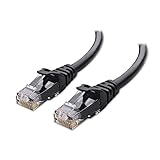
Best Deals: Cable Matters Cat 6 Ethernet Cable
Price Trend:
Prices last scanned 3 hours and 13 minutes ago

7 days ago: $9.99 USD30 days ago: $9.99 USD
7 days ago: $16.99 CAD30 days ago: $16.99 CAD


Rule Out Physical Bottlenecks
If you think your Ethernet cable or router might have a hardware issue or limitation, first ensure there are no physical bottlenecks in the setup.
Start by checking if you're using an older Ethernet cable that may limit your connection speed. For instance, Cat5 cables are limited to 100 Mbps, which may be why your Ethernet connection feels slow. If you're using a lower-grade cable, upgrading to a Cat6 cable can help deliver higher speeds that better match your internet plan.
Our Latest TweakTown Guides
- 7 ways to transfer data from Android to Windows PC quickly and easily
- I read the Windows Backup app screen carefully, and it does not back up what most people think
- Low Sound Volume on Windows 11? How to fix audio issues and restore normal volume
- 8 Critical Warning Signs You Should Never Ignore in Windows 11
- This Windows security feature protects Documents from ransomware, but it is off by default

Next, make sure your router supports Gigabit Ethernet (1 Gbps) and that you're plugged into a LAN port that actually delivers those speeds. Try different Ethernet ports on the router, as some may be limited. Also, remove any intermediate devices like switches, extenders, or adapters, since they can reduce overall speed if they're not Gigabit-capable.
Finally, verify that your computer's Ethernet adapter itself supports Gigabit speeds, as older network cards can also become a hidden bottleneck.
Tweak Router Configuration
Misconfigured router settings can also reduce Ethernet performance, so you should rule this out. Start by checking QoS (Quality of Service) settings, which prioritize certain devices or traffic. If misconfigured, they can limit Ethernet speeds, so try disabling QoS temporarily to see if the issue resolves. If it does, review the settings for restrictions or consider resetting them.

Next, make sure your router firmware is fully updated. Also, review or turn off features such as traffic filtering, parental controls, or any bandwidth limits set for individual devices. You can also power cycle the router to eliminate temporary glitches. Additionally, incorrect TCP/IP tuning can impact Ethernet performance, so revert any network tweaks you may have applied.
Make Sure Network Adapter Speed Isn't Limited
If the issue is limited to a single device, first check whether your network adapter is configured to run at a reduced speed. To view the current link speed, go to Settings > Network & Internet > Ethernet, select your network, and check the Link Speed (Receive/Transmit). If it shows a low value like 100 Mbps despite a faster connection, you may need to adjust the settings.
To change the limit, press Win + R, type "ncpa.cpl," and press Enter. Then right-click your Ethernet adapter and choose "Properties." Click "Configure," go to the "Advanced" tab, and select "Speed & Duplex." If it's set to a lower value, change it to "1.0 Gbps Full Duplex." Finally, click "OK" and restart your connection.

Update or Reinstall Ethernet Drivers
Outdated or corrupted Ethernet drivers can also reduce network performance, so it's important to rule this out. Start by updating the drivers: open Device Manager, expand "Network Adapters," right-click your Ethernet adapter, and select "Update Driver," then choose "Search Automatically for Drivers." If that doesn't help, you can reinstall the driver.

Right-click the Ethernet adapter again and select "Uninstall Device." After that, download the latest driver from the manufacturer's website and install it manually.
Turn Off Power-Saving
Although it's rare, Windows power-saving features can sometimes reduce Ethernet performance by putting the network adapter into a low-power state. To rule this out, open Device Manager, expand "Network Adapters," right-click your Ethernet adapter, and select "Properties."

Then go to the "Power Management" tab, uncheck "Allow the computer to turn off this device to save power", and click "OK."
Reset the Network Adapter
If none of the above solutions work, your final option is to reset the network adapter. This will clear misconfigurations, cached network data, and temporary glitches that may be affecting speed. To do this, open the Settings app, go to Network & Internet > Advanced Network Settings > Network Reset, then click "Reset Now" and confirm.
Keep in mind that this will remove saved network settings, so you'll need to reconnect to Wi-Fi networks and reconfigure any VPNs or static IP settings afterward.

The fixes above should help you narrow down the cause, identify the issue, and resolve it. If the problem continues and appears on all devices, it may be due to ISP throttling or another hardware issue you may have missed. In that case, you should contact your Internet Service Provider for further assistance.


 7 ways to transfer data from Android to Windows PC quickly and easily
 I read the Windows Backup app screen carefully, and it does not back up what most people think
 Low Sound Volume on Windows 11? How to fix audio issues and restore normal volume
 8 Critical Warning Signs You Should Never Ignore in Windows 11
 This Windows security feature protects Documents from ransomware, but it is off by default
 AMD plans to increase the price of its graphics cards by 10-15% in the second half of 2026
 Black Myth Wukong mirrors GTA V success with 30 million copies sold in less than 2 years
 Steam Controller supply can't keep up with demand, Valve pushes orders to 2027
 Steam Machine shipments spotted, as Valve is rumored to launch the gaming PC next week
 HDMI 2.2 products are coming in 2027 as chip makers begin sampling FRL2 silicon this year
 Solo dev tries to make his own GTA 6 with AI, as he got tired of waiting for Rockstar
 A HandBrake update just gave Threadripper owners up to a 215% performance boost for free
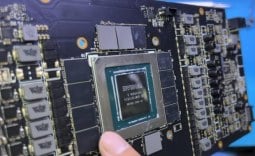 Repair channel buys ASUS RTX 4090 for $222 and finds plastic die with fake NVIDIA markings
 Epic's gen AI use deters partners, Vampire Survivors x Fortnite might get cancelled
 Sony seems to confirm singleplayer first-party PlayStation games will remain console exclusive
 UGREEN FineTrack Mini 2 Air Tracker Tag Review - Long battery life, lesser performance
 Speed Racer (2008) 4K Ultra HD Blu-ray Review: a stunning remaster of the cult classic
 MOAIPLAY ORA PRO G1 850W ATX 3.1 PSU Review: high efficiency and 10-year warranty for $119.99
 Navman MiVue Smart True 4K Surround Dashcam Review - Seeing In All Directions At Once
 IQUNIX Magi96 Pro Aluminum Low Profile Mechanical Keyboard Review - Premium Build, Satisfying Sound
 Asetek Forte S-Series Racing Simulator Bundle Review
 Razer Pro Type Ergo Wireless Split Ergonomic Keyboard Review - Built for Comfort and Support
 ASUS ROG Strix Morph 96 Wireless Gaming Keyboard Review - Great Performance, More Affordable
 SAPPHIRE Radeon RX 9070 GRE PULSE OC Review - A New 1440p Challenger Has Arrived
 NZXT H6 RGB+ Compact Dual-Chamber Chassis Review
 Windows 11 already has a voice typing tool, and it is the one most people are not using
 Quick Assist is the only remote-support tool I open when a relative calls about their PC
 The PowerToys utilities I keep enabled on every Windows 11 PC, and the ones I turned off within a week
 TweakTown's Best of Computex 2026 Awards - The Best Hardware, Gaming Gear, and AI
 Phison E37T SSD Controller Exclusive Preview - The Fastest DRAMless SSD Platform Yet