There's nothing more frustrating than being in the middle of an urgent task or an important call when your internet starts dropping. Sometimes the problem is simply a temporary issue with your ISP, but other times it can stem from your operating system. If your internet keeps disconnecting, follow these steps to stabilize it.
Ensure the Issue Isn't With Your ISP
Before adjusting any settings on your computer or tinkering with your router, make sure the issue isn't coming from your internet service provider. Temporary outages, unstable broadband lines, or maintenance work should cause connection drops across all devices in your home - phones, tablets, smart TVs, and more.
Grab another device and connect it to the internet to see if the problem persists on that device as well. If it does, the issue is likely related to your router or ISP. To rule out your ISP, contact their support team or check with neighbors using the same provider to see if they're experiencing similar problems. If they are, you'll need to wait for the ISP to resolve it.
After applying each fix, test your Wi-Fi to see if the issue continues. This way, you can identify the exact cause and prevent similar problems in the future.
Rule Out Router Issues
Once you've determined the problem is on your end, check your router for potential issues. Firmware glitches, overheating, or too many connected devices can all cause intermittent internet drops. Start by unplugging the router, waiting 30-60 seconds, and then plugging it back in - this clears temporary glitches and refreshes network connections.
Next, make sure your router's firmware is up to date through its admin interface. If multiple devices are connected, try disconnecting some to reduce the load. If the problem persists, connect your laptop to a different Wi-Fi network to see if the issue occurs there. If it works fine on another network, consider resetting your router to factory settings.
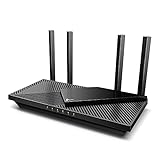
Best Deals: TP-Link Archer AX55 Wi-Fi 6 Router
Price Trend:
Prices last scanned 3 hours and 52 minutes ago

7 days ago: $89.99 USD30 days ago: $89.99 USD

7 days ago: $89.99 USD30 days ago: $89.99 USD
7 days ago: $97.28 CAD30 days ago: $99.99 CAD
7 days ago: $108.98 CAD30 days ago: $107.98 CAD

7 days ago: $12930 days ago: $145
Turn Off Wi-Fi Power Saving Mode
Windows 11 includes a power-saving feature that limits the activity of certain hardware, including your Wi-Fi adapter, to conserve battery life. This can cause your laptop to disconnect from Wi-Fi, especially when the battery is low. To rule this out, you should disable Wi-Fi power saving. To do that, right-click the Start button and open "Device Manager."
Our Latest TweakTown Guides
- I audited every credential Windows had stored for me and deleted three-quarters of them
- The Complete Windows 11 Tweaking Guide for 2026: What to Change and What to Avoid
- Using Multiple Monitors? Change these Windows settings for a Better Experience
- Windows Sandbox is The Windows Security Feature Most People Never Use
- I ditched the Windows 11 context menu for this open-source tool, and here's why
Expand "Network Adapters," right-click your Wi-Fi adapter, and select "Properties." In the "Power Management" tab, uncheck "Allow the computer to turn off this device to save power".

Check for Interference From Nearby Networks
Windows 11 can automatically connect to Wi-Fi networks when they're in range. While this feature is convenient and saves you from manually connecting to the internet each time, enabling it across multiple networks can cause your computer to switch between them, leading to repeated Wi-Fi disconnects.
To prevent this, disable the "Connect Automatically" option for all networks except your main one. Open Settings, go to Network & Internet > Wi-Fi > Manage Known Networks, open each secondary network, and uncheck "Connect Automatically When in Range." Then, make sure this option remains enabled for your main network.

Update or Roll Back Your Wi-Fi Drivers
Drivers serve as the link between your hardware and the operating system, so if your Wi-Fi drivers are outdated or corrupted, your connection may become unstable. To keep your drivers compatible with your router and OS, update them to the latest version. Open Device Manager, expand "Network Adapters," right-click your Wi-Fi adapter, and select "Update Driver."
Then choose "Search Automatically for Drivers" to let Windows find the latest version. You can also download drivers directly from your ISP or device manufacturer and install them manually.

If the issue started after a recent driver update, rolling back the driver may help. To do this, right-click your Wi-Fi adapter, select "Properties," go to the "Driver" tab, and click "Roll Back Driver."

Reset Your Network Settings
If none of the previous fixes work and your Wi-Fi keeps disconnecting randomly, a network reset can help resolve underlying configuration issues. This will remove any corrupted or conflicting network settings and restore all network-related configurations-Wi-Fi, Ethernet, VPNs, and Bluetooth-to their default state.
To reset your network on Windows 11, right-click the Start button and open "Settings." Go to Network & Internet > Advanced Network Settings, scroll down, and select "Network Reset." Click "Reset Now" and confirm. Your PC will restart automatically. Afterward, reconnect to your Wi-Fi network, re-enter your password, and check if the connection issues are resolved.

If the problem is due to any of the factors mentioned above, the suggested fixes should resolve it. However, if the issue continues, you can try changing your router's Wi-Fi channel, switching between the 2.4 GHz and 5 GHz bands, or updating Windows to the latest version. Also, temporarily disabling VPNs or third-party firewall software.