Newsletter IconFacebook IconX IconThreads IconInstagram IconYouTube IconPinterest Icon
Giveaway: MSI GeForce RTX 5070 World of Warcraft: Midnight GPU and MAESTRO 500

NVIDIA App overlay finally adds CPU temperature and clock speed monitoring

CPU temperature is currently a single overall reading rather than per-core data, and the overlay still lacks VRAM and system RAM usage.

NVIDIA App overlay finally adds CPU temperature and clock speed monitoring
Facebook IconX IconReddit Icon
Comments
Senior Tech Reporter
Published
1 minute & 15 seconds read time
TL;DR: NVIDIA App 11.0.9 quietly added CPU temperature, clock speed, and power metrics to its overlay, viewable via Alt+Z → Statistics → Custom and toggled with Alt+R. It shows overall CPU temp (not per-core) and still omits VRAM and system RAM usage, so dedicated monitors remain necessary.
Voice: Hassam Nasir
0:00 / 2:21
Use left and right arrow keys to seek audio.

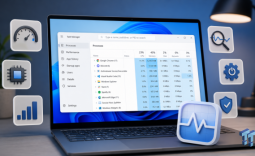
NVIDIA's built-in statistics overlay has quietly picked up one of its most requested missing features. Version 11.0.9 of the NVIDIA App adds CPU temperature, clock speed, and power consumption to the overlay.

NVIDIA notably did not mention the addition in the official 11.0.9 release notes, which only document DLSS 4.5 Ray Reconstruction, per-application Resizable BAR controls, and a handful of interface changes. It went largely unnoticed until Reddit picked it up.

Popular Now: Kojima shares details on Sony breakup, says PlayStation abruptly cancelled PHYSINT months ago

It's worth mentioning that NVIDIA has offered CPU monitoring through its separate FrameView utility for years, but those metrics were not available in the NVIDIA App's own in-game statistics. The new update finally brings them directly into the same interface used for GPU, FPS, and DLSS information.

To enable the new metrics, open the NVIDIA App and press Alt+Z to bring up the overlay. Head into the Statistics section at the bottom, switch to Custom view, and toggle the overlay on with Alt+R. From there, you can pick which stats appear, adjust font size and colour, and choose between a horizontal readout or a vertical stack if you have a lot on screen at once. You can enable CPU temperature, clock speed, and power alongside the existing GPU, FPS, and DLSS information.

NVIDIA App overlay finally adds CPU temperature and clock speed monitoring 1

It is a genuinely useful update for most GeForce users, and for anyone running DLSS it means you can now confirm which preset is actually active in a given game while keeping an eye on CPU numbers at the same time, all without opening a third-party app.

Frequently Asked Questions

Open a question for an answer from TweakTown's coverage of this news, or ask your own below.

Question #1

How do you turn on the new CPU temperature and clock speed stats in the NVIDIA App overlay?

Open the NVIDIA App and press Alt+Z to bring up the overlay. Go to Statistics at the bottom, switch to Custom view, and turn the overlay on with Alt+R. After that, you can select CPU temperature and clock speed, along with any other stats you want to display.
Question #2

Which NVIDIA App version adds CPU monitoring to the in-game statistics overlay?

Question #3

Does the new overlay show per-core CPU temperatures or only one overall reading?

It shows only one overall CPU temperature reading, not per-core temperatures. The overlay adds CPU temperature, clock speed, and power, but it still does not break CPU thermals down by core.
Question #4

What CPU-related metrics can the NVIDIA App overlay now display alongside GPU and FPS data?

Have a question about this content not listed here? Ask below and TweakBot will answer it.

That said, it is not a full replacement for dedicated monitoring software yet. CPU temperature is currently a single overall reading rather than per-core data, and the overlay still lacks VRAM and system RAM usage. Anyone who needs that level of detail will still want RTSS or HWiNFO running alongside it.

Photo of the MSI Gaming RTX 3050 Ventus 2X 6G OC Graphics Card

Best Deals: MSI Gaming RTX 3050 Ventus 2X 6G OC Graphics Card

Prices last scanned 4 hours and 39 minutes ago

* Prices may be inaccurate. As an Amazon Associate, we earn from qualifying purchases. We earn affiliate commission from any Newegg or PCCG sales.

Join Our Newsletter

Join the TweakTown Newsletter for daily tech updates delivered to your inbox.

See previous giveaways.

News Source:digitalfoundry.net

Comments

About the author

Senior Tech Reporter

Hassam is a veteran tech journalist and editor with over eight years of experience embedded in the consumer electronics industry. His obsession with hardware began with childhood experiments involving semiconductors, a curiosity that evolved into a career dedicated to deconstructing the complex silicon that powers our world. From benchmarking PC internals to stress-testing flagship CPUs and GPUs, Hassam specializes in translating high-level engineering into deep, unbiased insights for the enthusiast community.

Stay Updated

Follow TweakTown for breaking tech news, reviews, and daily updates.

Add TweakTown as a preferred source on GoogleFind TweakTown on Apple News
Newsletter Subscription