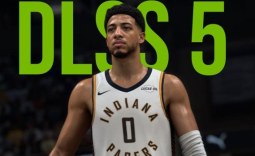
If you've been keeping up with news from the world of PC gaming and graphics technologies, then you've probably seen a story or two about DLSS 5. Although NVIDIA's groundbreaking Neural Rendering tech is only officially available in a single title, NBA 2K27, with the .dll leaking ahead of its launch, modders have been hard at work expanding DLSS 5's reach to just about any game.

With a tool like DLSS Swapper, adding DLSS 5 support to critically acclaimed, visually impressive games like Red Dead Redemption 2 and Cyberpunk 2077 is as easy as pressing a single button. Modders have unlocked DLSS 5 support for older GeForce RTX 20, 30, and 40 Series GPUs, AMD's RDNA 4 line-up, and popular emulators, so DLSS 5 can even be applied to original PlayStation games from the 1990s.
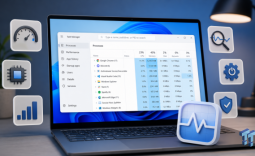
Although all of the above is unofficial and an unintended use of DLSS 5 when enabled in a game like NBA 2K27, it's wild that in a few short weeks DLSS 5 went from a controversial "AI filter" to something genuinely fascinating and impressive. And now, with the NeuralScreen app from perseval_BLR on GitHub, you can actually enable DLSS 5 on your Windows 11 desktop.
- Read more: DLSS 5 has been modded into Skyrim, and it definitely transforms character faces
- Read more: NVIDIA confirms DLSS 5's official release date, it's out this week for NBA 2K27
- Read more: Modder implements DLSS 5 into Control using DLL from NBA 2K 27, mod drops performance from 71 FPS to 35 FPS on an RTX 5070 Ti
Now, you might be wondering why you would want to enable DLSS 5 when you're simply in Windows, browsing and checking emails. That's a good question, and DLSS 5 doesn't really alter the standard Windows 11 desktop wallpaper or text in a meaningful way, not that we were expecting it to.
However, because DLSS 5 Neural Rendering applies to everything you see on-screen, you can use it for watching videos on YouTube, viewing pictures, playing games in a window, and more. NeuralScreen also comes with a simple UI that lets you switch between different DLSS 5 models, adjust the intensity sliders, and even see the before-and-after effect with a handy slider.

Frequently Asked Questions
Open a question for an answer from TweakTown's coverage of this news, or ask your own below.
How do you install and run NeuralScreen on Windows 11?
Which DLSS 5 models can NeuralScreen switch between?
Does NeuralScreen work with games in windowed or borderless mode only, or across the whole desktop?
Can DLSS 5 be applied to videos and images without affecting desktop text and wallpapers too much?
Have a question about this content not listed here? Ask below and TweakBot will answer it.

With that, we decided to see what DLSS 5 looks like in Grand Theft Auto 6 using the strong, cinematic setting. Watching the recent gameplay debut in 4K is pretty wild, and although the result might not match the game's overall aesthetic, cranking the DLSS 5 intensity sliders all the way up still makes it transformative. Here's GTA 6, with DLSS 5 Off versus DLSS 5 On.