












Need to print something important, but your printer has suddenly stopped working? It can quickly disrupt your workflow. In many cases, the problem is something simple, such as a loose cable or a stuck print queue. Other times, it may be caused by a driver issue or a Windows service. Here's how to identify the cause and get your printer working again.
Check the Printer Is Powered, Connected, and Ready
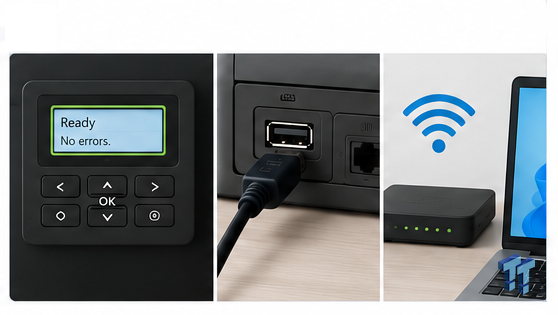
Before troubleshooting Windows, make sure the problem isn't with the printer itself. Start by checking that the printer is powered on and, if it has a display, that it isn't displaying any errors or warnings. If you see alerts about a paper jam, low or empty ink/toner, an open cover, or required maintenance, resolve those issues first and then try printing again.
If the printer doesn't have a display or isn't responding, check the connection. For a USB printer, make sure the cable is connected to both the printer and your PC. You can also try a different USB port or cable to rule out a faulty connection. If you're using a wireless printer, confirm that it's connected to your Wi-Fi network and that it's on the same network as your computer.
Finally, ensure there's enough paper in the input tray, it's loaded correctly, and there are no paper jams. Restarting both the printer and your computer is also worth trying.
Make Sure Windows Can Detect the Printer
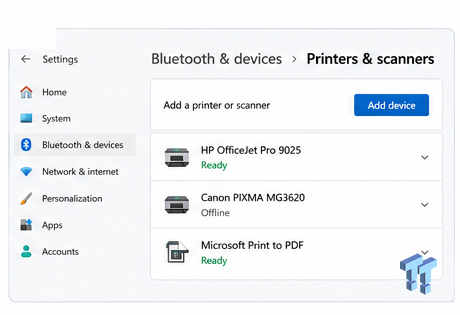
Once you've confirmed that the printer itself is working, the next step is to ensure Windows can detect it. Open the Settings app, go to Bluetooth & Devices > Printers & Scanners, and check whether your printer appears in the list. If it does, select it and check its status. If Windows shows the printer as Offline, Unavailable, or Needs Attention, you'll need to resolve that issue.

Best Deals: HP OfficeJet Pro 9125e Wireless All-in-One Color Inkjet Printer


If the printer doesn't appear at all, try adding it again. Click "Add Device" and let Windows search for nearby printers, then follow the on-screen instructions to complete the setup. If Windows detects the printer but it still doesn't work, remove it and add it again. If you're using a USB printer, also ensure the cable is connected and try a different USB port if necessary.
Set Your Printer as the Default Printing Device
Do you have multiple printers set up at home or in the office? If so, Windows may be sending your print jobs to the wrong device - whether it's an old printer, a network printer, or even the virtual Microsoft Print to PDF printer. When that happens, the printer you're trying to use won't receive the document, which can make it seem like it's not working.
Our Latest TweakTown Guides
- The Ultimate Guide to Personalizing Your Windows 11 Taskbar
- How to Turn Your Windows Laptop Into a Second Monitor with Miracast and Wireless Display in Minutes
- 6 Mistakes to Avoid When Buying a Windows Laptop
- I capped Windows Update's bandwidth with Delivery Optimization, and my downloads stopped choking
- I use this decade-old free tool that finds files faster than Windows Search does
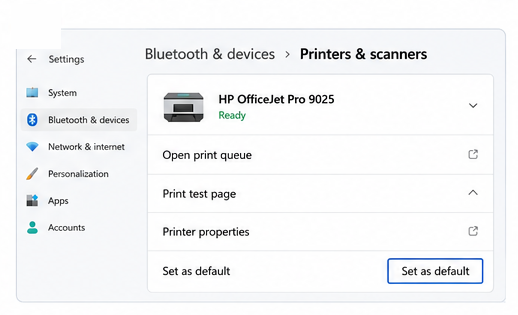
To fix this, open the Settings app and go to Bluetooth & Devices > Printers & Scanners. Select the printer you want to use, and if it isn't already set as the default, click "Set as Default."

Frequently Asked Questions
TweakBot answers common questions about this guide using TweakTown's own coverage from this page and related content from our archive. Tap a question to reveal the answer, or type your own below.
How do I check whether Windows detects my printer and add it if it’s missing?
What should I do if my printer shows as Offline, Unavailable, or Needs Attention in Windows?
How do I clear stuck print jobs from the print queue when documents won’t delete?
What steps should I take to update or reinstall a corrupted or outdated printer driver?
Have a question not listed here? Ask below and TweakBot will answer it.

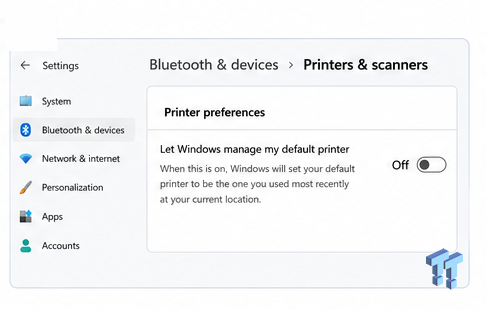
If the option isn't available or Windows keeps changing your default printer automatically, return to the Printers & Scanners page and turn off "Let Windows Manage My Default Printer."
Clear Any Stuck Print Jobs
Sometimes, a printer stops working because a single failed or corrupted print job gets stuck in the queue, preventing new documents from printing. Clearing the print queue can often resolve the issue. To do this, open the Settings app, go to Bluetooth & Devices > Printers & Scanners, select your printer, and click "Open Print Queue."
If you see any documents with a Paused, Error, or Printing status that aren't progressing, select them and choose "Cancel" or "Delete."
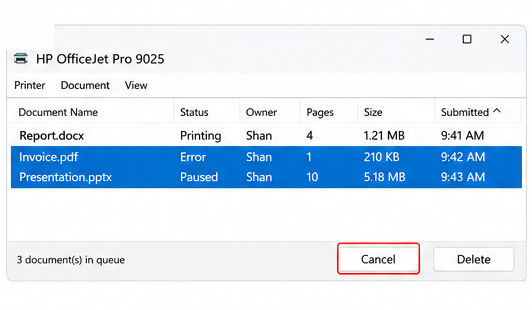
If the print jobs won't delete or remain stuck, restart both your printer and your computer, then try clearing the queue again. If there are multiple pending jobs, clear the entire queue. Once it's empty, send a small test document to the printer and check if it prints normally. If the queue wasn't the problem or the issue persists, continue to the next troubleshooting step.
Restart the Print Spooler
The Print Spooler is the Windows service responsible for managing print jobs and sending them to your printer. If it stops responding, you may experience problems such as print jobs getting stuck in the queue, disappearing without printing, or never reaching the printer at all. Restarting the service can often resolve these issues.
To do this, press Win + R, type "services.msc," and press Enter. In the Services window, locate "Print Spooler," right-click it, and select "Restart." If the service isn't running, click "Start."
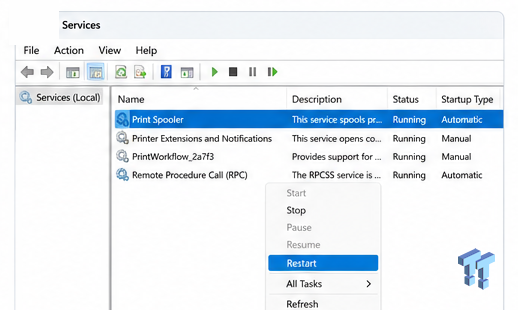
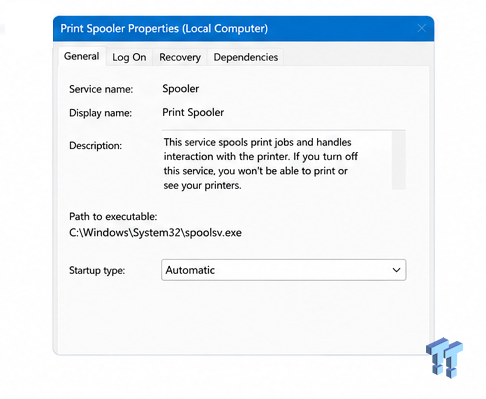
Next, double-click "Print Spooler" and make sure its Startup Type is set to "Automatic" so it starts whenever Windows boots. After that, try printing again.
Update/Reinstall the Printer Driver
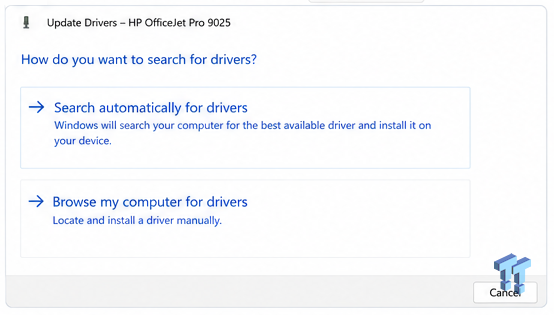
Printer drivers allow Windows and your printer to communicate with each other. If the driver is outdated or becomes corrupted, your printer may stop working correctly. Updating or reinstalling the driver can often fix the problem. To update the driver, open Device Manager, expand the "Printers" category, right-click your printer, and select "Update Driver."
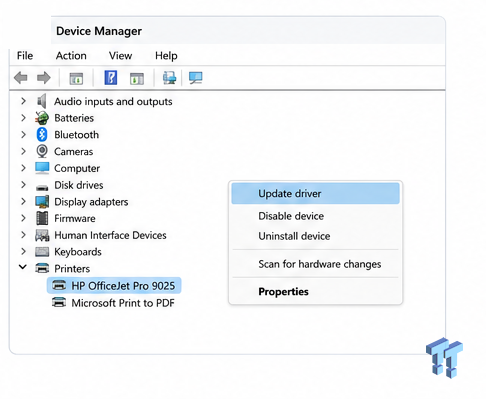
Then choose "Search Automatically for Drivers" and let Windows check for a newer version. If updating the driver doesn't help, right-click the printer again and select "Uninstall Device." Then download the latest driver for your printer model from the manufacturer's website and install it manually. This ensures you're using the most up-to-date and compatible driver available.
The fixes above should help you identify what's preventing your printer from working and get it printing again. If the problem persists, one final thing to check is whether your firewall or third-party security software is blocking communication with the printer. Temporarily disable the security software or add the printer to its list of trusted devices, then try printing again.


 The Ultimate Guide to Personalizing Your Windows 11 Taskbar
 How to Turn Your Windows Laptop Into a Second Monitor with Miracast and Wireless Display in Minutes
 6 Mistakes to Avoid When Buying a Windows Laptop
 I capped Windows Update's bandwidth with Delivery Optimization, and my downloads stopped choking
 I use this decade-old free tool that finds files faster than Windows Search does
 Got a cat? Here's a cat-themed PC case with a power button shaped like a paw
 Xbox testing smart client to boost game download speeds
 NVIDIA CEO Jensen Huang joins X with post backing open-weight AI
 Roku raised prices by up to 60%, citing a memory shortage, despite the CEO calling it great for business just two months ago
 Amazon Gaming boss says next-gen consoles crossing $1,000 is good news
 SignalRGB is giving away a Steam Machine clone covered in 36 RAM sticks
 EA prices FC27 edition at $150, more than twice the price of base game, shortly after CFB 27 microtransaction controversy
 Giveaway: Win an ADATA SE880 2TB Portable External SSD
 Rockstar co-founder doesn't care about the physical vs digital debate, says companies should give players what they want
 God of War Laufey gets a release date and Kratos is making a return
 Thrustmaster T.Flight HOTAS 5 MSFS Edition Review
 SteelSeries Arctis Nova Pro Omni Wireless Headset Review - One Headset to Rule Them All
 SteelSeries Arctis Nova 7 Wireless Gen 2 Headset Review - New and Improved, But Is It Enough?
 AMD Ryzen 7 7700X3D Review - Days of Future Past
 Samsung 990 2TB SSD Review - Ninth Gen QLC at PCIe Gen4 Speeds
 ASUS ExpertBook Ultra (Panther Lake) 14" Business Laptop Review
 ASUS ROG Raikiri II Xbox Wireless Controller Review - Ready to Take Control
 MOZA FMP18 Panel Bundle Review: authentic F/A-18 Hornet cockpit controls for flight sims
 Micron 6600 ION 245.76TB Enterprise SSD Review - Best in Class Programming Speeds
 MOZA MA3F EFCM Flight Control Module Review: authentic Airbus A320 autopilot panel for simulators
 I install and update most of my apps with this Windows command now, and I stopped downloading sketchy installers
 Hisense U6SF 65-inch MiniLED TV: High Performance Meets Leisurely Convenience
 I stopped digging through Windows menus after I set up this one folder
 Don't sell your Windows laptop until you do these things
 6 PC cleaning mistakes to avoid for safer hardware maintenance