












Did you connect your USB drive to your computer, only to find that it doesn't appear in File Explorer and no notification pops up? This problem can occur for several reasons, such as a faulty USB port, a missing drive letter, driver issues, certain system settings, or other underlying causes. Here's how you can troubleshoot the issue and regain access to your files.
See if the USB Drive Shows Up in Disk Management
If your USB drive doesn't show up in File Explorer, it doesn't necessarily mean your computer hasn't detected it. The drive may be missing a drive letter, not properly initialized, or have unallocated space, which prevents it from appearing as a usable storage device. You can verify this through the Disk Management tool, which displays all detected drives.
To check, right-click the Start button and select "Disk Management." In the bottom panel, review the list of available disks. If your USB drive appears there but has no drive letter, shows unallocated space, or is marked as not initialized, that's a good sign-it means Windows has detected it. To fix the issue, you'll need to assign a drive letter, initialize the disk, or format it.
Do not initialize, format, or create a new volume on the USB drive if it contains important data-try recovery options first.

Assign a Drive Letter, Initialize, or Format the Drive
If the drive appears as healthy but doesn't have a drive letter, open Disk Management, right-click the USB partition, and select "Change Drive Letter and Paths." Click "Add," choose a letter you prefer, and confirm.
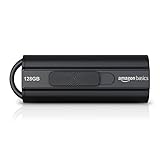
Best Deals: Amazon Basics 128GB Ultra Fast USB 3.1 Flash Drive
Price Trend:
Prices last scanned 13 hours and 7 minutes ago

7 days ago: $44.64 USD
7 days ago: $52.95 CAD
7 days ago: £27.7130 days ago: £27.71
7 days ago: $21.51 AUD


If the disk is marked as "Not Initialized," you'll need to initialize it. Right-click the disk itself (not the partition area), select "Initialize Disk," and choose "GPT" or "MBR" (for older systems).

If the drive appears as RAW or shows unallocated space, you'll need to format it to make it usable. However, if it contains important data, try recovery methods first, as formatting will erase everything.
Our Latest TweakTown Guides
- Using Multiple Monitors? Change these Windows settings for a Better Experience
- Windows Sandbox is The Windows Security Feature Most People Never Use
- I ditched the Windows 11 context menu for this open-source tool, and here's why
- Windows 11 may be encrypting your drive already, and I checked where my recovery key went
- I swapped File Explorer for this free file manager and finally got the layout I wanted
Right-click the unallocated space and select "New Simple Volume." Then follow the setup wizard to format the drive.

Check for a Faulty USB Drive or Port
The two fixes above should make your USB drive show up in File Explorer. But what if it doesn't even appear in Disk Management? In that case, you need to rule out hardware issues first. Start by checking if the USB drive itself is working. Connect it to another computer-if it works there, you know the drive isn't faulty.
Next, verify that the USB port you're using isn't the problem. Plug the drive into a different port and see if it appears in File Explorer or Disk Management. If it does, avoid using the faulty port. If it still doesn't show up, the issue might be with your operating system, so you can move on to the remaining software fixes.
Update or Reinstall USB Drivers
Even if your hardware is functioning properly, your USB drive may not be recognized if the drivers-the software that enables your operating system to communicate with the hardware-are outdated or corrupted. To rule this out, start by updating the drivers: right-click the Start button and open "Device Manager."

Next, expand "Universal Serial Bus Controllers," right-click each USB controller or hub, and select Update Driver > Search automatically for drivers. If updating doesn't solve the issue, you may need to reinstall the drivers. Right-click the USB controller, choose "Uninstall Device," then restart your PC, and Windows will automatically reinstall the necessary drivers.
If the issue persists, you can download the chipset or USB drivers from your manufacturer's website. Also, try forcing the system to re-detect connected hardware. To do that, open Device Manager, go to the "Action" menu, and click "Scan for Hardware Changes." If the problem stemmed from a detection issue, this should resolve it.
Turn Off USB Selective Suspend
Windows 11 includes a feature called USB Selective Suspend, which powers down USB ports that aren't in use. While this helps save battery life on laptops, it can sometimes prevent your USB drive from being recognized. To avoid this issue, you should turn off the feature. To do this, type Control Panel into the Windows search bar and open the Control Panel app.
Then, go to Hardware and Sound > Power Options, and click "Change Plan Settings" next to your active power plan. Then, select "Change Advanced Power Settings," expand USB Settings > USB Selective Suspend Setting, and set it to "Disable" for both On Battery and Plugged In (if you're on a laptop). Finally, click "Apply" and then "OK."

Check BIOS/UEFI Settings
Windows may not recognize a USB drive because the USB ports are disabled in the BIOS/UEFI. To check this, restart your PC and press the appropriate key to enter the BIOS/UEFI settings.
Then, navigate to "System Configuration", look for "Port Options" or a similar menu, and enable disabled ports. Save your changes and exit the BIOS/UEFI.

Run a Disk Repair Scan
Additionally, file system errors or corrupted sectors can prevent Windows from reading the drive. To fix this, run a disk repair scan. Type cmd in the Windows search bar, right-click Command Prompt, and select "Run as Administrator."
Then type chkdsk X: /f /r /x (replacing X: with your USB drive's letter) and wait for the process to finish.

By working through these steps, you'll usually be able to identify what's preventing your USB drive from being recognized and resolve the issue effectively. If the problem persists across multiple devices, it likely points to a hardware fault. In that case, you may need to have the drive professionally inspected or consider replacing it altogether.


 Using Multiple Monitors? Change these Windows settings for a Better Experience
 Windows Sandbox is The Windows Security Feature Most People Never Use
 I ditched the Windows 11 context menu for this open-source tool, and here's why
 Windows 11 may be encrypting your drive already, and I checked where my recovery key went
 I swapped File Explorer for this free file manager and finally got the layout I wanted
 Giveaway: 12 Winners Will Score MONTECH NX400 and NX600 CPU Coolers
 Sandisk NAS 800 NVMe SSD delivers PCIe Gen5 speeds for demanding NAS environments
 RayNeo announces new iO Smart Glasses and GT Series with 'cinema-grade' display
 IQUNIX launches premium EC75 Hall Effect keyboard with 0.01mm Rapid Trigger
 AVerMedia announces new pro-grade HDMI capture devices with up to 4K RGB24 True Color support
 Beyerdynamic announces new affordable MMX 100 and MMX 130 wireless gaming headsets with studio-grade sound
 AMD's latest Radeon driver adds support for Star Wars Zero Company, Call of Duty, and Radeon RX 9050 4GB GPU
 Razer's new Huntsman is the 'world's first low-profile analog optical esports keyboard'
 GTA 6 appears to have leaked from Rockstar India, also suspected to be a PC version
 Xbox struggles to move physical discs, accounts for only 4% of disc sales in the US this year
 Samsung Foundry raises manufacturing prices, may impact the Nintendo Switch 2
 GIGABYTE MO27Q2A Gaming Monitor Review: 1440p, 280Hz, and QD-OLED is a winning combination
 Cooler Master V8 ACE 3DHP BLACK CPU Cooler Review
 ASUS ROG Strix XG129C Review: A $199 Gaming Monitor You Don't Play Games On
 Cooler Master HAF II 500 Mid-Tower Chassis Review
 Corsair HS35 v3 Wireless Gaming Headset Review - An Affordable Winner
 D-Link F518 5G Wi‑Fi 6 AX1800 Mobile Hotspot Review: All-Day Mobile Hotspot
 Bose Lifestyle Ultra Speaker Review - Impressively Detailed Room-Filling Sound
 MSI Z890 Gaming Plus WIFI6E Review - Z890 for under $200
 Mortal Kombat (1995) 4K Ultra HD Blu-ray Review
 CPS PCCOOLER YS1200 ATX 3.1 80 PLUS Gold PSU Review
 GIGABYTE's 40 Days of INFINITY celebrates 40 Years of Innovation with stunning GeForce RTX graphics cards and rewards
 How to tell if someone has been using your Windows PC without your permission
 6 Task Manager tips for troubleshooting Windows performance problems
 ASUS ROG's 20th Anniversary Line-up of Premium PC Gaming Gear has Arrived - Here's Everything You Need to Know
 Six File Explorer tips every Windows user should know