













Did you connect your USB drive to your computer, only to find that it doesn't appear in File Explorer and no notification pops up? This problem can occur for several reasons, such as a faulty USB port, a missing drive letter, driver issues, certain system settings, or other underlying causes. Here's how you can troubleshoot the issue and regain access to your files.
See if the USB Drive Shows Up in Disk Management
If your USB drive doesn't show up in File Explorer, it doesn't necessarily mean your computer hasn't detected it. The drive may be missing a drive letter, not properly initialized, or have unallocated space, which prevents it from appearing as a usable storage device. You can verify this through the Disk Management tool, which displays all detected drives.
To check, right-click the Start button and select "Disk Management." In the bottom panel, review the list of available disks. If your USB drive appears there but has no drive letter, shows unallocated space, or is marked as not initialized, that's a good sign-it means Windows has detected it. To fix the issue, you'll need to assign a drive letter, initialize the disk, or format it.
Do not initialize, format, or create a new volume on the USB drive if it contains important data-try recovery options first.

Assign a Drive Letter, Initialize, or Format the Drive
If the drive appears as healthy but doesn't have a drive letter, open Disk Management, right-click the USB partition, and select "Change Drive Letter and Paths." Click "Add," choose a letter you prefer, and confirm.
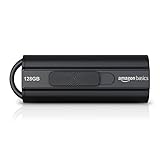
Best Deals: Amazon Basics 128GB Ultra Fast USB 3.1 Flash Drive


If the disk is marked as "Not Initialized," you'll need to initialize it. Right-click the disk itself (not the partition area), select "Initialize Disk," and choose "GPT" or "MBR" (for older systems).

If the drive appears as RAW or shows unallocated space, you'll need to format it to make it usable. However, if it contains important data, try recovery methods first, as formatting will erase everything.
Our Latest TweakTown Guides
- How to Remap Keyboard Keys in Windows using Microsoft PowerToys
- 7 tips to organize your Windows files for faster, easier access
- How to fix Wi-Fi Adapter Not Working on Windows laptops: troubleshooting tips
- 6 underrated Microsoft Word features worth using to boost your productivity
- 7 Windows settings to change right after installation for better privacy, security, and performance
Right-click the unallocated space and select "New Simple Volume." Then follow the setup wizard to format the drive.

Check for a Faulty USB Drive or Port
The two fixes above should make your USB drive show up in File Explorer. But what if it doesn't even appear in Disk Management? In that case, you need to rule out hardware issues first. Start by checking if the USB drive itself is working. Connect it to another computer-if it works there, you know the drive isn't faulty.
Next, verify that the USB port you're using isn't the problem. Plug the drive into a different port and see if it appears in File Explorer or Disk Management. If it does, avoid using the faulty port. If it still doesn't show up, the issue might be with your operating system, so you can move on to the remaining software fixes.
Update or Reinstall USB Drivers
Even if your hardware is functioning properly, your USB drive may not be recognized if the drivers-the software that enables your operating system to communicate with the hardware-are outdated or corrupted. To rule this out, start by updating the drivers: right-click the Start button and open "Device Manager."

Next, expand "Universal Serial Bus Controllers," right-click each USB controller or hub, and select Update Driver > Search automatically for drivers. If updating doesn't solve the issue, you may need to reinstall the drivers. Right-click the USB controller, choose "Uninstall Device," then restart your PC, and Windows will automatically reinstall the necessary drivers.
If the issue persists, you can download the chipset or USB drivers from your manufacturer's website. Also, try forcing the system to re-detect connected hardware. To do that, open Device Manager, go to the "Action" menu, and click "Scan for Hardware Changes." If the problem stemmed from a detection issue, this should resolve it.
Turn Off USB Selective Suspend
Windows 11 includes a feature called USB Selective Suspend, which powers down USB ports that aren't in use. While this helps save battery life on laptops, it can sometimes prevent your USB drive from being recognized. To avoid this issue, you should turn off the feature. To do this, type Control Panel into the Windows search bar and open the Control Panel app.
Then, go to Hardware and Sound > Power Options, and click "Change Plan Settings" next to your active power plan. Then, select "Change Advanced Power Settings," expand USB Settings > USB Selective Suspend Setting, and set it to "Disable" for both On Battery and Plugged In (if you're on a laptop). Finally, click "Apply" and then "OK."

Check BIOS/UEFI Settings
Windows may not recognize a USB drive because the USB ports are disabled in the BIOS/UEFI. To check this, restart your PC and press the appropriate key to enter the BIOS/UEFI settings.
Then, navigate to "System Configuration", look for "Port Options" or a similar menu, and enable disabled ports. Save your changes and exit the BIOS/UEFI.

Run a Disk Repair Scan
Additionally, file system errors or corrupted sectors can prevent Windows from reading the drive. To fix this, run a disk repair scan. Type cmd in the Windows search bar, right-click Command Prompt, and select "Run as Administrator."
Then type chkdsk X: /f /r /x (replacing X: with your USB drive's letter) and wait for the process to finish.

By working through these steps, you'll usually be able to identify what's preventing your USB drive from being recognized and resolve the issue effectively. If the problem persists across multiple devices, it likely points to a hardware fault. In that case, you may need to have the drive professionally inspected or consider replacing it altogether.


 How to Remap Keyboard Keys in Windows using Microsoft PowerToys
 7 tips to organize your Windows files for faster, easier access
 How to fix Wi-Fi Adapter Not Working on Windows laptops: troubleshooting tips
 6 underrated Microsoft Word features worth using to boost your productivity
 7 Windows settings to change right after installation for better privacy, security, and performance
 Intel's next-gen Nova Lake-S CPUs to feature Xe3 graphics, similar to recent Panther Lake mobile SoCs
 Ghost in the Shell and Cyberpunk fans will definitely want to check out this new keyboard from IQUNIX
 Rare GeForce RTX 4080M tested, a Frankenstein 100W mobile GPU in desktop form
 Xbox wants to reach 'more than a billion people each day,' which is ridiculous
 Indie developer asks Valve to change its 2-hour refund policy as 55,000 players refunded his game after finishing it
 Samsung's 2026 profit to surpass its entire 40-year cumulative earnings
 First 'agentic ransomware' run entirely by a large language model discovered
 PlayStation disc phaseout petition hits 120,000 signatures in just four days
 Epic Games settles court case against ex-contractor over Fortnite leaks
 Cyberpunk 2077 hits 100,000 concurrent players on Steam, highest since 2023
 GIGABYTE X870E Aero X3D Dark Wood Review - A woody goody
 The Super Mario Galaxy Movie (2026) 4K Ultra HD Blu-ray Review
 KTC H49S66 5K2K (5120x1440) 49-inch 180Hz Gaming Monitor Review
 HighPoint Rocket 1604L Gen5 x16 NVMe Software RAID AIC Review: half the price with full 59 GB/s speed
 Next Level Racing ERS3 Haptic Seat Review: immersive sim racing comfort with integrated haptics
 ASUS TUF Gaming X870-Pro WiFi7 W NEO Review - Tuffed up
 GIGABYTE GO27Q24G Gaming Monitor Review: Glossy OLED Gaming at 240Hz
 Lian Li B4-mATX Review: a compact mATX SFF case with excellent airflow and premium features
 MSI MPG 322UR QD-OLED X24 Review: A Brighter, Tougher 4K 240Hz QD-OLED for $1099
 UGREEN NASync DXP4800 GT Review: powerful 4-bay NAS with AMD Ryzen and dual 10GbE ports
 Intel Arc G3 Extreme first impressions with MSI's Claw 8 EX AI+ - Incredible power for an extreme price
 Hisense U7SG 4K TV: Modern Entertainment for the New Age
 Level Up Your PC Gaming with these Fantastic ASUS Prime Day Deals on GPUs, Motherboards, and More
 GIGABYTE Wants to Kickstart Your New Gaming PC or Upgrade with These Limited-Time Deals
 I stopped Windows 11 notifications from interrupting me with Do Not Disturb, Focus, and a priority list