If you've ever used Microsoft Word on your smartphone, you've likely found it cramped, slow, or just plain frustrating. But that usually happens only when you don't use the app correctly. The mobile version of Microsoft Word includes dedicated features to edit on a small screen. Here's how to use Microsoft Word on your phone the right way.
Stick to Mobile View for a Cleaner Layout
When you use Microsoft Word in its default desktop-style layout on a phone, the text often spills off the screen, forcing awkward scrolling, constant zooming, and accidental taps on formatting buttons instead of the words you want to edit. That's because the layout simply isn't built for smaller displays. Fortunately, Word has a fix: Mobile View.
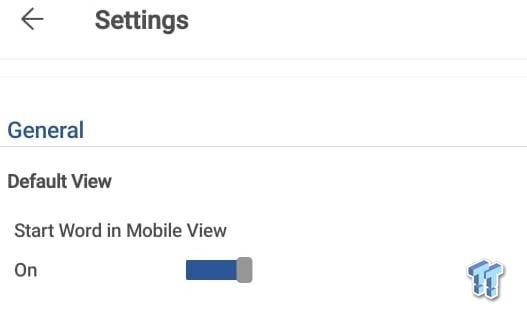
Popular Now: DLSS 5 has been modded into Skyrim, and it definitely transforms character facesSwitching to Mobile View removes margins, adjusts text size for better readability, and reformats your document into a clean, scrollable column that fits neatly on your phone. No more pinching, zooming, or fighting the interface. To make Microsoft Word always open in Mobile View, follow these steps:
- Tap the three vertical dots and go to 'Settings.'
- Enable the option labeled 'Start Word in Mobile View.'
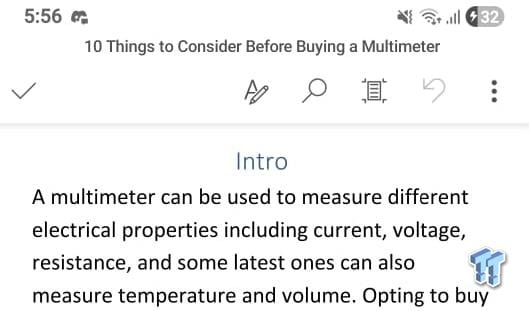
Alternatively, you can tap the page icon located right next to the Undo option.

Best Deals: Microsoft 365 Personal Subscription
Price Trend:
Prices last scanned 5 hours and 43 minutes ago


Let Voice Typing Do the Work
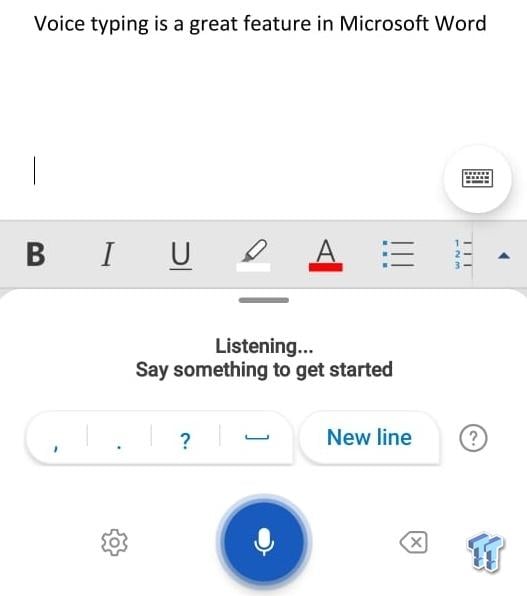
Typing long documents on a small phone screen can be tiring, slow, and full of typos. Instead of tapping away on the tiny keyboard and disrupting my workflow, I simply use the built-in voice typing feature and let Word transcribe my speech in real time. This way, I don't have to stare at the screen or worry about accidental mistakes.
To use voice typing in the Microsoft Word mobile app, open your document, switch to editing mode, and tap where you want to start typing to bring up the keyboard. You'll see a microphone icon - tap it, grant mic permission, and start speaking. Word will convert your speech into text automatically. Just speak clearly and at a steady pace to capture everything accurately.
Use the Sticky Cursor for Accurate Text Editing
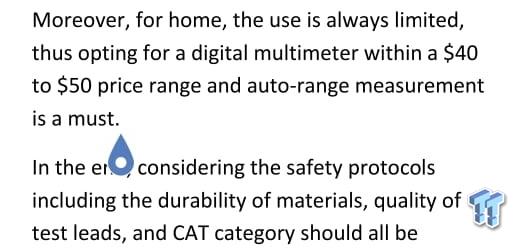
Editing text on a small screen can feel like performing delicate surgery. One wrong move, and you end up in the wrong place. If your cursor keeps jumping to a word you didn't intend to edit, the Sticky Cursor feature can be a lifesaver. It lets you tap and hold the cursor so it "sticks" to your finger, allowing you to place it precisely where you want.
Our Latest TweakTown Guides
- The Complete Windows 11 Tweaking Guide for 2026: What to Change and What to Avoid
- Using Multiple Monitors? Change these Windows settings for a Better Experience
- Windows Sandbox is The Windows Security Feature Most People Never Use
- I ditched the Windows 11 context menu for this open-source tool, and here's why
- Windows 11 may be encrypting your drive already, and I checked where my recovery key went
This makes correcting typos, adding missing words, or adjusting punctuation less frustrating than the tap-to-place method. To use it, tap anywhere in your text to place the cursor as usual, then press and hold the small blue dot below it and slowly drag your finger to move the cursor exactly where you need it. Once you try it, you'll wonder how you ever managed without it.
Turn On Dark Mode for Easier Viewing
Using Microsoft Word in light mode on a laptop can strain your eyes, but it's even more taxing on a smartphone. The effect is particularly noticeable at night or in low-light environments, where the bright interface can cause eye fatigue and distract you, making it harder to focus on your writing. That's why it's best to use the app in Dark Mode.
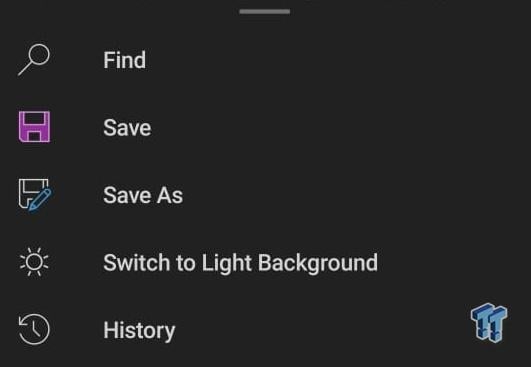
In Dark Mode, the background turns dark while the text remains light, improving readability and helping conserve battery on phones with OLED screens. To enable Dark Mode in the Microsoft Word mobile app, follow these steps:
- Tap the three vertical dots in the top-right corner.
- Select 'Switch to Dark Background.'
Once enabled, you can work on your phone comfortably for long periods.
Review Lengthy Documents With Read Aloud
Microsoft Word isn't just for writing-it's also a valuable tool for reviewing documents. However, navigating long documents filled with text and images on a small screen can be tricky, and it's easy to overlook typos or awkward phrasing when reading silently. To make reviewing easier, Word offers a Read Aloud feature that reads your text back to you.
Hearing your document can help you spot missing words, repeated phrases, or awkward sentences that your eyes might skip over. To use Read Aloud:
- Open the document you want to review.
- Tap the Read Aloud icon in the bottom-right corner.
- Use the controls to play, pause, or adjust the reading speed.

Use the Built-In Scanner to Digitize Your Handwritten Notes
Do you scribble ideas on paper and then end up typing them into Microsoft Word, wishing you could just scan them instead? You don't need a separate scanner or scanning app for that. The Word mobile app includes a built-in document scanner that can instantly turn your handwritten notes into clean digital text.
It's a handy feature many users overlook-and it isn't available in the desktop version. To use the scanner in the Microsoft Word app, follow these steps:
- Open Word and create a new document (or open one you already have).
- Tap the A icon with the pencil.
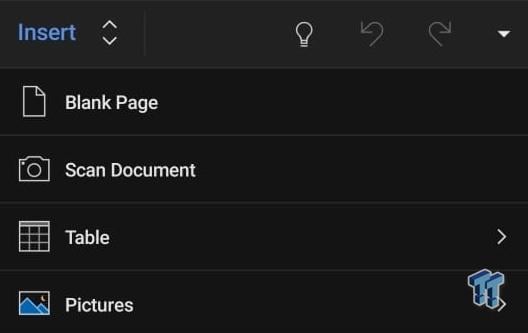
- Tap on 'Home,' then switch to the 'Insert' tab.
- Select 'Scan Document.'
- Capture your page(s) and follow the instructions on screen.
Using the Microsoft Word app on your phone shouldn't feel like a downgrade-it should let you draft on the go, review documents from bed, or capture ideas whenever they come. With the features above, the entire process becomes smoother and more productive, turning your smartphone into a surprisingly capable writing and editing tool.