













The Windows registry has a reputation as a minefield: if you touch the wrong key, you'll end up with a broken install. Also, many registry tweaks get wiped with the next update. But a handful are practical, survive updates, and change how Windows 11 behaves. These five are the ones I run through on every fresh PC, starting with a backup that takes under a minute.
Windows 11 replaced the right-click menu, and it's worse
The classic context menu was genuinely useful. Right-clicking a file gave you immediate access to options like "Copy as path," third-party app entries, and "Send to" - all-in-one place. Windows 11 buried most of that behind a "Show more options" click, which adds an extra step to something you might do dozens of times a day.
Before touching the registry, take a minute to back it up (it's very important). Open Registry Editor by pressing regedit, go to File > Export, set the Export Range to All, and save the .reg file somewhere easy to find. If anything goes wrong, double-clicking that file restores everything.

To bring back the classic menu, navigate to HKEY_CURRENT_USER\Software\Classes\CLSID\{86ca1aa0-34aa-4e8b-a509-50c905bae2a2}\InprocServer32 in Registry Editor. If the key path doesn't exist, create each key manually. Then set the default value to an empty string, and restart Explorer through Task Manager or reboot. The full context menu returns immediately and persists through Windows updates.


Best Deals: Samsung 9100 PRO 1TB SSD
Price Trend:
Prices last scanned 7 hours and 52 minutes ago

7 days ago: $229.99 USD30 days ago: $249.99 USD

7 days ago: $229.99 USD30 days ago: $249.99 USD
7 days ago: $399.97 CAD30 days ago: $399.97 CAD
7 days ago: $399.99 CAD30 days ago: $399.99 CAD

7 days ago: $49930 days ago: $499
Windows stalls on shutdown, but a registry tweak cuts that short
When you shut down, Windows gives each running process a set amount of time to close on its own before forcing it to stop. The default timeout is 5,000 milliseconds (five full seconds) per service. That stacks up if you have several things running, and the result is a shutdown that drags on.
Two values control this. The first is "WaitToKillServiceTimeout", found at HKEY_LOCAL_MACHINE\SYSTEM\CurrentControlSet\Control. Change it from 5000 to 2000. The second is "HungAppTimeout" at HKEY_CURRENT_USER\Control Panel\Desktop - set that to 2000 as well. Both are string values. After editing, restart your PC for the changes to take effect.

However, don't go below 1,000 milliseconds for either value. At that point, Windows may force-close apps before they finish saving, which can lead to data loss or corrupted files. Two seconds is aggressive enough to feel noticeably faster without cutting things too short.
Our Latest TweakTown Guides
- Don't sell your Windows laptop until you do these things
- 6 PC cleaning mistakes to avoid for safer hardware maintenance
- How to Remap Keyboard Keys in Windows using Microsoft PowerToys
- 7 tips to organize your Windows files for faster, easier access
- How to fix Wi-Fi Adapter Not Working on Windows laptops: troubleshooting tips


The lock screen is a pointless extra step on a home PC
The lock screen, which is the full-screen clock and wallpaper display that appears before the login prompt, makes sense on a shared or public device. On a personal desktop that only you use, it's an extra click. Windows doesn't give you a straightforward toggle for this in Settings, which is why the registry is the practical route.
To turn it off, navigate to HKEY_LOCAL_MACHINE\SOFTWARE\Policies\Microsoft\Windows\Personalization. If the "Personalization" key doesn't exist under Windows, right-click Windows, select New > Key, and name it "Personalization". Inside it, create a new DWORD (32-bit) value named "NoLockScreen" and set it to 1. Reboot, and Windows will skip straight to the login screen.


However, if you are using Windows 11 Home, this specific policy-based tweak may be restricted; it is most reliable on Pro and Enterprise editions.
This doesn't remove your password or PIN; they stay exactly as they are. All it does is cut out the decorative screen before them. If you ever want the lock screen back, set "NoLockScreen" to 0 or delete the value entirely.
Verbose startup messages let you see exactly what Windows is loading
By default, Windows shows a generic spinner during boot and shutdown without any context or detail, just a rotating circle while something happens in the background. Enabling verbose status messages replaces that with real-time text showing exactly which services and processes are starting or stopping. It's not a performance tweak, but it's useful for understanding what your system is doing, especially during a slow boot.
To enable it, go to HKEY_LOCAL_MACHINE\SOFTWARE\Microsoft\Windows\CurrentVersion\Policies\System in Registry Editor. Look for a DWORD value named "verbosestatus". If it isn't there, right-click the right pane, select New > DWORD (32-bit) Value, name it "verbosestatus", and set it to 1. Then reboot to apply it.

On the next restart, instead of the spinner, you'll see messages like "Applying user settings" or "Stopping services" during shutdown. That makes it easier to spot what's hanging when a shutdown takes longer than expected.
This pairs well with the shutdown timeout tweak from earlier. If a service keeps triggering the timeout, verbose mode will tell you exactly which one.
Bing results in the Start Menu search are more clutter than help
When you search in the Start Menu, Windows mixes local results, such as apps, files, and settings, with Bing web suggestions. The idea is that you shouldn't need to open a browser for quick searches. In practice, the web results are slow to load and clutter the top of the list right when you're trying to find something quickly. It's one of those features that sounds convenient until you actually use it.
To kill the Bing results, navigate to HKEY_CURRENT_USER\Software\Microsoft\Windows\CurrentVersion\Search in Registry Editor. If it's not already there, right-click the Search key, select New > DWORD (32-bit) Value, and name it "BingSearchEnabled". Ensure the value is set to 0.

For an extra layer of protection, you can also go to HKEY_CURRENT_USER\Software\Policies\Microsoft\Windows\Explorer. If the "Explorer" key under Policies doesn't exist, create it the same way as before. Then create a DWORD named "DisableSearchBoxSuggestions", and set it to 1. Sign out and back in, or restart, for the change to apply.

After that, Start Menu search still works exactly as expected for local apps, settings, and files - it just stops pulling in web results. And that's the last of the five tweaks. The registry has plenty more worth exploring once you're comfortable with the basics, which include disabling Windows telemetry, tweaking Explorer behavior, or adjusting how the taskbar handles window grouping. However, make sure that you build up the backup habit before making any changes. Most registry tweaks are just as easy to revert as they are to apply.


 Don't sell your Windows laptop until you do these things
 6 PC cleaning mistakes to avoid for safer hardware maintenance
 How to Remap Keyboard Keys in Windows using Microsoft PowerToys
 7 tips to organize your Windows files for faster, easier access
 How to fix Wi-Fi Adapter Not Working on Windows laptops: troubleshooting tips
 Apple sues OpenAI, accusing it of engaging in a 'strategy to extract Apple's confidential information'
 EA quickly folds after College Football 27 got review bombed on Steam for invasive microtransactions
 Another RTX 5090 power connector melted, and even ASRock TempGuard failed to save this one
 Reverse scam: Redditor orders a Ryzen 7 7800X3D but gets blessed with a 9800X3D instead
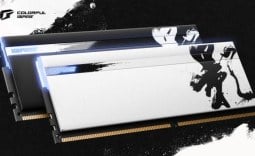 Colorful iGame Shadow II DDR5 memory with CXMT ICs hits 8600 MT/s
 ASRock says there are no plans to sell its Taichi 10th anniversary concept components
 Sony CEO sells $4.7 million worth of stock days after PlayStation announces disc phase out
 Black Flag Resynced is a win for Ubisoft, pirate remaster achieves 2 million sales in 24 hours
 Giveaway: Win an NZXT H6 RGB+ Case, Kraken Elite AIO, RGB Fans and 1200W PSU
 Ubisoft responds to Black Flag Resynced DLC critics by telling them they're 'not a requirement'
 Micron 6600 ION 245.76TB Enterprise SSD Review - Best in Class Programming Speeds
 MOZA MA3F EFCM Flight Control Module Review: authentic Airbus A320 autopilot panel for simulators
 Turtle Beach Stealth Pro II Wireless Gaming Headset Review - Premium Sound, Fantastic Features
 MOZA MGX1000 Instrument Panel Review: a realistic Garmin G1000 replica for immersive flight sims
 Simagic Zeus Formula Steering Wheel Review: premium build and advanced inputs for F1 racing
 GIGABYTE X870E Aero X3D Dark Wood Review - A woody goody
 The Super Mario Galaxy Movie (2026) 4K Ultra HD Blu-ray Review
 KTC H49S66 5K2K (5120x1440) 49-inch 180Hz Gaming Monitor Review
 HighPoint Rocket 1604L Gen5 x16 NVMe Software RAID AIC Review: half the price with full 59 GB/s speed
 Next Level Racing ERS3 Haptic Seat Review: immersive sim racing comfort with integrated haptics
 Phison and Intel Take Aim at Local AI's Memory Wall with aiDAPTIV
 Intel Arc G3 Extreme first impressions with MSI's Claw 8 EX AI+ - Incredible power for an extreme price
 Hisense U7SG 4K TV: Modern Entertainment for the New Age
 6 underrated Microsoft Word features worth using to boost your productivity
 Level Up Your PC Gaming with these Fantastic ASUS Prime Day Deals on GPUs, Motherboards, and More