









Introduction
Small businesses and homes are moving more and more from hardwired connections to wireless. It is easier and less expensive (in many cases) to simply do without the wires for most systems. This is great, but what happens when you have a vendor or sales person over? Do you want them connecting to your network? The same thing can be said for the newest game consoles. Many of them (like the Wii) have wireless capability; but with this new connectivity come security risks.
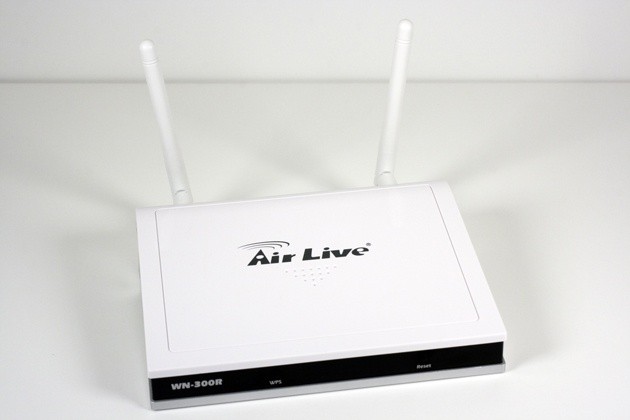
Today we take a look at the Air Live WN-300R 11N Wireless Broadband Router; in its debut on the internet. The WN-300R sports dual SSIDs at full N Speed connections and the ability to isolate them from each other and the LAN for security. Now, dual SSIDs and isolation is nothing exactly new, but it is also not a common feature on a consumer product.
Let's now see if the Air Live WN-300R can really provide what it claims or if it is just another paper pretty product.
The Package

Air Live has a little to work on with regards to its packaging. While it is not gaudy or garish, it is drab. On first glance the box for the WN-300R simply looks plain; however, once you get past that you do get some decent information on the router within.

The back of the box shows the features in multiple languages (12 to be exact).

The top of the box shows a basic diagram of where the WN-300R fits into the typical network.

Inside the box is the WN-300R, a quick setup manual, utilities CD-ROM and a power pack. Conspicuously absent is the usual CAT-5 cable found in most other wireless products.
The Router

The WN-300R is as small as wireless routers come, but it does have a certain unique style to it. Unlike many other modern routers, the WN-300R uses lighted icons to indicate status. There are no labels for the lights; when they are lit you can plainly tell what they indicate.

One down side to this is the lack of individual lights for the LAN ports. You cannot tell how many ports are operational. Air Live also put the reset and the wireless protected setup buttons on the front.

The back has the usual suspects; one WAN port, four LAN ports and two antenna connections. Unfortunately, the LAN ports are only 10/100; I am not sure why this is still happening at a time when most PCs (and Macs) are shipping with 1Gigabit Ethernet connections.

Also, the issue of two antennas is odd; most N spec routers have three antennas for better reception and speed. Air Live does at least use 2T2R MIMO antennas, however.

Web Based Interface
The web based interface for the Air Live WN-300R is pretty well laid out. I was pleasantly surprised to note that some thought had gone into the layout; it is fairly intuitive to use with a few exceptions that I will list below.

The first page you are greeted with after you login is the home page that shows basic information about the status of your WN-300R. The setup wizard is good to use if you have never setup a router before, but does not cover the wireless setup parts. You also are not asked to setup the time zone or to change the Admin Password.

After you are finished with the basic setup, you may want to take a look at some other options. In the LAN setting page you can change the internal IP address of the WN-300R as well as the range of IP addresses that the internal DHCP server uses.

Next up is the Mode screen; here you can set the mode of the router. Your options are AP mode and Router. After Mode you have the Password control screen; here you can change your admin password.

From here we get into the advanced menus and really have control over the way the WN-300R works. For wireless setups the two most important screens are the Options and Mode screens.

Under options you can set your region, the 802.11 mode, channel, SSID isolation and the options to use the dual band feature allowing for both 20MHz and 40MHz broadcasts. This last one helps with SSID Isolation as it allows for independent broadcasts on the two frequencies. With this enabled SSID2 also does not see workstations attached to the LAN ports.
Next up is the Mode screen; here are your options to set the wireless operation mode. Your choices are AP Mode, Station - Infrastructure, Bridge - Point to Point, Bridge - Point to Multi Point, WDS Repeater and Universal Repeater. You can enable or disabled the two SSIDs as well as configure security separately for each.


Under the Admin section you have options and settings for QoS, advance routing, port forwarding (by single port and port range), access control, usage scheduling and DMZ.
One thing I found odd was the use of Mode in multiple places; there was no obvious setting to items such as time, date, time zone etc. These you have to dig for before the time zone and NTP settings pop up on the Schedule page.

One nice option is to have logs and events e-mailed to you. You can set this up to send you an e-mail if it detects a DoS (denial of Service) attack, Port Scan Attempt or if someone attempts to access a blocked site or IP address. You can also schedule the logs to be sent to you on a routine, with send times as low as hourly.

The built in Log Viewer leaves a lot to be desired, though; it is cramped, difficult to read and requires scrolling left and right for even the simplest entries.

Testing
We used PerformanceTest 6.1 by PassMark which you can find out more information about here. It has a handy Advanced Networking section which is perfect for our testing.
Doing our best to emulate a real-world performance scenario, I setup a server running Windows 2008 (x64) Server, (2x Xeon Quad Core 3.0 GHz 1333MHz FSB, 4GB DDR2 FB-DIMMS, 2x 146GB SAS drives in RAID 1) and the client PC was an ASUS G2S -X1 With built-in Intel 802.11n adapter. The results were gathered by sending data from the ASUS notebook to the server at different distances with different adapters and determining the average transmission speed.
We compared the Air Live WN-300R against the D-Link DIR-655 using both the built-in Intel Pro Wireless (N) adapter on the ASUS G2S X1 and the TP-Link TL-WN821N. All wireless tests were completed with WPA2 Personal (with the AES cipher, as it has been proven to provide better performance) and 802.11n +g + b wireless mode enabled on the two routers. I did not have a choice for this as the WN-300R does not have a separate n+g mode. In fact, it does not have a separate n mode, period. You can enable b or g or n+g+b all at once. The router was placed in the exact same position as well as the notebook at its various testing locations for fair comparison.
- Connection Speed
As mentioned above, I could not set the WN-300R to n only or n+g and due to this my connection speeds were never over 144Mbps. This was a little disappointing; I hope in future firmware updates they remedy this.
- Bandwidth
To test the speed of the Air Live WN-300R, I chose three common working points inside my house. One was in the lab within 10 feet of the two wireless routers; the next was in the bedroom roughly 35 feet away and requiring the signal to travel through a wall containing the main house electrical panel and a "wet wall". The last was outside on the back porch, roughly 45 feet from the router. Both the second and third positions were out of the direct line of sight of the router.

*signal travelling through wet wall and main house electrical panel
The Air Live WN-300R could not keep up with the D-Link DIR-655; it also saw a higher drop in performance at longer ranges and our TP-Link TL-WN821N did not like having to deal with the b spec on the WN-300R at all.
- Latency
For my Latency testing I used both the speedtest.net internet speed test and ping times from a Counter Strike Source server that had more than half of its slots in use. I also tested latency on both of the SSIDs to see if there was a difference in performance between the two.
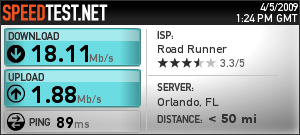
SSID-1
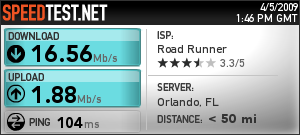
SSID-2
The two SSIDs were roughly the same performance wise and did not do too bad in my gaming tests.

SSID-1

SSID-2
Final Thoughts
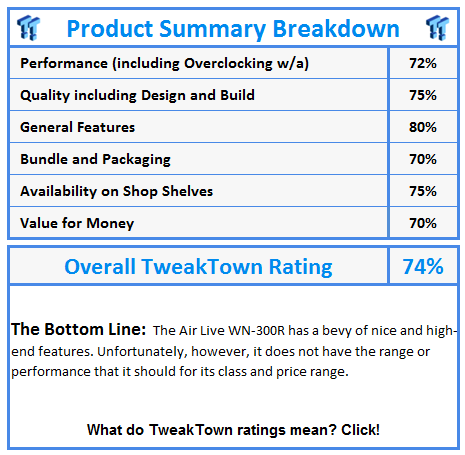
The Air Live WN-300R has many great features. The isolated dual SSIDs is great for any small office and for homes that might have need for an isolated wireless network (for friends or wireless consoles). Where it all breaks down, however, is performance. It is simply not there yet. Air Live needs to allow for better selection of wireless specification (like N only or N+G). They also need to make certain pages of the firmware more intuitive.
I feel that the WN-300R is not meant for most homes; the features Air Live has put into the WN-300R are more in line with a small office or a home office that would have need for these options. The QoS while it had a list of services, did not include any games nor streaming video; it was more about common networking functions like HTTP, FTP, etc than what you would see in most homes.
Price was also a slight issue. At roughly $80 U.S. Dollars, the Air Live is a little pricey for its speed range, although some of the more advanced features help to make up for that. But this is only if you can use the extra features; if they are of no use then the price is going to be a problem at the speeds we saw.
Our Latest Routers & Access Points Review Coverage
- MSI Roamii BE Pro Wi-Fi 7 Mesh System Review - Affordable price, good mid-range performance
- ASUS ROG Rapture GT-BE19000AI Gaming Router Review: Shiny and fast (except when it isn't)
- NETGEAR Orbi Wi-Fi 7 370 Dual Band Mesh System Review - Mid-Range Value
- NETGEAR Nighthawk 5G M7 Mobile WiFi 7 Router with eSIM MH7150 Review
- Engenius ECW520 Cloud7 2x2x2 Access Point Review: Serious Management Potential

 MSI Roamii BE Pro Wi-Fi 7 Mesh System Review - Affordable price, good mid-range performance
 ASUS ROG Rapture GT-BE19000AI Gaming Router Review: Shiny and fast (except when it isn't)
 NETGEAR Orbi Wi-Fi 7 370 Dual Band Mesh System Review - Mid-Range Value
 TP-Link Tapo C660 Kit Solar-Powered Pan/Tilt Security Camera Kit Review
 NETGEAR Nighthawk 5G M7 Mobile WiFi 7 Router with eSIM MH7150 Review
 Arm's impressive Neural Dawn is a ray-traced mobile game built for next-gen Arm Mali GPUs
 Kingdom Hearts IV release date possibly leaked online following Switch 2 confirmation
 Anthropic releases state-of-the-art AI model Claude Fable 5, and it's safe to use
 Nintendo showcase FromSoftware's next title 'The Duskbloods' in new mysterious trailer
 Razer Seiren V3 Pro is a new professional-grade microphone for gamers and creators
 Xbox is rethinking its Project Helix strategy as memory prices continue to soar
 Control Resonant arrives in September with DLSS 4.5 and Path Tracing on PC
 NZXT unveils aesthetically pleasing cases, fans and coolers at Computex 2026
 NVIDIA GeForce Hotfix 610.52 driver released, fixes issues related to G-SYNC, Smooth Motion, and stability
 3DMark adds native Windows on Arm support for ray-tracing benchmarks
 Navman MiVue Smart True 4K Surround Dashcam Review - Seeing In All Directions At Once
 IQUNIX Magi96 Pro Aluminum Low Profile Mechanical Keyboard Review - Premium Build, Satisfying Sound
 Asetek Forte S-Series Racing Simulator Bundle Review
 Razer Pro Type Ergo Wireless Split Ergonomic Keyboard Review - Built for Comfort and Support
 ASUS ROG Strix Morph 96 Wireless Gaming Keyboard Review - Great Performance, More Affordable
 SAPPHIRE Radeon RX 9070 GRE PULSE OC Review - A New 1440p Challenger Has Arrived
 NZXT H6 RGB+ Compact Dual-Chamber Chassis Review
 ASRock Radeon RX 9070 GRE Steel Legend Review - The RDNA 4 Mid-Range Reshuffle
 ASRock Z890 Taichi Aqua Motherboard Review - Flagship features without the flagship price
 GIGABYTE Z890I AORUS Ultra Motherboard Review - Mini-ITX with surprisingly good thermals
 The PowerToys utilities I keep enabled on every Windows 11 PC, and the ones I turned off within a week
 TweakTown's Best of Computex 2026 Awards - The Best Hardware, Gaming Gear, and AI
 Phison E37T SSD Controller Exclusive Preview - The Fastest DRAMless SSD Platform Yet
 USB Ports Not Working in Windows 11? Try These Fixes
 ASUS WiFi Routers and Networking Solutions Deliver Long-term Security and Reliability with No Additional Cost
 Second Monitor Not Detected in Windows 11? Try These Fixes
 Turn Your Old Smartphone Into a Dedicated Webcam for Your Windows PC
 The Send To menu is the right-click feature on Windows 11 that nobody bothers to customize
 Windows 11 will not let you pin a folder to the taskbar, but a 30-second workaround does
 ASUS ProArt Displays Unlock Creativity with Professional Monitors for Everyone