









Introduction and Package
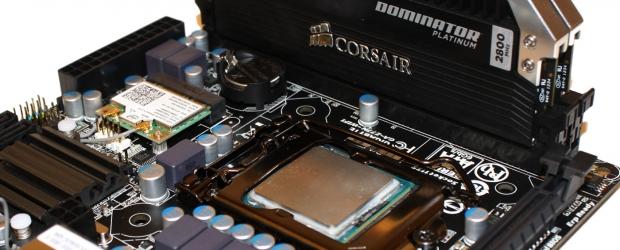
I've always been a huge fan of smaller motherboards. The mATX standard quickly became quite a favorite of mine as we saw more and more companies offer great boards in this standard. What became even better, though, was when we started to see companies offer us boards designed for performance at this size.
Over the last 12 months, though, we've seen the mITX standard get a bit more focus. At just 17cm x 17cm we've seen companies put together some amazingly stand out boards. Today we're looking at a company who has been a little slower to the mITX punch than others; GIGABYTE.
Over the last 12 months, though, I think one of the main things that stood out for the mITX form factor on a whole wasn't a board. Instead it was the BitFenix Prodigy - a case that quickly proved that just because you have a small motherboard, it doesn't mean you have to have small performance.
This case quickly gained momentum in the market which meant mITX motherboards quickly gained momentum at the same time. While we'd seen plenty of mITX cases in the past, none of them ever said "look how cool my tiny system is" as much as the BitFenix Prodigy has since its introduction.
So with all that said today we're checking out the mITX offering from GIGABYTE. We're hoping for big things out of the small Z77N-WiFi as we've really seen some fantastic options from both ASRock in the form of the Z77E-ITX and ASUS in the form of the P8Z77-I Deluxe.
We'll be as always starting off with the box and the package. As with mITX motherboard we're not expecting a whole lot due to the small box. Once we've done that we'll move onto the motherboard before checking out the BIOS, covering our test system, taking a look at overclocking and finally getting into the performance side of things.
Package
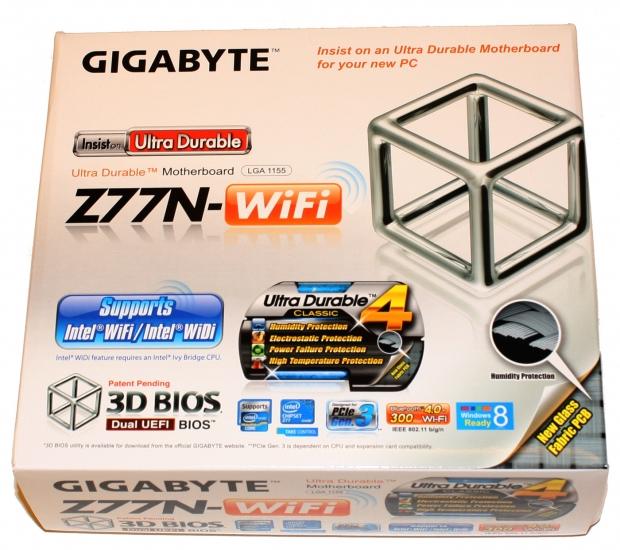
Having a look at the box you can see we've got a decent amount information on the tiny box with the front giving us a run down on some of the main features including Intel WiFi / WiDi support, Ultra Durable 4, 3D Dual EUFI BIOS along with a couple of other logos showing PCIe Gen 3 support, Windows 8 compatibility and mention of both Bluetooth 4.0 and WiFi.
Our Latest Socket LGA 1155 Review Coverage
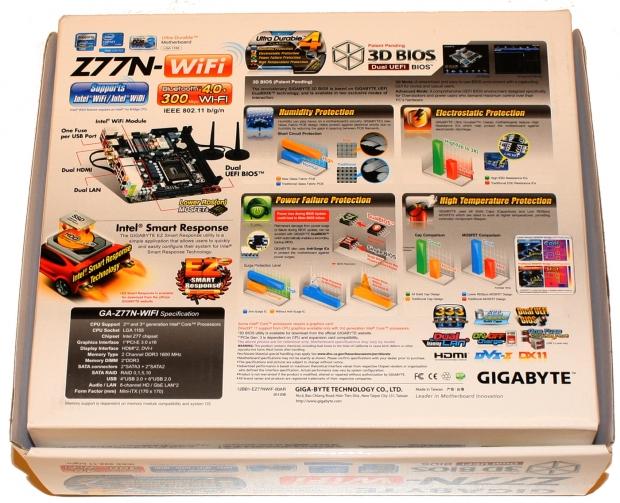
Moving over to the back of the box we get a look at the motherboard itself along with mention of some of the main highlights that are on offer. We've got a small bit on the 3D BIOS and below that you can see we get a better run down on what exactly Ultra Durable 4 brings to the table including Humidity, Electrostatic, Power Failure and High Temperature protections. The bottom left corner also gives us a run down on some of the main specifications.
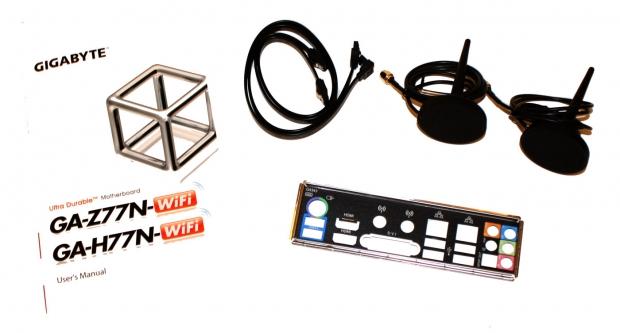
Moving inside the box it comes as no surprise that we're not dealing with the largest bundle. Apart from the manual and a pair of driver CDs, we've got the I/O plate, two SATA cables and two wireless antennas.
GIGABYTE Z77N-WiFi Motherboard
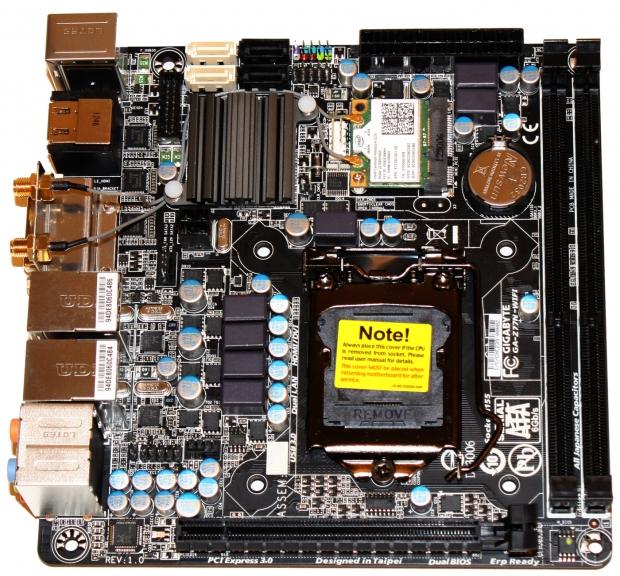
Taking a look at the motherboard you can see just about everything in quite a fair bit of detail thanks to the fact we're dealing with a small 17cm x 17cm mITX motherboard. Looks wise it's fairly nice thanks to the black PCB. As usual, though you can see everything is fairly cramped together, as is the nature of such boards. Let's move in a bit closer and have a look at just what exactly we're dealing with.
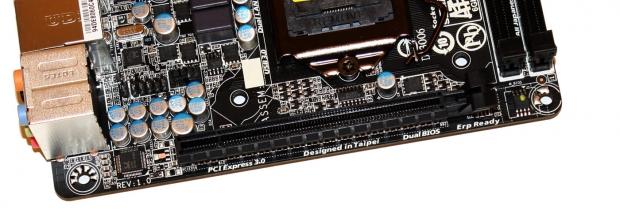
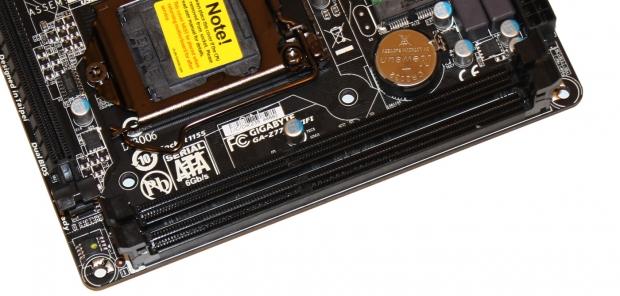
Across the bottom of the board we've got a single PCIe x16 slot. Above that and to the left you can see the front panel audio header and just next to that we've got a fan header. If we turn the corner you can see two DIMM slots offering support for up to 16GB of DDR3 ranging from 800MHz DDR to 2800MHz DDR via overclocking.
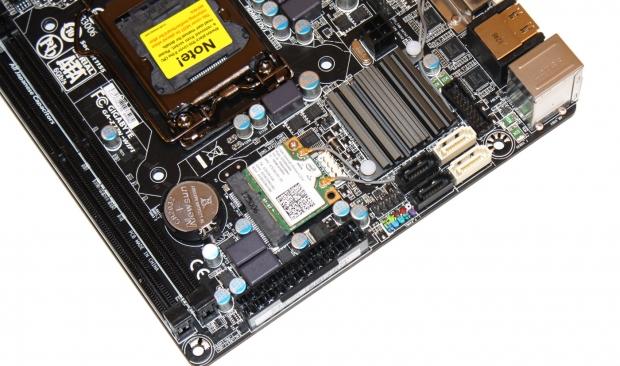
Across the top of the board is the busiest area. On the left we've got the main 24-pin ATX power connector, and next to that we've got the front panel header and a USB 2.0 header. Four SATA ports are on offer with the two black ones being SATA II and the two white ones being SATA III - all are operated from the Intel Z77 chipset. Just to the right we've got a USB 3.0 header. The other main stand out is the mini PCIe Intel Centrino Wireless-N 2230 card which offers both 802/11 b/g/n and Bluetooth 4.0 support. To the top right you can also see we've got a 4-pin CPU connector instead of the standard 8-pin one we typically see on larger boards. This is due to the fact that you're not going to need the same kind of power delivery.
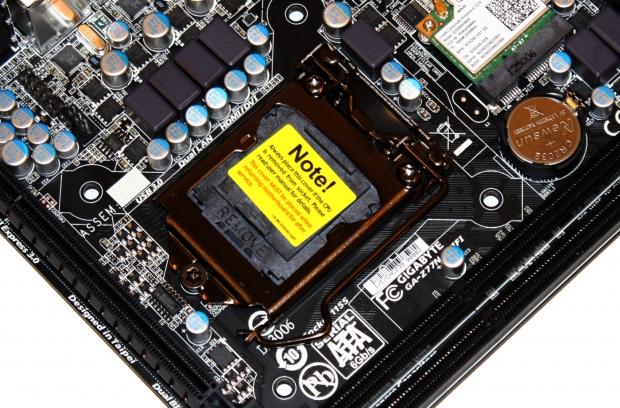
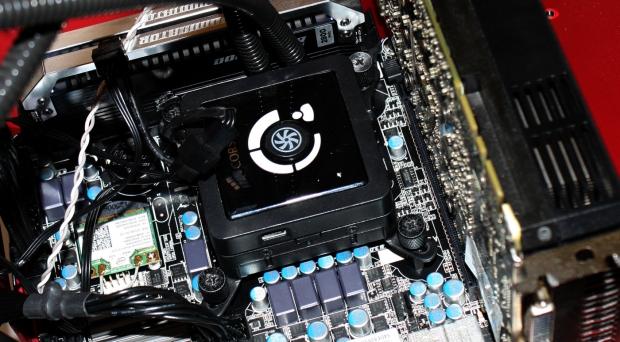
Getting to the CPU area you can see not much is going on. Initially with the tight space I thought that we'd possible have an issue with our Corsair H100 cooler fitting when both RAM and a video card were installed, but as you can also see above, everything fitted pretty well. The only time you'd probably run into problems is if you've got a video card that has a back plate that sticks out a bit or RAM that has a large heatsink across the top like we see on some ADATA kits.
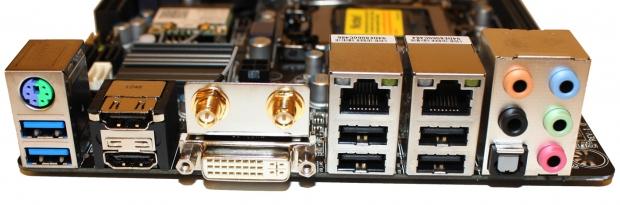
Finally we finish off with the I/O side of things. Considering the small size of the board, we've actually got a fair bit to discuss. Starting from the left we've got two USB 3.0 ports and a combo PS/2 port. Next to that we've got dual HDMI outputs along with a DVI-I port for video. Above the DVI-I port you can see a spot for our two antennas that are included in the bundle. Continuing to move across we've got four USB 2.0 connectors and two Gigabit networking connectors; both of which running off a Realtek chipset. Finally we finish up with an optical port and five auxiliary audio connectors that run off the Realtek ALC892.
BIOS
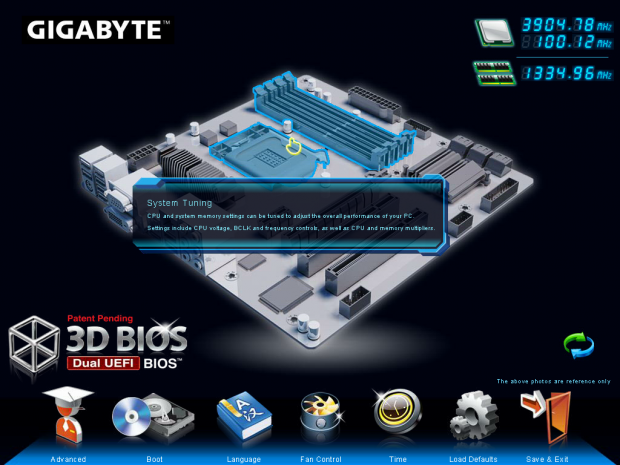
As always after we update to the latest BIOS we're greeted with the 3D BIOS screen. While cool we've never been the biggest fan of it as we're more than confortable working our way through the advanced area of the BIOS which we find a lot quicker working with. If you're new to the BIOS, though, it's not a bad way to figure out what adjusts what.
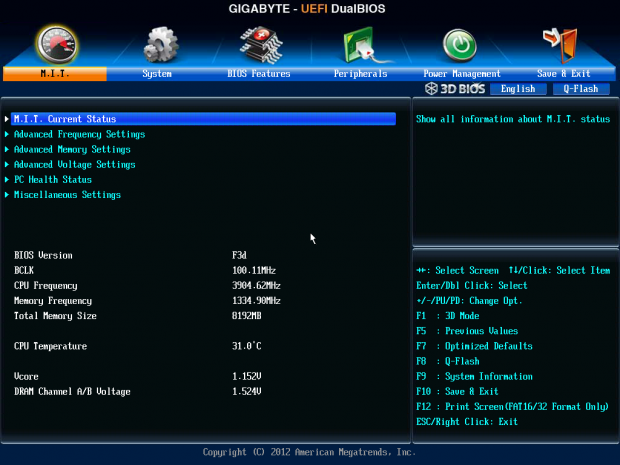
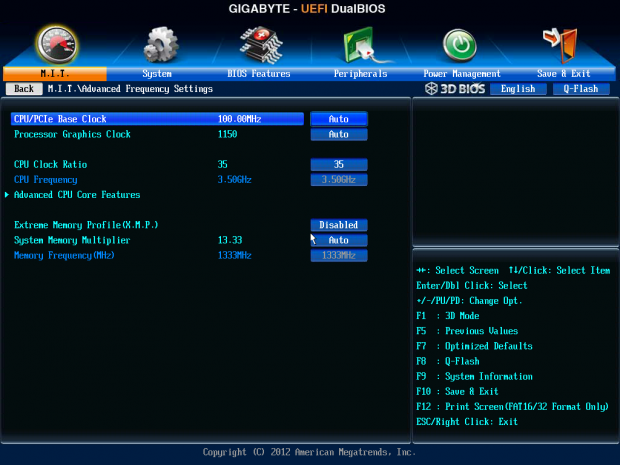
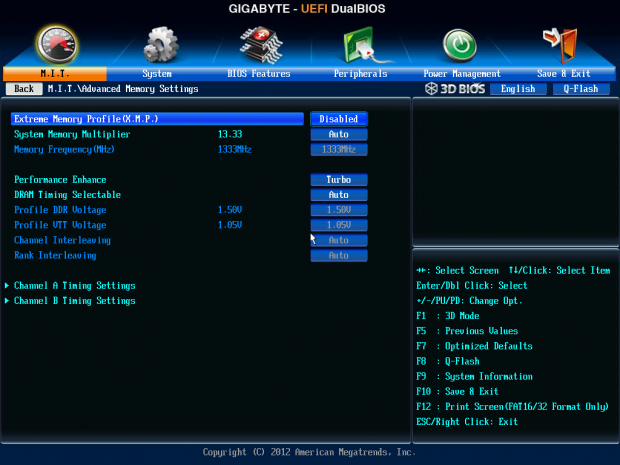
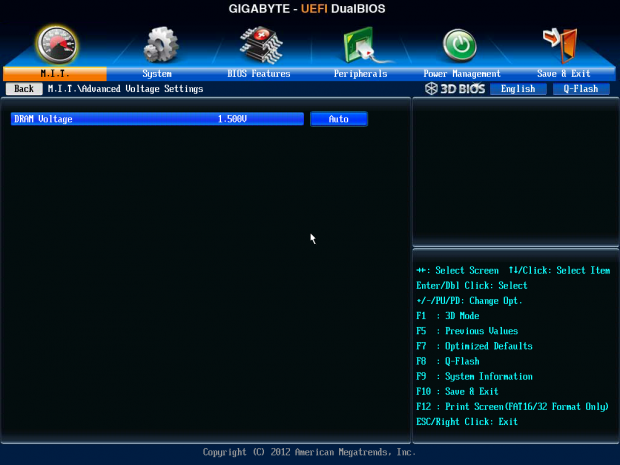
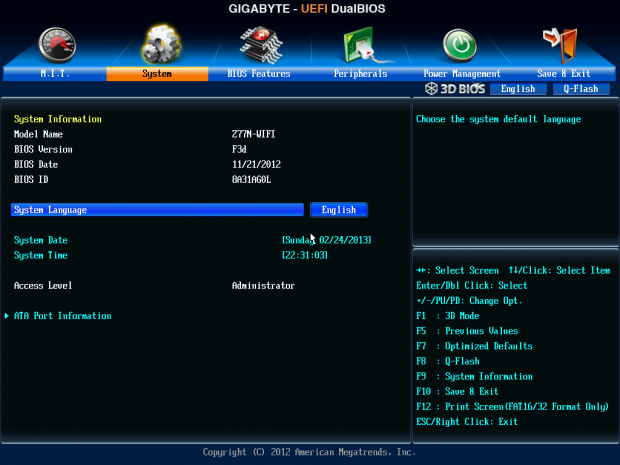
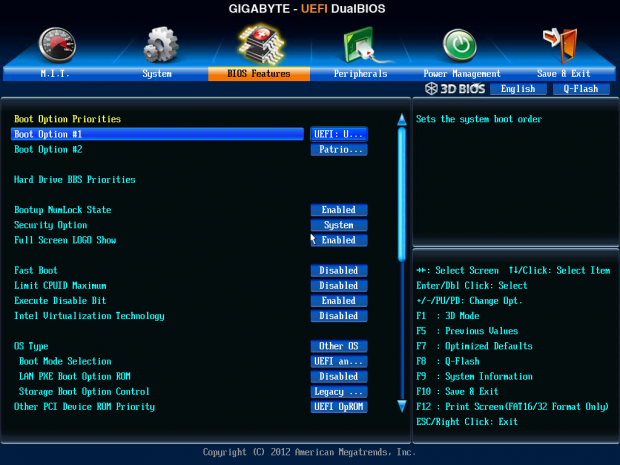
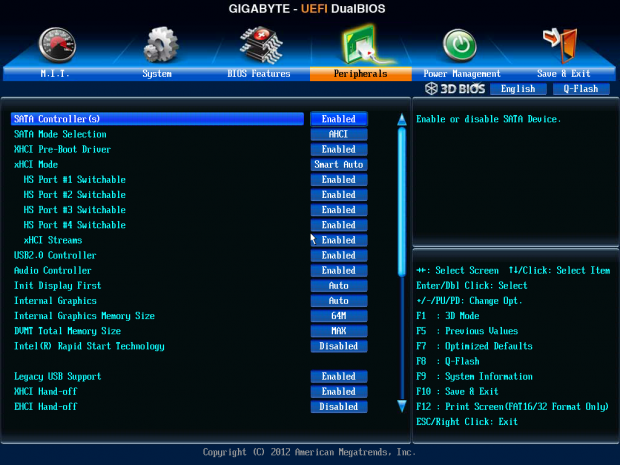
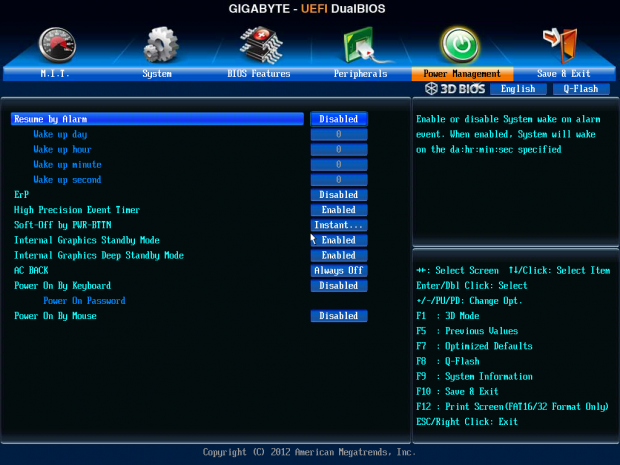
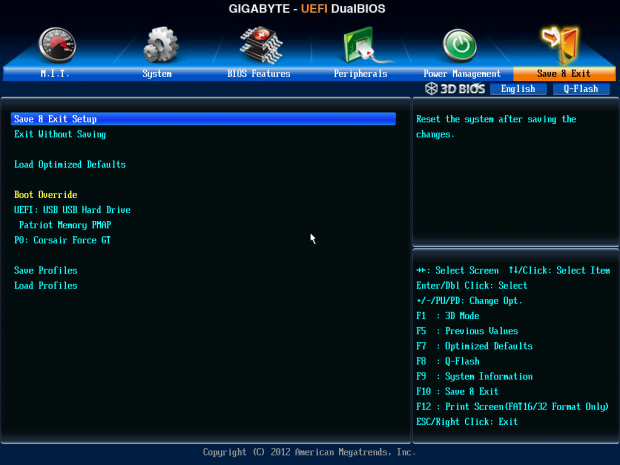
Going to the advanced section of the BIOS it's all a very standard affair. If you've seen the UEFI BIOS from GIGABYTE when they introduced it, the chances are you're not seeing anything new here. As always if you're going to do any overclocking, you're going to want to be in the M.I.T. section. Working our way through it, though, it felt like something was missing.
Going into the Advanced Voltage section you're greeted with the ability to only adjust the voltage of your RAM. With no voltage for anything CPU related it's going to have a bit of impact when it comes to the overclocking side of things. We'll cover that more in the next page, though, when we look at both our test system setup and overclocking.
Moving away from the M.I.T. section of the BIOS, though, the rest is fairly standard. You shouldn't find any real surprises and everything is really covered in the screenshots above so we won't go into much more detail. Instead we'll move onto our test system setup and check out how we went with overclocking.
Benchmarks - Test System Setup and Overclocking

We would like to thank the following companies for supplying and supporting us with our test system hardware and equipment: Intel, ASUS, MSI, Western Digital, MemoRight and Corsair.
Alongside the GIGABYTE Z77N-WiFi which we'll be running at both stock and overclocked, we've also got the ASRock Z77 OC Formula, GIGABYTE Z77X-UD4H, ASUS Maximus V Gene and the GIGABYTE X79S-UP5-WiFi.
When it came to overclocking we knew that we weren't going to achieve the same kind of overclock as we see out of larger motherboards. First we generally thought that because mITX boards just don't overclock as well, as they tend to not be designed for overclocking. When we headed to the BIOS, though, and saw that voltage adjustment was only offered on our memory and nothing to do with the CPU or the chipset; we knew that overclocking was going to be more limited.
With that said we headed into the BIOS to see just what we could do with the Intel i7 3770k. We thought just for laughs we'd go to the 47x multiplier, which is normally the max of our chip. With no surprise when we got out of the BIOS and the machine rebooted, we didn't get anywhere.
We headed back into the BIOS and started messing around with our multiplier some more working our way down. Eventually we got to 44x and everything was running smooth in Windows. We had no issue completing a MediaEspresso encode, which is always the benchmark that breaks our overclock.
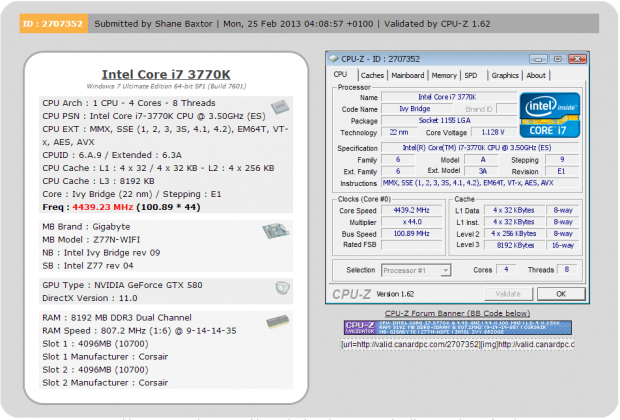
With the 44x multiplier running well we headed back into the BIOS to see if we could do anything with the BCLK. We ended up with a final clock of 4439.23MHz or 4.44GHz as illustrated in our graphs. This was achieved as you can see above with a 44x multiplier and a 100.89 BCLK.
CPU Benchmarks
HyperPi 0.99
Version and / or Patch Used: 0.99
Developer Homepage: www.virgilioborges.com.br
Product Homepage: www.virgilioborges.com.br
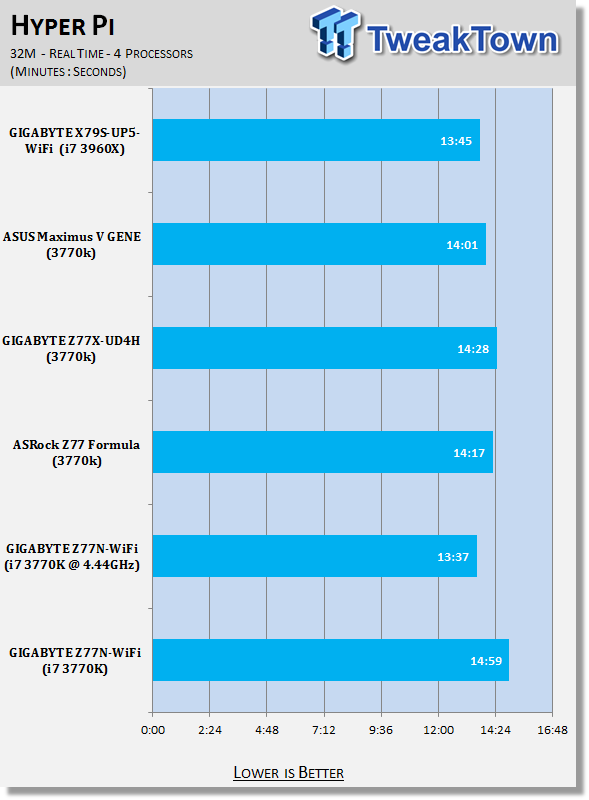
HyperPi is a front end for SuperPi that allows for multiple concurrent instances of SuperPi to be run on each core recognized by the system. It is very dependent on CPU to memory to HDD speed. The faster these components, the faster it is able to figure out the number Pi to the selected length.
For our testing we use the 32M run. This means that each of the four physical and four logical cores for the i7 and the four physical cores of the i5 is trying to calculate the number Pi out to 32 million decimal places. Each "run" is a comparative to ensure accuracy and any stability or performance issues in the loop mentioned above will cause errors in calculation.
AIDA64
Version and / or Patch Used: 1.00.1035BETA
Developer Homepage: http://www.aida64.com
Product Homepage: http://www.AIDA64.com
Replacing Everest in our labs is AIDA64. This new testing suite is from the core development team from Lavalys and continues that tradition. The guys have thrown in better support for multithreaded CPUs as well as full 64 bit support. We use this to test memory and HDDs for now, but may find ourselves opening this up to other areas of the motherboard.
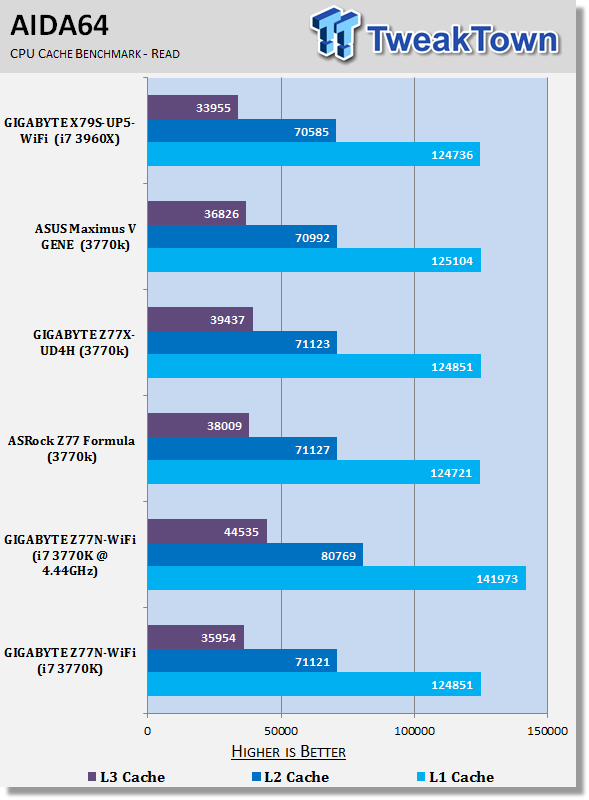
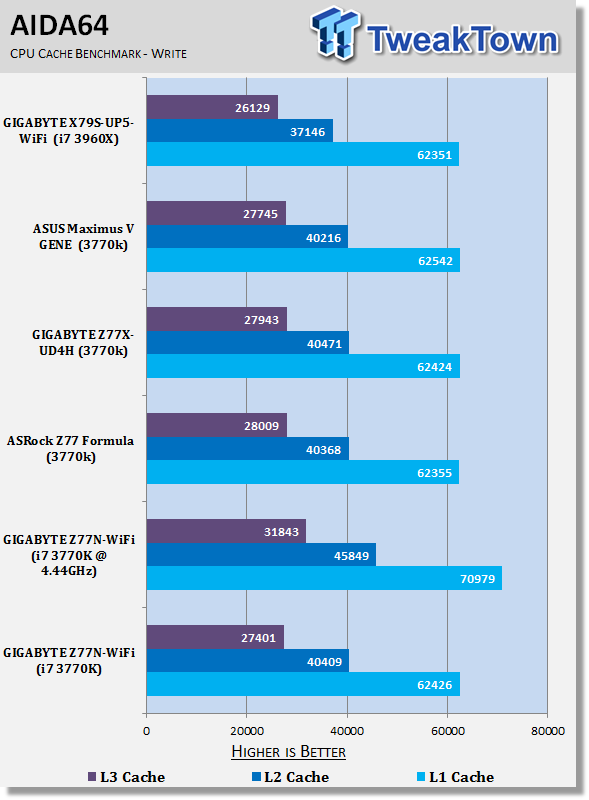
Starting off with our CPU benchmarks we can see that AIDA 64 numbers are pretty solid between our Z77 setups.
Looking at HyperPi performance you can see we're a little behind our other setups. Overclocking as always brings with it a nice little bump in performance and you can see the gains under both benchmarks here.
System Benchmarks
PCMark 7
Version and / or Patch Used: 1.04
Developer Homepage: http://www.pcmark.com
Product Homepage: http://www.pcmark.com
PCMark 7 includes a range of tests that give different views of your system's performance. In the Advanced Edition you can choose which tests to run. The common use and hardware component tests are unavailable in the Basic Edition.
Overall system performance is measured by the PCMark test. This is the only test that returns an official PCMark score. The Lightweight test measures the system capabilities of entry-level systems and mobility platforms unable to run the PCMark test, but it does not generate a PCMark score. Common use performance is measured by the scenario tests - Entertainment, Creativity and Production - each of which results in a scenario score. Hardware component performance is measured by the hardware tests - Computation and Storage - each of which results in a hardware score.
MediaEspresso
Version and / or Patch Used: 6.5
Developer Homepage: http://www.cyberlink.com/
Product Homepage: http://www.cyberlink.com/products/mediaespresso/overview_en_AU.html?fileName=overview&r=1
MediaEspresso is a blazingly fast media universal converter that can transcode your videos, photos and music files and out put them to a huge range of portable devices including mobile phones, portable media players and even game consoles. With technologies like Smart Detect, Direct Sync and CyberLink's TrueTheater™ video enhancements, you can not only forget about complicated format, resolution and output settings, but your converted file will come out the other side looking better than when it went in!
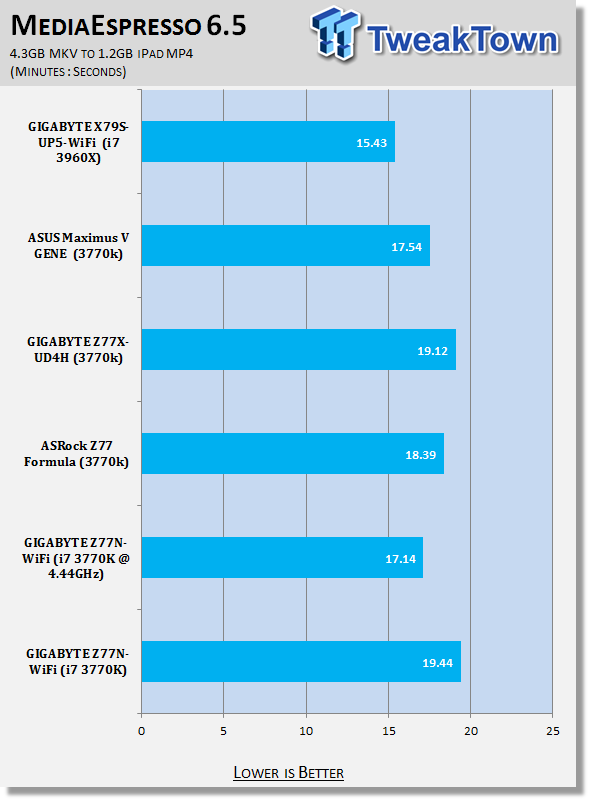
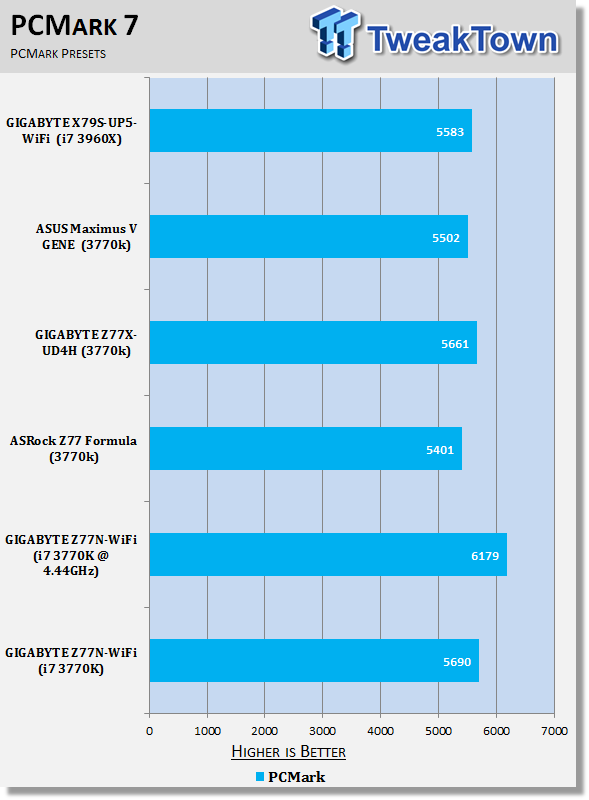
PCMark 7 performance out of the box is strong while we see that MediaEspresso lags behind slightly. Again, though, when it comes to overclocking, we see a nice boost in performance with almost three minutes shaved off our MediaEspresso encode time.
USB 2.0 and 3.0 Benchmarks
AIDA64
Version and / or Patch Used: 1.70.1400
Developer Homepage: http://www.aida64.com
Product Homepage: http://www.AIDA64.com
Replacing Everest in our labs is AIDA64. This new testing suite is from the core development team from Lavalys and continues that tradition. The guys have thrown in better support for multithreaded CPUs as well as full 64 bit support. We use this to test memory and HDDs for now, but may find ourselves opening this up to other areas of the motherboard.
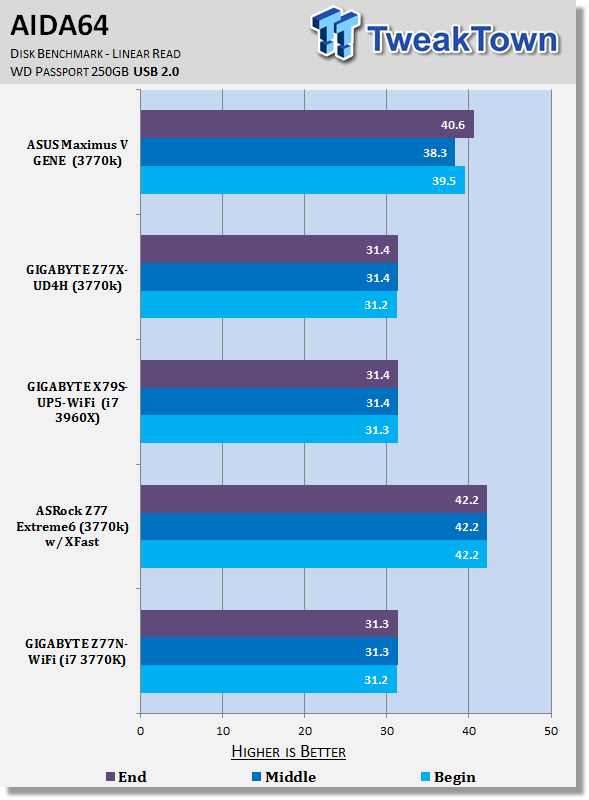
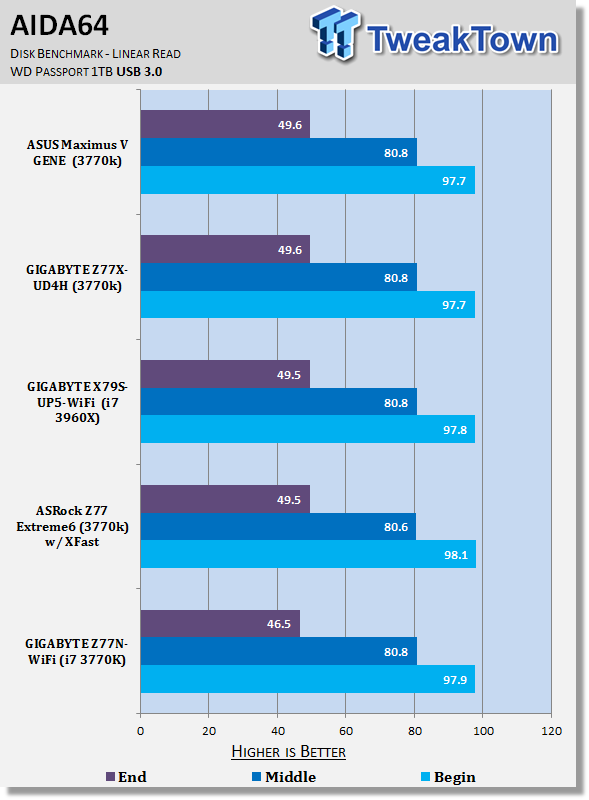
USB performance doesn't hold any surprises. We can see that USB 2.0 numbers line up with other non ASRock XFast based setups for the most part. And looking at USB 3.0 performance you can see across the board it's nearly identical on all our setups.
SSD Benchmarks
AIDA64
Version and / or Patch Used: 1.70.1400
Developer Homepage: http://www.aida64.com
Product Homepage: http://www.AIDA64.com
Replacing Everest in our labs is AIDA64. This new testing suite is from the core development team from Lavalys and continues that tradition. The guys have thrown in better support for multithreaded CPUs as well as full 64 bit support. We use this to test memory and HDDs for now, but may find ourselves opening this up to other areas of the motherboard.
HD Tune Pro
Version and / or Patch Used: 4.61
Developer Homepage: http://www.hdtune.com
Product Homepage: http://www.hdtune.com
HD Tune Pro gives us accurate read, write and access time results and for the last couple of years has been gaining popularity amongst reviewers. It is now considered a must have application for storage device testing.
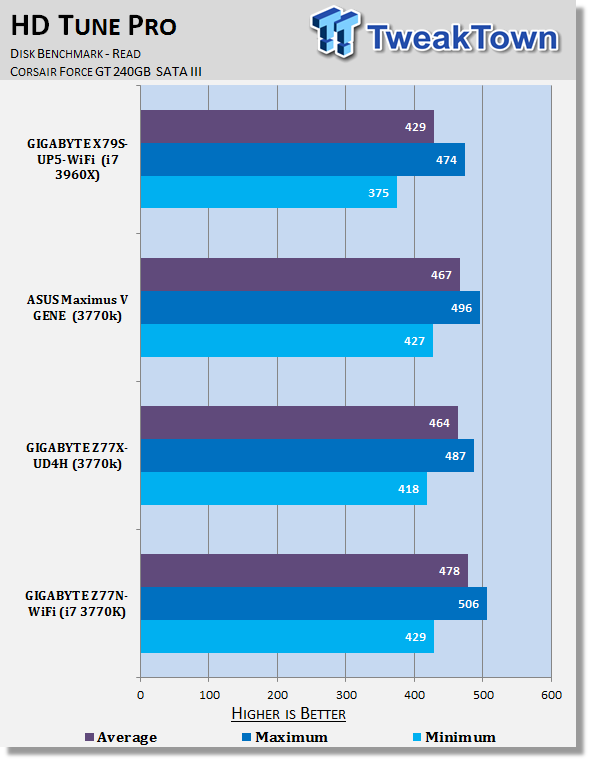
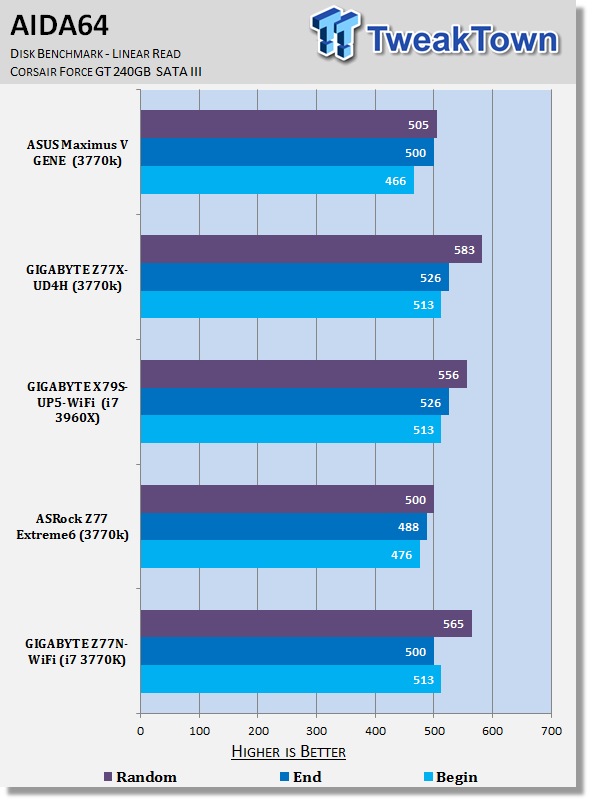
SSD performance is strong lining up with the other GIGABYTE options under AIDA64 and coming out ahead of the ASRock and ASUS ones. HD Tune Pro also paints a similar picture with very strong numbers with it coming out ahead in all areas when compared to the competition.
Memory Benchmarks
AIDA64
Version and / or Patch Used: 1.00.1035BETA
Developer Homepage: http://www.aida64.com
Product Homepage: http://www.AIDA64.com
Replacing Everest in our labs is AIDA64. This new testing suite is from the core development team from Lavalys and continues that tradition. The guys have thrown in better support for multithreaded CPUs as well as full 64 bit support. We use this to test memory and HDDs for now, but may find ourselves opening this up to other areas of the motherboard.
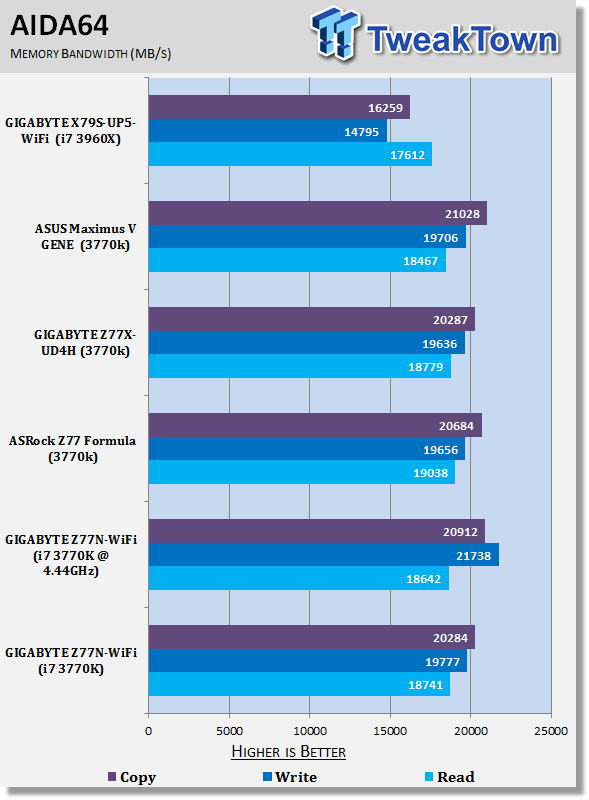
Memory bandwidth is fairly standard and as always we see a bit of a boost when overclocked. The best gains are seen when it comes to write performance.
Gaming Benchmarks
3DMark 11
Version and / or Patch Used: 1.0
Developer Homepage: http://www.futuremark.com
Product Homepage: http://www.3dmark.com/3dmark11/
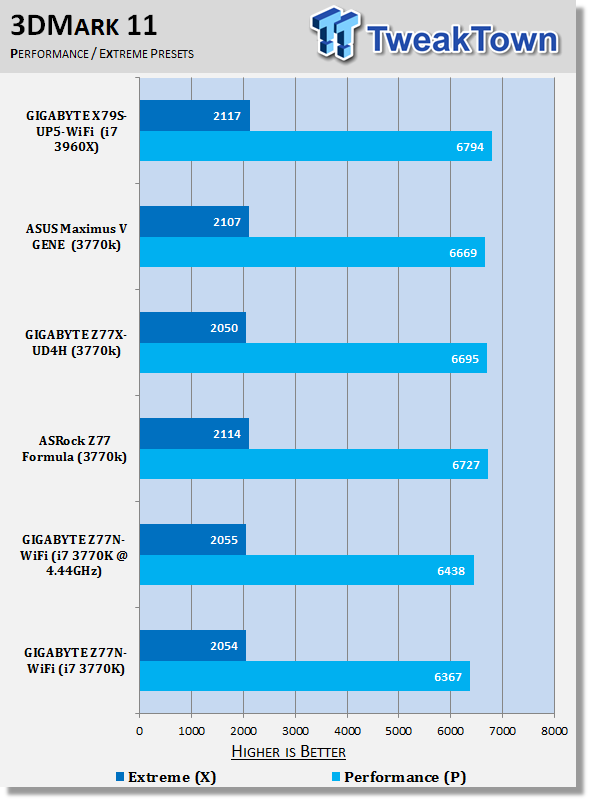
3DMark 11 is the latest version of the world's most popular benchmark. Designed to measure your PC's gaming performance 3DMark 11 makes extensive use of all the new features in DirectX 11 including tessellation, compute shaders and multi-threading. Trusted by gamers worldwide to give accurate and unbiased results, 3DMark 11 is the best way to consistently and reliably test DirectX 11 under game-like loads.
Metro 2033
Version and / or Patch Used: Latest Steam Update
Timedemo or Level Used: Built in Benchmark
Developer Homepage: http://www.4a-games.com//
Product Homepage: http://www.thqnordic.com/
Metro 2033 is an action-oriented video game with a combination of survival horror and first-person shooter elements. The game is based on the novel Metro 2033 by Russian author Dmitry Glukhovsky. It was developed by 4A Games in Ukraine and released in March 2010 for Microsoft Windows and Xbox 360.[3] In March 2006, 4A Games announced a partnership with Glukhovsky to collaborate on the game.[4] The game was announced at the 2009 Games Convention in Leipzig;[5] a first trailer came along with the announcement.[6] A sequel was announced, currently titled Metro: Last Light.
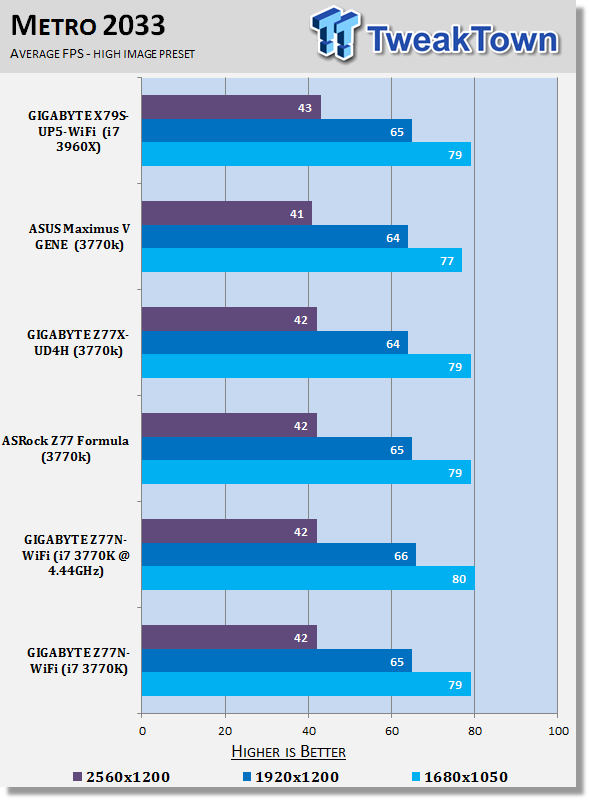
3DMark 11 performance out the box is a little down. Metro 2033 performance on the other hand is fairly standard. Overclocking brings a slight boost to our lower resolutions tests, but no change is seen as we climb up the resolution table.
Temperature and Power
Power Consumption
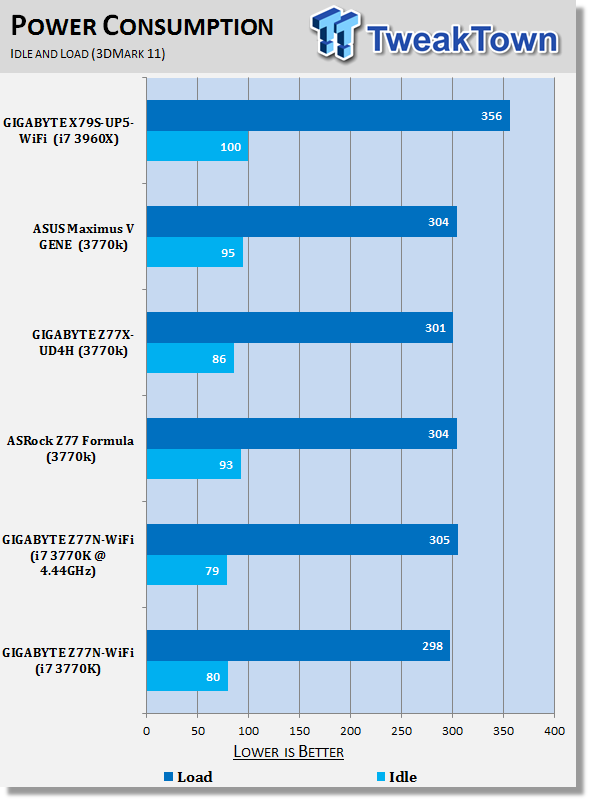
Power draw on the board is really strong coming in lower than all our other setups. Overclocking also brings little change to the overall power draw with nothing more than a bit of fluctuation being seen. This is of course due to the fact that we've added no extra voltage to the CPU or chipset due to the fact this is of course not an option, as discussed earlier in the review.
Core Temperature
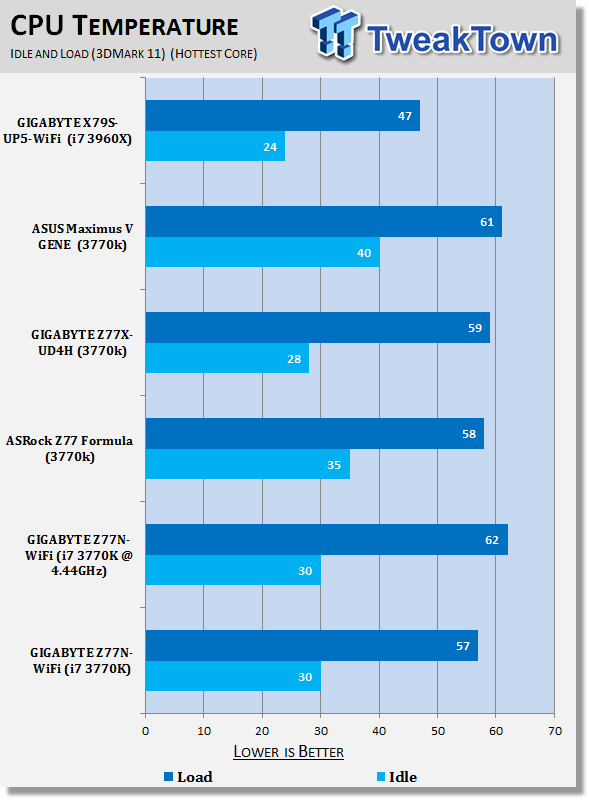
Temperature numbers are also really good. Load numbers are the lowest out of our Z77 setups and again due to the fact that we're not adding any extra voltage to the CPU, we see very little change when overclocked. At 4.44GHz you can see we're only just above 60c.
Pricing, Availability and Final Thoughts
At $129.99 the GIGABYTE Z77N-WiFi comes in a little cheaper than expected. Considering the strong feature set on the board and the I/O line up, I thought that we'd be looking at more around the $149.99 mark - even more so when you consider the decision for GIGABYTE to opt for the black PCB, which looks fantastic.
Overclocking was always going to be limited due to the fact that we don't have the ability to adjust the voltage of the CPU or the chipset. Coming in at 4.44GHz, though, is still strong, especially when you consider everything is running at stock voltage. The only change to voltage comes with our memory and we ran that at 1.65v with our CPU running at both stock and overclocked speeds.
While not the strongest overclock, the benefit is that it impacts both heat and power in such a small way. At 4.4GHz we see our CPU running at only 62c. Considering we can see our CPU get into the 90s when overclocking, this is very good - especially considering if you plan to build this board into a small chassis. Performance out of the box is strong, it falls slightly behind in some areas, but it's nothing major and it's not under every benchmark.
Overclocking as you'd expect brings with it a decent jump in performance even though we're not dealing with a clock speed that is as high as usual. Feature wise the board is also really strong, the WiFi / Bluetooth 4.0 option is great and the dual antenna setup is going to help give you as much range and signal strength as possible.
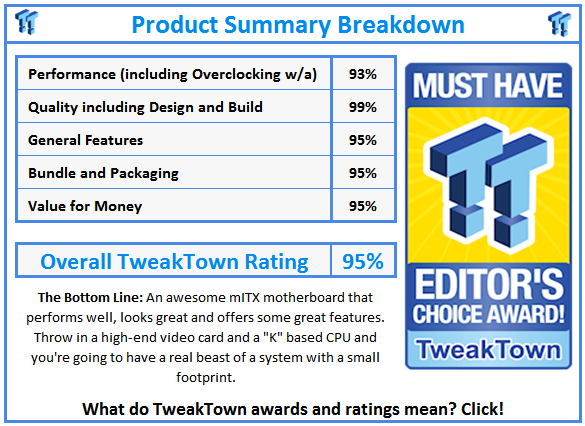
Along with all that, though, we've just got a great looking board. We're so glad that GIGABYTE opted to go with the black PCB and not the blue one we see on their cheaper boards. All in all GIGABTYE has put together a really nice mITX motherboard that would look great and work rather well in most mITX cases.

 ASRock Z890 Taichi Aqua Motherboard Review - Flagship features without the flagship price
 GIGABYTE Z890I AORUS Ultra Motherboard Review - Mini-ITX with surprisingly good thermals
 GIGABYTE Z890 AORUS Elite WiFi7 Plus Motherboard Review - Right in the sweet spot
 ASUS ROG Strix X870E-E Gaming WiFi7 NEO - A Crosshair by any other name
 MSI MAG B850 Tomahawk Max WiFi II Motherboard Review - Leveling up
 Kingdom Hearts IV release date possibly leaked online following Switch 2 confirmation
 Anthropic releases state-of-the-art AI model Claude Fable 5, and it's safe to use
 Nintendo showcase FromSoftware's next title 'The Duskbloods' in new mysterious trailer
 Razer Seiren V3 Pro is a new professional-grade microphone for gamers and creators
 Xbox is rethinking its Project Helix strategy as memory prices continue to soar
 Control Resonant arrives in September with DLSS 4.5 and Path Tracing on PC
 NZXT unveils aesthetically pleasing cases, fans and coolers at Computex 2026
 NVIDIA GeForce Hotfix 610.52 driver released, fixes issues related to G-SYNC, Smooth Motion, and stability
 3DMark adds native Windows on Arm support for ray-tracing benchmarks
 MSI showcases its next-gen GPU cooling tech and it could be for the GeForce RTX 60 Series
 Navman MiVue Smart True 4K Surround Dashcam Review - Seeing In All Directions At Once
 IQUNIX Magi96 Pro Aluminum Low Profile Mechanical Keyboard Review - Premium Build, Satisfying Sound
 Asetek Forte S-Series Racing Simulator Bundle Review
 Razer Pro Type Ergo Wireless Split Ergonomic Keyboard Review - Built for Comfort and Support
 ASUS ROG Strix Morph 96 Wireless Gaming Keyboard Review - Great Performance, More Affordable
 SAPPHIRE Radeon RX 9070 GRE PULSE OC Review - A New 1440p Challenger Has Arrived
 NZXT H6 RGB+ Compact Dual-Chamber Chassis Review
 ASRock Radeon RX 9070 GRE Steel Legend Review - The RDNA 4 Mid-Range Reshuffle
 The PowerToys utilities I keep enabled on every Windows 11 PC, and the ones I turned off within a week
 TweakTown's Best of Computex 2026 Awards - The Best Hardware, Gaming Gear, and AI
 Phison E37T SSD Controller Exclusive Preview - The Fastest DRAMless SSD Platform Yet
 USB Ports Not Working in Windows 11? Try These Fixes
 ASUS WiFi Routers and Networking Solutions Deliver Long-term Security and Reliability with No Additional Cost
 Second Monitor Not Detected in Windows 11? Try These Fixes
 Turn Your Old Smartphone Into a Dedicated Webcam for Your Windows PC
 The Send To menu is the right-click feature on Windows 11 that nobody bothers to customize
 Windows 11 will not let you pin a folder to the taskbar, but a 30-second workaround does
 ASUS ProArt Displays Unlock Creativity with Professional Monitors for Everyone