

Introduction

Home security/ monitoring has been a growing trend for quite a while now. With the drop in cost and the availability of Power over Ethernet, inexpensive high-bandwidth wireless and now low cost/high image quality IP based cameras, we can only assume this trend will continue to grow.
With this growth comes the question of which IP Camera to buy? Here we can help you out; as we take a look at another IP Camera company by the name of SparkLAN. They have sent along their CAS-673W for us to put through its paces.
Read on to see if how well the CAS-673W can fit into your own home security/monitoring plans.
The Package
The box that the CAS-673W comes in is a multi-purpose package. It is for both the wired and the wireless CAS-673; you can tell which one is inside by looking at the product label that is affixed to the box, so there is no worry about getting the wrong IP Camera.

The front of the box has a nice image of the two flavors of the CAS-673 as well as a happy couple. I am not sure if they are watching TV or spying on the babysitter, but it is almost a creepy image (I know my kids think it is). Still, once you get past the image SparkLAN has included a nice listing of features available with the CAS-673.

The back of the box has a nice image of where the CAS-673 fits into your existing network.

Inside we find the usual pieces and parts. SparkLAN has also included a bracket for mounting the CAS-673W on a wall or ceiling.
The Camera
The SparkLAN CAS-673 that we tested was the wireless version (CAS-673W), but it still follows the same basic design and layout of the wired version.
Overall the CAS-673 is a nice looking camera. It is about the same size as all of the other Pan and Tilt cameras on the market and follows the same lines. It seems that companies making these are either having a hard time breaking the design traditions, or there are design constraints due to available technology (gears and motors). Whatever the case, it has made pretty much all IP cameras look almost identical with only a few differences in appearance.

The CAS-673, as mentioned is a Pan and Tilt camera; as such it can be rotated through 340 degrees horizontally (170 Degrees in each direction) and 135 Degrees vertically (45 down and 90 up).

The front has a panel that can show power status, if it is connected to a (W)LAN and it is recording. You can turn these off inside the software to fool someone into thinking it is not on and also to prevent these lights from alerting someone to its presence.

The back is where all of the business is done. Here we find ports for Ethernet, Power, Audio (external speakers), WPS (wireless protected setup), a reset button and a slot for a micro SD card.
The micro SD card allows for recording locally without the need to connect to a wireless or wired network.
One missing item is the lack of any infrared lights allowing for low-light viewing/recording. This is unfortunate as this capability is, in our opinion, a must for any good home security camera.
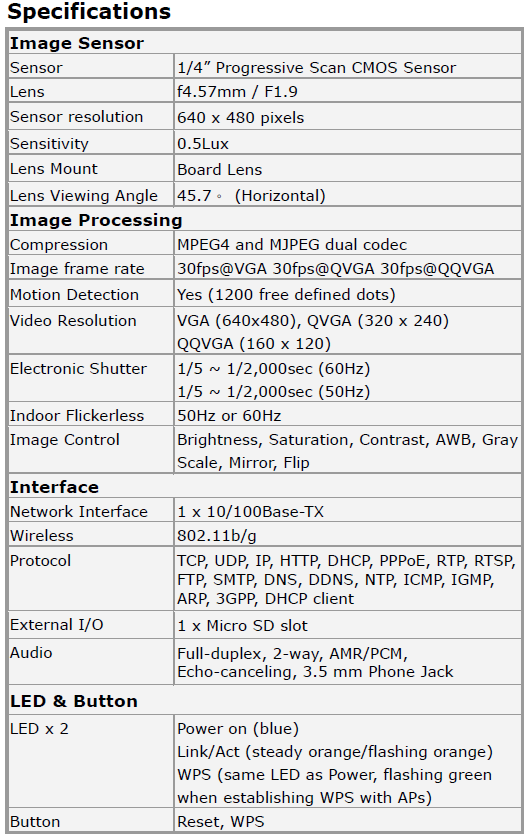
Features and Specifications of the CAS-673W are shown below.

Setup and Installation
The setup of the CAS-673 is pretty straight forward; there are two main ways to setup the camera. You can use WPS or a wired connection. We recommend using a wired connection for the initial setup as it avoids any issues that can pop up when using a wireless connection.

SparkLAN has included a wizard that walks you through the connection to the CAS-673. After it finds the camera you can connect directly to the web setup and finish things up from there.

Once in the Setup Menu for the CAS-673W you can choose to set things up manually or to get the Setup Wizard going.

The Setup Wizard starts you off with the choice of using a static or dynamic IP address. We highly recommend using a static one as it will save a considerable amount of trouble if the IP changes on the camera.

The next step is only needed if you are using a Point to Point over Ethernet connection that requires a username and password for connectivity and this camera is the only item connecting to that account.

This menu is interesting; it appears that SparkLAN will let you register each camera with a dynamic DNS service provider. This is great if you are using multiple cameras or the Real Time Streaming Protocol feature to connect this to your Cell Phone, or just to view externally on a website or in a web browser.

The time setup is important for many reasons, the least of which is making sure your recordings are time stamped properly, but also to make sure that you can connect properly to networked storage and e-mail servers.

Step 5 allows you to setup a personalized name for your camera. After this the Wizard completes and reboots the CAS-673W. After the reboot you can setup your wireless connection and then configure the camera to your liking.

Setting up wireless is very simple. You need to check the box labelled "Enable Wireless" first. Once that is done you can scan for wireless networks that are close to you. Find the name of your wireless network (the encryption type and channel will autofill). Input the password you use and you are off and running. As both the LAN and WLAN connections use the same IP address, you will not need to setup a new one for your wireless connection.
One last step for setup is the installation of FFDShow. This is an audio and video codec that is required for you to view the captured video properly in Windows.
Web Configuration
There are three parts of the Web Configuration page :-
- Live Video
- Setup
- System
Live Video is exactly what it says. You have a live view of what the CAS-673W sees. You can move the camera around with the control pad on the screen, directly click on the live image or use one of the pre-set points to move the view quickly.
Under the Setup menu, as we have already covered the setup of wireless networking (using the Wizard and the wireless setup page), we will start off here with Wired Network Setup.
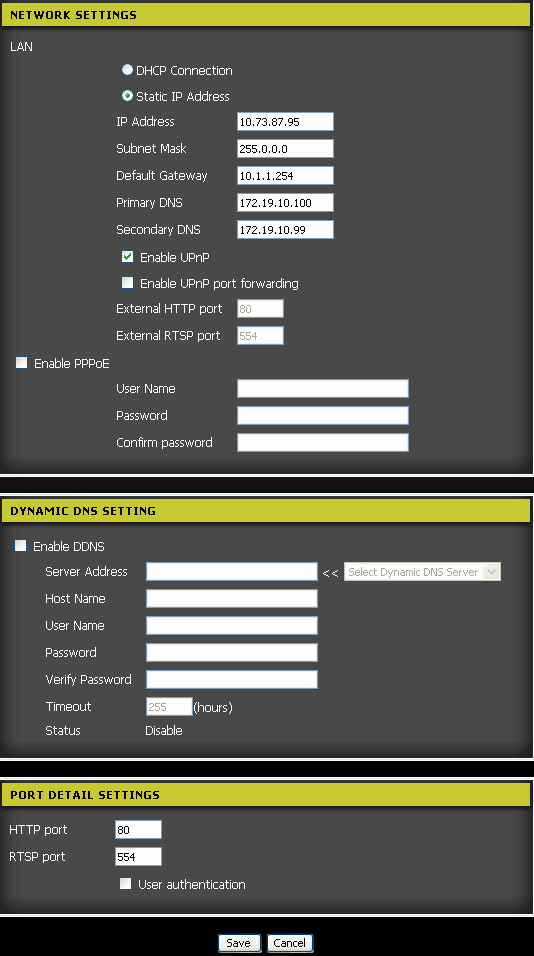
The wired network setup is a simple page that does have a few important options. One of the first is Universal Plug and Play. This is an option that is pretty much standard on home routers. However, it is not always the most security smart option to have enabled. It allows your router and internal equipment to dynamically find the right ports through its security without you manually setting it up.
You can also setup different external ports for web access to the CAS-673W and also to the RTSP service. You can also change the options for authentication on the ports page.

Here are the usual controls for image quality; nothing much out of the ordinary here.

The next page covers setting up different video and audio profiles. Each of these can be used for different connection types. There is also a pre-set one for mobile devices. You also have the options of adjusting the audio levels or simply turning it off. This is important as in many states the recording of audio without notification and consent is illegal, even in your own home. So you will want to check your local laws before you turn this feature on.

The motion detection page allows you to setup the area of coverage for the detection , movement in the camera's view. You can also adjust the sensitivity of this area to prevent false alarms from pets or other small moving objects.

The Pre-Set Position menu gives you the option to setup "stop" points in the CAS-673's range of movement. These are used to quickly move the camera to a spot or as points in the patrol feature.

The recording page is where you will find all of the options for setting up automated recording. There are options for FTP, SMB/Samba and e-mail. You can also set the system to start recording on a schedule or have it begin when a motion event occurs.
The snapshot page is the same with the exception of it only taking still images.

The system menu has all of the settings for the actual CAS-673 system. You can add or remove users, change passwords, change the camera's name and label (visible on the OSD). You can also set the LED's to be on, off or setup as a dummy. This will make the CAS-673W look like it is not connected. There is also an option to calibrate the lens position.
IP Camera Center
SparkLAN also includes an extra monitoring application. This they call IP Camera Center, but is really the same software that is found on many other IP Cameras available on the market. This is not to say it is bad, in fact it is a great piece of software and allows for simultaneous viewing and control of up to 16 cameras.

When you first launch the application it will ask you to find and connect a camera to it.

Once done you can adjust settings like scheduled recording and how the software should handle recorded video. You can also setup a few options for what the software should do when it detects certain events.


Testing
The testing of an IP Camera is a little different from testing other types of hardware. Here we check to see how effective the motion detection is, the image quality using the software, web interface and RTSP. We also cover low-light image quality as well as a few other minor details that affect overall usability and performance.
-Web Viewing
Our first stop is web viewing. Here we took a look at the CAS-673W and how well the image is shown on a screen when using Internet Explorer 8.

We were quite impressed with the image quality of the CAS-673W when we had full light. However, low-light conditions reduced quality significantly and when there was no light the CAS-673W was not usable at all.


As you can see, the addition of a few IR-LEDs would make a world of difference in low light conditions. It is true that colors will not be correct using these, but at least items are visible.
- Real-Time Streaming
Accessing the RTSP service on the CAS-673W is pretty simple; you will need to make sure to allow the port you setup for RTSP through your firewall (default is 554). Once you do that you would connect to your home IP address from outside your network and it should stream the video directly to you. Accessing this from outside your network will not use the standard http://. You will need to use rtsp://; be sure to add 554 to the end as this will route the request to the proper place.
Unfortunately I was not able to get the RTSP working on the SparkLAN CAS-673W long enough to test it or to compare it properly. We will be following up with SparkLAN to find a solution.
- Motion Detection
Here the SparkLAN really shines. With a few other IP cameras we have worked with it does not take much more than a quick change in lighting to set off the motion detection. However, with the SparkLAN this is happily not the case. It seems to ignore those changes in lighting (granted, it is of almost no use in low-light) and concentrates on actual movement in the area you setup.
Final Thoughts
The SparkLAN CAS-673W is a good daylight, indoor IP based camera. We were impressed with the ease of setup, image quality (in daylight or better), motion detection and its speed of movement. Unfortunately we ran into issues using the RTSP function and had a terrible experience with low light imagery.
The price of the CAS-673W is 1,055 HKD which equals about $136 USD. The camera currently is not available in the U.S. that we could find, but is available in the EU and Asia.
In all, the CAS-673W was a mixed bag for us. I would have liked to see better low light performance and an easier method of enabling and working with 3GPP and RTSP. I cannot truly recommend this to someone looking for a good multi-purpose IP camera, but I can say that if you need something for a well-lighted area and excellent motion detection is a must, then this might be a good fit for you.

 United
States: Find other tech and computer products like this
over at
United
States: Find other tech and computer products like this
over at  United
Kingdom: Find other tech and computer products like this
over at
United
Kingdom: Find other tech and computer products like this
over at  Australia:
Find other tech and computer products like this over at
Australia:
Find other tech and computer products like this over at  Canada:
Find other tech and computer products like this over at
Canada:
Find other tech and computer products like this over at  Deutschland:
Finde andere Technik- und Computerprodukte wie dieses auf
Deutschland:
Finde andere Technik- und Computerprodukte wie dieses auf 

 Synopsys and Samsung achieve production tapeout of next-gen Exynos SoC on new 3nm process node
 Windows 11 could get some big changes: Start menu 'companions' and Copilot in Settings
 The iPhone 16 Pro could have a 20% brighter display than your boring old iPhone 15 Pro
 New iPhone 16 dummy unit leak shows off its refreshed camera design and more
 Analysts expect an iPad Pro sales slowdown despite new models, here's why
 Corsair 6500X Mid-Tower Dual Chamber Chassis Review
 Corsair MP700 Pro SE 4TB SSD Review - As Fast as They Come
 Corsair MP600 Mini 2024 Edition 1TB SSD Review - Fastest Tiny Drive on the Planet
 Lexar SL500 1TB Portable SSD Review - The best of native USB
 Corsair Platform:6 Elevate Modular Desk Review
 True Lies (1997) 4K Blu-ray Review
 Fractal Design North XL Full-Tower Chassis Review
 Western Digital WD Gold 24TB HDD Review - High-Capacity Masterpiece
 AOC U27G3X 27-inch Gaming Monitor Review - 4K 160Hz for $500
 MSI Vector GP68HX Gaming Laptop Review
 Building the Ultimate Home Entertainment Server with an ASUSTOR NAS and Viper Gaming NVMe SSDs
 Everything you need to know about the latest ASUS NUC Mini PCs - NUC 14 Pro and ROG NUC
 How to Overclock Your GPU and Boost Your PC Gaming with ASUS GPU Tweak III
 ASUS's AMD Radeon RX 7000 Series GPU lineup has something for every gamer
 ASUS OLED Premium Care defends the ROG Swift OLED PG32UCDM gaming monitor from burn-in