









Introduction

Wireless networking has been a standard in homes and home offices for years now. As more people move from the desktop to the laptop we will see an even bigger increase in the need for fast wireless to handle our data. The evolving of the netbook has also ignited this frenzy. But with more and more people working, un-tethered files and printer sharing becomes an increasing problem.
Enter the ASUS WL-500g Premium V2; this b and g specification wireless router has speeds of up to 54Mbps while combining the features of a NAS and wireless print server. Added on top of these features is a profile based QoS system (Quality of Service) that lets you easily prioritize the traffic on your network for the best performance. Additional FTP and Samba support round out the package.
The box that the WL-500g Premium V2 ships in is a little on the plain and utilitarian side, but it does provide you with good information on the features and specifications. There is little doubt about what you can expect to get after reading the box. You can currently pick up the ASUS WL-500g Premium V2 from Newegg at 89.99 .
So let's dive in and see if the WL-500g Premium V2 can be the answer to our wireless sharing needs.
The Package

As I mentioned before, you get a really good idea of the features you will be getting with the WL-500g Premium when you pick up the box. This is good as with many products the information is hidden beneath graphs and other graphics.

The back of the box shows up a little more about some of the ASUS highlights. These include AiDisk, a form of USB HDD file sharing and EZQoS; this is the profile based QoS service I mentioned earlier. I will go into more detail on this a little later.

Opening the box, I was a little surprised at the size of the WL-500g Premium V2; as routers get smaller, this one has maintained its boxy shape and bulky size and a single antenna was also a shock as I have gotten used to multiple antennas on most modern wireless devices.

ASUS has included most of the standard items needed to get you up and running; Cat 5 cable, support CD-ROM with utilities and of course a power block.
The CD-ROM contains some nice utilities; one is for setting up sharing from a remote location (without the need to enter the router firmware) and the other is to assist in setting up networked printer sharing.
One very nice touch from ASUS is an unusually detailed manual/quick start guide. This even includes directions for setting a static IP address for first time connections and goes right up to connecting your wireless devices to the WL-500g Premium V2.

The Router
The WL-500g Premium V2 is much blockier than I thought it would be; it reminds me of the first wireless router I ever owned. That was a thick and boxy device just like this one.
ASUS is following the Mac-alike look that many manufacturers have adopted with white and silver colours. The top of the WL-500g Premium V2 has a dimpled surface and the ASUS logo in the center.

Taking a look at the front of the WL-500g Premium V2 shows us the usual lights you would expect to see on a modern wireless router. The one thing that I found odd was that these are orange. Now, normally I would not notice, but I have gotten used to seeing green and blue so this orange really threw me. To most people an orange light is going to be a warning. In fact, at first I thought the lights were orange because I had not completed the setup. Perhaps the next revision will feature less alarming lights.

Flipping around to the back, we get a good view of the single antenna connection right next to a Quick Setup button; this launches the EZSetup that is a very handy tool for first time users. With EZSetup you are walked through the basic setup of a wireless network. To use this you need to open the EZSetup tool on your computer then push the EZSetup button on the back for three seconds. ASUS recommends using EZSetup only with their wireless products to avoid configuration issues.
Next to the EZsetup button is the hard reset button and this allows you to perform a hard reset of the WL-500g Premium V2. Flowing the line down we see the WAN port and the four 10/100 ports. Again, I am disappointed to see a modern router that states it offers file sharing, yet only having 10/100 ports. In a day where most new devices are Gigabit, I would think Gigabit ports would be standard.

After the LAN ports are two USB 2.0 ports; these are what give the WL-500g Premium V2 its real flare. With these two ports you can turn your simple wireless router into a print server, FTP Server, File Server, and Media Server; all through the use of the built in GUI and configuration utilities on the CD-ROM. This feature puts the WL-500g Premium V2 well above the current crop of g specification wireless devices.

Setup and Installation
Setup of the ASUS WL-500g Premium V2 was very simple; after you connect your new router to your network you simply open your favourite browser and it will automatically direct you to the quick setup utility. The first part of this is an auto detection of your connection type (Static, Dynamic, PPPOE, etc).

If the WL-500g Premium V2 cannot figure out your connection type or you want to manually configure it, you will find that ASUS has added in some great flexibility. You have options for a wide selection of connection types including PPTP and L2TP.

After you have configured your connection type it will prompt you to setup your wireless as well as advanced settings (such as changing your user name and password). You can only choose one or the other for some reason. I chose the wireless setup but was not able to use the quick setup to configure advanced options. I had to adjust those later.

As you can see, the quick setup covers pretty much everything you need to get your wireless setup secured; you can choose the SSID (name) type of authentication and the strength/type. After that you are finished with the quick setup utility.

As far as setup goes, this is one of the better ones I have seen. If ASUS had only included a requirement to change the admin password and warning about UPnP in this setup, I would say it was the best one out.
Web Based Interface
Once you are finished with the quick setup you can move into the web based configuration utility and customize your network. To access the web configuration pages you just type the IP address of your WL-500g Premium V2 into your favourite web browser; the default is usually 192.168.1.1.

Once you login you are greeted by the Network Map Screen. This gives you information about the setup of your network including clients, attached printers or drives, your connection status to the internet and all of your wireless network configuration information, all in an easy to read layout. The Network Map can even show you the capacity and remaining space left on your attached drives.

Along the left side of the Web Setup are links to take you to different places in the configuration. There are two types here; the larger buttons (usually having stars by them) and these are your quick configuration pages for things such as the UPnP Media Server, AIDisk (an easy for of FTP) and EZQoS for setting up traffic profiles.
The first one we will cover is the UPnP Media Server. With this you can automatically connect to other multi-media systems such as Windows XP Media Center Edition, Vista, and The Xbox.

Next on our list is the AIDisk Wizard. This handy tool will walk you through the setup of attached drives for use as an FTP server. The wizard is three steps;
1 - Determine the type of security you want.
You can set this up as limitless (meaning no login), limited (users must have a login and password with read only and read and write permission levels), and admin rights, which is administrator rights only to all users set up. From there you can setup Dynamic DNS through ASUS or input your own IP and domain name (if you have one).

EZQoS is the next button down; here you can segment your network to handle certain traffic faster. The WL-500g Premium V2 has four profiles that are self explanatory:
- Gaming Blaster
- Internet Application
- AiDisk
- VoIP/Video Shraring

Next up is all of your advanced configuration options. These are mostly supporting options for the main settings in addition to administrative functions for your router.

There are a couple of highlights, though. One of the most interesting is in the operation mode. Here you can choose how you are going to put the WL-500g Premium V2 to use. You have options for home gateway, router for business and wireless access point.

You also have advanced options for QoS including setting the fragmentation size for long packets. You can setup and manage your FTP and internal shares in the USB Application menu and setup virtual servers in the WAN menu. Firewall options include DDoS attack protection along with MAC, IP and URL filtering.


As you can see, the WL-500g Premium V2 is a pretty feature packed device. There are numerous roles it can play in your home or small office network. All of these can be setup with a few simple clicks.
Testing
We used PerformanceTest 6.1 by PassMark which you can find out more information about here. It has a handy Advanced Networking section which is perfect for our testing.
Doing our best to emulate a real-world performance scenario, I setup a server running Windows 2008 (x64) Server, (2x Xeon Quad Core 3.0 GHz 1333MHz FSB, 4GB DDR2 FB-DIMMS, 2x 146GB SAS drives in RAID 1) and the client PC was an ASUS G2S -X1 With built-in Intel 802.11n adapter. The results were gathered by sending data from the ASUS notebook to the server at different distances with the built in adapter and a TP-Link TL-WN821N and average transmission speeds were recorded for each.
We compared the ASUS WL-500g Premium V2 against the D-Link DIR-655 set to allow b and g connections only. All wireless tests were completed with WPA2 Personal (with the AES cipher, as it has been proven to provide better performance). The router was placed in the exact same position as well as the notebook at its various testing locations for fair comparison.
Since the WL-500g Premium V2 is also a file and print server, I tested file transfer speeds (using a Maxtor One Touch 120GB USB drive) and sent several test prints to a HP LaserJet 1020.
- Connection Speed
As you can imagine, it was a little bit of a slowdown from the 300Mbps connections of the N specification routers and adapters. The average connection for both adapters was 54Mbps. This was at all ranges used for testing.
- Bandwidth
Now for the fun part; to test the speed of the ASUS WL-500g Premium V2 I chose three common working points inside my house. One was in the lab within 10 feet of the routers; the next was in the bedroom roughly 35 feet away and requiring the signal to travel through a wall containing the main house electrical panel and a "wet wall". The last was outside on the back porch, roughly 45 feet from the router. Both the second and third positions were out of the direct line of sight of the router.

*signal travelling through wet wall and main house electrical panel
As you can see, the bandwidth is at the lower edge of what is needed for smooth video playback and completely beyond what is needed for HD Video streaming. File transfer is also going to be hindered by what we see here.
In real-world testing, printing was performed without any issues at all. File transfers seemed a little sluggish and I was not able to watch any HD videos at longer ranges due to some pretty bad audio and video stutter.
Final Thoughts
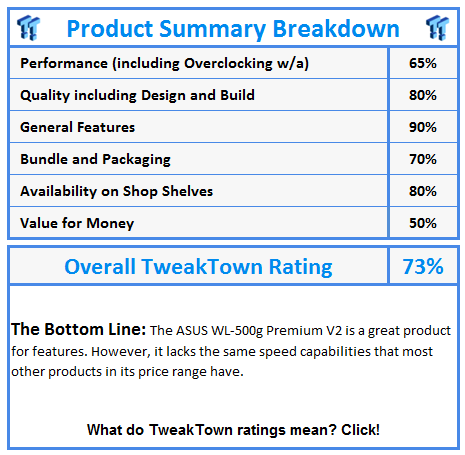
I like the ASUS WL-500g Premium V2; it has many great features. However, I think that it is a little overpriced at $90. After all, for $90 you can get an N router with a single USB port for print or file sharing and most of the N routers also have Gigabit ports.
If ASUS can reduce the overall price, or put this same functionality in a Gigabit/N specification router, then you would have a truly great device and one that would stand head and shoulders above all others in the market space.
Our Latest Routers & Access Points Review Coverage
- MSI Roamii BE Pro Wi-Fi 7 Mesh System Review - Affordable price, good mid-range performance
- ASUS ROG Rapture GT-BE19000AI Gaming Router Review: Shiny and fast (except when it isn't)
- NETGEAR Orbi Wi-Fi 7 370 Dual Band Mesh System Review - Mid-Range Value
- NETGEAR Nighthawk 5G M7 Mobile WiFi 7 Router with eSIM MH7150 Review
- Engenius ECW520 Cloud7 2x2x2 Access Point Review: Serious Management Potential

 MSI Roamii BE Pro Wi-Fi 7 Mesh System Review - Affordable price, good mid-range performance
 ASUS ROG Rapture GT-BE19000AI Gaming Router Review: Shiny and fast (except when it isn't)
 NETGEAR Orbi Wi-Fi 7 370 Dual Band Mesh System Review - Mid-Range Value
 TP-Link Tapo C660 Kit Solar-Powered Pan/Tilt Security Camera Kit Review
 NETGEAR Nighthawk 5G M7 Mobile WiFi 7 Router with eSIM MH7150 Review
 'Radically different' business models coming to Xbox, CEO Asha Sharma says
 GEEKOM's new GeekBook M16 brings a Core Ultra 9 and a 99.9Wh battery to the business laptop market for $899
 AMD warns DDR5 prices won't recover until 2028 as AI demand continues pulling supply away from consumers
 SEGA under fire for using gen AI in new Crazy Taxi game
 Halo Studios quietly establishes innovative new business model for legacy game remakes
 Zelda Ocarina of Time remake confirmed for 2026 launch on Switch 2
 ID Cooling shows off wooden PC cases and matching AIO coolers at Computex 2026
 Formula V Line's Ice Nova Pro 3 air cooler could be perfect for brass-themed PC builds
 SAMA's Computex 2026 lineup includes a curved-glass case and AIO coolers with swappable screens
 Master Chief crashes the Covenant's vacation in new Halo remake prequel missions
 Navman MiVue Smart True 4K Surround Dashcam Review - Seeing In All Directions At Once
 IQUNIX Magi96 Pro Aluminum Low Profile Mechanical Keyboard Review - Premium Build, Satisfying Sound
 Asetek Forte S-Series Racing Simulator Bundle Review
 Razer Pro Type Ergo Wireless Split Ergonomic Keyboard Review - Built for Comfort and Support
 ASUS ROG Strix Morph 96 Wireless Gaming Keyboard Review - Great Performance, More Affordable
 SAPPHIRE Radeon RX 9070 GRE PULSE OC Review - A New 1440p Challenger Has Arrived
 NZXT H6 RGB+ Compact Dual-Chamber Chassis Review
 ASRock Radeon RX 9070 GRE Steel Legend Review - The RDNA 4 Mid-Range Reshuffle
 ASRock Z890 Taichi Aqua Motherboard Review - Flagship features without the flagship price
 GIGABYTE Z890I AORUS Ultra Motherboard Review - Mini-ITX with surprisingly good thermals
 The PowerToys utilities I keep enabled on every Windows 11 PC, and the ones I turned off within a week
 TweakTown's Best of Computex 2026 Awards - The Best Hardware, Gaming Gear, and AI
 Phison E37T SSD Controller Exclusive Preview - The Fastest DRAMless SSD Platform Yet
 USB Ports Not Working in Windows 11? Try These Fixes
 ASUS WiFi Routers and Networking Solutions Deliver Long-term Security and Reliability with No Additional Cost
 Second Monitor Not Detected in Windows 11? Try These Fixes
 Turn Your Old Smartphone Into a Dedicated Webcam for Your Windows PC
 The Send To menu is the right-click feature on Windows 11 that nobody bothers to customize
 Windows 11 will not let you pin a folder to the taskbar, but a 30-second workaround does
 ASUS ProArt Displays Unlock Creativity with Professional Monitors for Everyone