











Introduction

The trend to remove the wires from the home and small office environment is in full swing. We are seeing more and more products shipping with fast wireless. But you need a good router to handle this traffic and to protect those data streams flying through the air. The TP-Link TL-WR941ND Wireless N Router might be an answer to your needs.
The packaging the TL-WR941ND ships in is pretty standard for most networking products these days. It is heavy on diagrams and theoretical bandwidth and not much on security of real functionality. There is a small blurb on the Quick Secure Setup, but that is about it.
You can currently purchase the TL-WR941ND from Newegg at 49.99 U.S. Dollars; a respectable price point for a Wireless N router. Of course, you should never judge a book by its cover or components by their box. Checking out the specs on Newegg, you can see that the TP-Link TL-WR91ND does cover the right bases on paper and looks to be a great buy for the price.
Of course, we need to make sure it lives up to its claims. Click on to find out if it does.
The Package

As we mentioned just before, the box the TL-WR941ND ships in is nothing special. Once you open up the box you find what you would expect; the TL-WR941ND, a quick install guide and a resource CD (in the form of a mini CD-ROM).

The Quick install guide is well laid out and easy to read. It provides a great quick setup guide for people that have never worked with a wireless router before.
The Reference CD contains full manuals for a large number of TP-Link routers. When using it, make sure you choose the correct one. Once you have found it, the manual does provide a large amount of information for configuring the advanced options of the TL-WR941ND.
The Router

The TL-WR941ND is along similar lines to most modern routers. You have lights in the front to indicate power, data transmission, what ports are connected etc. - As with many other companies, TP-Link has chosen a very stark white for the colour.
This, while not to my tastes (I personally do not like stark white equipment), still gives it an attractive look.

Taking a closer look at the front panel, we see a number of LEDs and these are labelled to indicate their function. One of particular interest is the QSS light. This is the Quick Secure Setup light and will flash green when you are connecting a device using QSS, flash red when a device fails to connect and stay on (green) when it is working properly.

Flipping the TL-WR941ND around, we see the RJ-45 ports and the sockets for the three antennas.
The TL-WR941ND has one 10/100 RJ-45 port for WAN (Wide Area Network) and four 10/100 ports for your LAN (local area network). The lack of Gigabit ports is a negative, especially when the majority of products are now offering Gigabit LAN.

The three antennas located on the back are removable and can be swivelled around for best reception and to fit the area the TL-WR941ND is located. The bottom of the TL-WR941ND has much of the default information including IP address and default username and password. This is handy to have if you need to reset the TL-WR841ND for any reason.
The TL-WR941ND supports the latest N Specification 2.0 draft as well as B and G. Wireless encryption types are WEP, WPA /WPA-2 PSK and PA /WPA-2 Radius. Both TKIP and AES are supported under WPA /WPA-2.
There is also support for Virtual Server port forwarding, DMZ setup and special hosts, auto and scheduled internet connection, UPnP, Dynamic DNS, static routing, DHCP and NAT. Furthermore, there's a built-in firewall with IP as well as Mac and Domain filtering to add to the feature set.
Web Based Interface
The TL-WR941ND is configured through a web based interface that allows you to control all aspects and features of the router.
The default IP address for this is 192.168.1.1. Simply type this address into your favourite browser and log in. The default login information is on the bottom of the TL-WR941ND and also in the quickstart manual.

Once you are in, you see the screen above that gives you information on the status and condition of your TL-WR941ND. You can find the firmware version, hardware version, wireless, WAN and LAN status information.
Along the left side there is a menu that will take you to the different areas of the TL-WR941ND. I will cover the highlights and important sections below.

The quick setup is a series of steps to get you up and running quickly; it walks you through the basic configuration (including enabling the firewall). This is a handy tool for people new to networking, but it leaves most of the advanced options out.

The Network screens include setup and information for your LAN and WAN as well as setting up a clone of a MAC address for ISPs that do not like routers.
You can set the IP address and subnet mask you want to use for your personal network here when you set the IP address of the router. When you do this, the scope of the DHCP address range will automatically change as well.

Taking a closer look at the wireless setup page, we see some pretty standard stuff. You can change the name of the SSID as well as setup the broadcast channel and region.
To secure your wireless you have to head for the wireless security page. This is where you setup the type of encryption you want to use to protect your wireless network and bandwidth. You have options for WEP, WPA/WPA2 -PSK (pre-shared key) and WPA/WPA-2. To setup WPA/WPA-2, this requires the use of a radius server and is not something common in home or even SOHO use.
You also have the ability to lock your wireless down by Machine Address Codes; this is an extra level of security and will only allow MACs that are registered in the system.


Here we get a look at the advanced wireless settings area which is also very common from what we've seen before.


The TL-WR941ND has a virtual server setup that allows you to direct incoming traffic on a single or series of ports to a specific IP address; this is a handy feature and allows you to control the flow of traffic through your network. You can also setup port triggers, a DMZ (an area outside the firewall protection) and Universal Plug and Play.
A note on UPnP, although it is a nice feature, it can be exploited by hackers, so care should be taken if it is enabled.

Finally, we get a look at the system management section. Here you can set your time (complete with NTP server) upgrade your firmware, reboot the TL-WR941ND and see traffic statistics.
Testing
We used PerformanceTest 6.1 by PassMark which you can find out more information about here. It has a handy Advanced Networking section which is perfect for our testing.
Doing our best to emulate a real-world performance scenario, I setup a server running Windows 2008 (x64) Server, (2x Xeon Quad Core 3.0 GHz 1333MHz FSB, 4GB DDR2 FB-DIMMS, 2x 146GB SAS drives in RAID 1) and the client PC was an ASUS G2S -X1 With built-in Intel 802.11n adapter. The results were gathered by sending data from the ASUS notebook to the server at different distances with different adapters and determining the average transmission speed.
We compared the TP-Link TL-WR941ND against the D-Link DIR-655. All wireless tests were completed with WPA2 Personal (with the AES cipher, as it has been shown to provide better performance) and 802.11n + 802.11g wireless mode enabled on both routers. I chose to leave both n and g enabled as this is a more realistic simulation of a normal home wireless network. The router was placed in the exact same position as well as the notebook at its various testing locations for fair comparison.
- Connection Speed
Both the DIR-655 and the TL-WR941ND connected easily and maintained good connection speeds. I did note that the D-Link seemed to have a harder time reconnecting after a shutdown, with the TL-WR941ND seeming to connect faster.
- Bandwidth
To test the speed of the TL-WR941ND I chose three common working points inside my house. One was in the lab within 10 feet of the two competing routers; the next was in the bedroom roughly 35 feet away and requiring the signal to travel through a wall containing the main house electrical panel and a "wet wall". The last was outside on the back porch, roughly 45 feet from the router. Both the second and third positions were out of the direct line of sight of the routers.
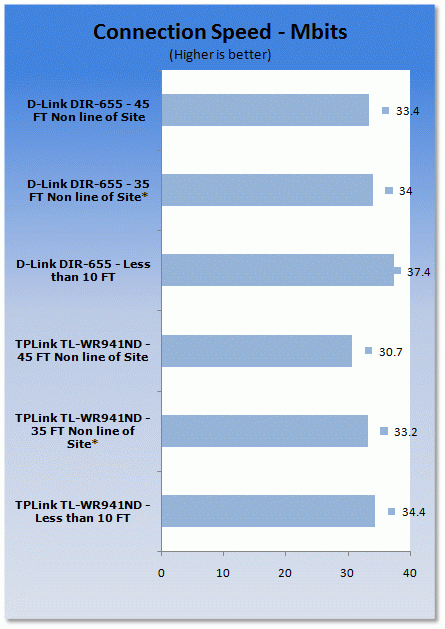
*signal travelling through wet wall and main house electrical panel
The TP-Link TL-WR941ND is a little slower than the D-Link in terms of raw bandwidth, but not by too much.
I also made a few subjective tests using a HD video streamed over the wireless connection and found that the D-Link actually had a harder time keeping up; especially when the signal was travelling through the "wet wall".
- Latency
For gaming latency tests I installed Steam and ran Counter Strike on my ASUS G2S. I also ran Speedtest.net's internet test to see what my routing latency would be.
The speed test was pretty impressive; my ping time was 88ms which while not amazing is still pretty low. The more impressive part was the bandwidth; 11Mbps down and 1.2Mbps up. Not bad at all.
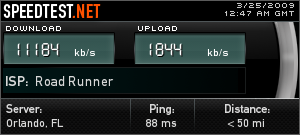
For gaming things were a little better with average pings in the mid 30s to low 40s. The TL-WR941ND is certainly not going to cramp your gaming style.

Final Thoughts
The TP-Link TL-WR941ND is an excellent product and one that can be picked up at a good price. I found the installation and setup to be easy, while there was nothing lacking in speed. I did have a small problem with firmware updates, but resetting to factory defaults and reinstalling the firmware sorted that out.
I also found a few minor security issues with the TL-WR941ND, though; I did not like the fact that the firewall was disabled by default and that there is no warning about Universal Plug and Play. It seems like a small thing, but in many cases your choice of router is the first line of protection against intrusion.
In all, the TL-WR941ND is still a good buy with its 49.99 U.S. Dollar price tag over at Newegg and you do get good performance out of it. Just make sure you turn the firewall on and disable UPnP.

Our Latest Routers & Access Points Review Coverage
- MSI Roamii BE Pro Wi-Fi 7 Mesh System Review - Affordable price, good mid-range performance
- ASUS ROG Rapture GT-BE19000AI Gaming Router Review: Shiny and fast (except when it isn't)
- NETGEAR Orbi Wi-Fi 7 370 Dual Band Mesh System Review - Mid-Range Value
- NETGEAR Nighthawk 5G M7 Mobile WiFi 7 Router with eSIM MH7150 Review
- Engenius ECW520 Cloud7 2x2x2 Access Point Review: Serious Management Potential
 D-Link F518 5G Wi‑Fi 6 AX1800 Mobile Hotspot Review: All-Day Mobile Hotspot
 MSI Roamii BE Pro Wi-Fi 7 Mesh System Review - Affordable price, good mid-range performance
 ASUS ROG Rapture GT-BE19000AI Gaming Router Review: Shiny and fast (except when it isn't)
 NETGEAR Orbi Wi-Fi 7 370 Dual Band Mesh System Review - Mid-Range Value
 TP-Link Tapo C660 Kit Solar-Powered Pan/Tilt Security Camera Kit Review
 Phantom Blade Zero on PC will launch with DLSS 4.5 and Ray Tracing on day one
 Razer announces its first Artisan Keycap with the Triple-Headed Snake Edition
 ZOTAC's 20th Anniversary Edition GeForce RTX 5080 features a titanium colorway and mirror-like backplate
 GeForce NOW app for Linux leaves beta, while DLSS Frame Generation cloud latency also improves
 Twitch opts streamers into gen AI training by default, faces harsh backlash
 Sean Murray still plays the 2016 launch version of No Man's Sky
 China's YMTC has climbed to third place in global NAND flash shipments
 $100 GTA 6 version makes up 89% of pre-orders, analysts estimate
 HWiNFO's latest update quietly confirms Intel is working on Razor Lake-AX
 Nintendo puts Switch 2 price increase warnings on store demo kiosks ahead of September 1 hike
 Corsair HS35 v3 Wireless Gaming Headset Review - An Affordable Winner
 Bose Lifestyle Ultra Speaker Review - Impressively Detailed Room-Filling Sound
 MSI Z890 Gaming Plus WIFI6E Review - Z890 for under $200
 Mortal Kombat (1995) 4K Ultra HD Blu-ray Review
 CPS PCCOOLER YS1200 ATX 3.1 80 PLUS Gold PSU Review
 ASRock X870E Taichi White Review: a premium AM5 motherboard with 10G LAN and WiFi 7
 Asetek Initium Pedal Modular Upgrades Review
 Thinkware U3000 Pro Review - Smart Dashcam with Wi-Fi quirks
 Montech TG3 Mid-Tower Chassis Review
 I ditched the Windows 11 context menu for this open-source tool, and here's why
 Windows 11 may be encrypting your drive already, and I checked where my recovery key went
 GIGABYTE's 40 Days of INFINITY celebrates 40 Years of Innovation with stunning GeForce RTX graphics cards and rewards
 I swapped File Explorer for this free file manager and finally got the layout I wanted
 How to tell if someone has been using your Windows PC without your permission
 6 Task Manager tips for troubleshooting Windows performance problems
 ASUS ROG's 20th Anniversary Line-up of Premium PC Gaming Gear has Arrived - Here's Everything You Need to Know
 Six File Explorer tips every Windows user should know
 I switched my PC to encrypted DNS in Windows 11, and browsing felt more private
 Printer Not Working in Windows? How to fix detection, print queues and drivers