










HSDPA connection sharing from WM6 phones
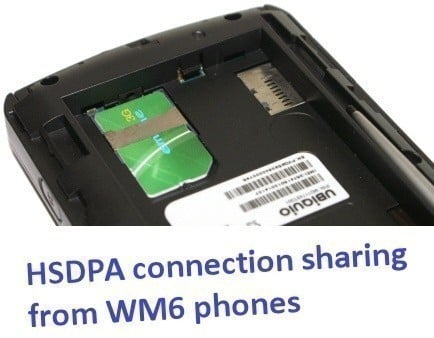
In an ever connected digital world, users are doing all they can to stay connected to the Internet. Manufacturers realize this and that is why you are seeing many new types of portable devices hit the stores such as smaller notebook computers, Ultra Mobile computers (UMPC), internet tablets and a multitude of Pocket PC style smartphones.
All of these devices include many data connection options such as regular gigabit or 10/100 local area networking, 802.11b/g Wi-Fi as well as many different mobile phone network connectivity types such as GPRS, EDGE (EGPRS), 3G (W-CDMA) and the newest kid on the block, 3.5G or HSDPA which is short for High-Speed Downlink Packet Access.
HSDPA is currently deployed around the world in speeds ranging from 1.8Mbps to 14.4Mbps, which is fast enough to better even the best ADSL2 fixed line internet connections. Depending on where you are located, you'll typically see download speeds ranging from 1.8Mbps to 3.6Mbps but some areas such as Singapore are ahead of other countries offering speeds of up to 7.2Mbps (or around 900 kilobytes per second).
Many countries such as Taiwan and Singapore offer unlimited data plans which are much cheaper compared to other countries such as Australia and the United States. For instance, in Taiwan the largest telecommunications provider "Chunghwa Telecom" offers unlimited usage "3G" access for what is around $28 USD per month - and that includes your voice connection fee too. The voice rates per minute are increased by around 30% but it is still a pretty good deal.
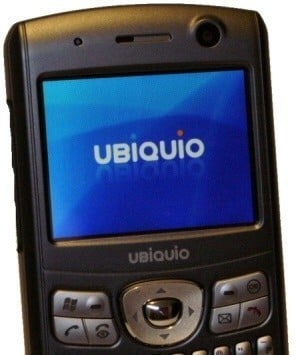
What we decided to do today is play around with the Internet Sharing feature on our new UBiQUiO 503G mobile which comes installed with Microsoft Windows Mobile 6 Professional (this method also works with phones using AKU 3 for WM5) as its operating system.
It allows you to rather easily create a shared internet connection on your PC or other portable device over USB or Bluetooth. It is perfect for users who are going out of town for the weekend and still like to be always connected to the net on your PC, notebook, UMPC, internet tablet and so on.
With 3G / 3.5G enabled SIM in phone, we set about seeing just what type of internet experience we get out of sharing the HSDPA connection on the PC here in Taipei, the capital of Taiwan. We'll also tell you how to get it done in case you are interested in trying it out for your next trip when away from home or office.
HSDPA on the PC over Bluetooth
HSDPA on the PC over Bluetooth v1.2 and v2.0
Before we got into USB connection sharing, we tried a Bluetooth personal area network (PAN) first. While it worked completely flawlessly under Windows Vista Ultimate 32-bit (we didn't even need to install any drivers and it made an active and working connection in about 10 seconds flat!), we soon discovered Bluetooth was not the best method of connectivity.

With one of the Bluetooth hardware devices we were using (Gigabyte GN-BTD02 USB Bluetooth version 1.2 receiver), we were limited to a 723KBits/s (about 90Kb/s) maximum connection speed, which is perfectly fine if you intend on using a slower mobile phone network data connection such as GPRS or EDGE, but for 3.5G it just won't cut the cheese and hence should not be seriously considered - especially since literally all computers have USB ports these days.
Due to the inherit connection issues with Bluetooth 1.2, we only managed a maximum of 360KBits/s (about 44KB/s) through our Chunghwa Telecom SIM HSDPA data connection - and that was with the phone and Bluetooth receiver so close together that they were basically touching each other. If you were to pick up the phone and walk around in the vicinity making a call, the connection speed will degrade, as we tested.

For some further testing, we paired the 503G phone up to an ASUS notebook using Windows XP SP2 and a Bluetooth version 2.0 receiver. The connection speed under the newly created local area network was 3Mbps, which while not perfectly ideal, is a better option than the previous for what we are covering here today. We saw inside office download speeds of almost 600Kbit/s (75KB/s) in the late afternoon, which is indeed much better. It does show that if you intend on using Bluetooth for this setup, you should try and opt for a Bluetooth receiver device which is at least version 2.0 or 2.1. Keep in mind though that the UBiQUiO 503G phone only supports Bluetooth 1.2, but as we saw in our testing the faster connection still makes a difference to overall download speeds nonetheless.
As far as online gaming goes (or wherever latency is important), the results were not too bad, but nothing at all impressive. Pinging the same server as our speed tester, we saw the latency ranging from 110ms all the way up to 350ms, with the typical latency being around 260 - 270ms... and that is to a local server. From that we can conclude, online gaming is out as the lag would be too high. We pinged some servers in the USA (including our very own) and the latency was around 750ms.

Since I have an inquisitive mind, I went about trying to find out whether or not you could have two devices (in our case - 1 x PC and 1 x notebook) sharing the single Bluetooth HSDPA internet connection from the 503G. After pairing up both devices and trying to make them both connect at the same time, we quickly discovered that you can only have one computer sharing the connection at a time. The error message is above. This could be a limitation of the Internet Sharing application in WM6 or a limitation of Bluetooth technology; we are not 100% sure on that at this stage. Write in to us if you know the answer!
USB connection results follow on the next page.
HSDPA on the PC over USB
Moving onto USB, the results were much more pleasing.
After hooking up the UBiQUiO 503G to our Vista PC, we were sure we would see much improved download speeds and we were right. Again after a seamless connection setup (with no drivers or user interaction needed besides clicking the "OK" button a couple of times) we moved from a 1Mbps connection to a near "Full Speed" USB 10Mbps connection. Of course, the other advantage of USB over Bluetooth is the fact that the USB connection will also be charging your phone at the same time.
Oh, and in case you were wondering, you can still make calls and send SMS texts and so on while you are using your 3G connection in this way - we tried, just to make sure this was the case.
It is a little strange that it didn't show a local area connection speed of 12Mbps (1.5MB/s) but that just probably has to do with the remote NDIS based internet sharing limitations. Nevertheless, Taipei HSDPA networks are nowhere near 10Mbps (1.25MB/s) at the moment, so it's not like it even matters for now.

We used a local Taiwan internet speed tester from Anet to measure attainable download speeds and were relatively pleased with the results.

As you can see above, Chunghwa HSDPA over USB attainted a result of 1128.4KBits (or 138.3KB/s), which is not too shabby at all and a vast improvement over the Bluetooth connection. That puts us at about 1.2Mbps which is still faster than some ADSL fixed line connections. It is more than enough for web surfing, checking emails and doing some basic file downloading.
Of course, the big advantage of mobile networks are that they are wide spread and if you move out of city areas where there is no Wi-Fi (or later WiMAX) access or your hotel or family and friends don't have an internet connection, you can still carry on doing your work - which is great for those weekend trips away and for those like me who are addicted to work and email access.
Here is an example of a 30MB download from a server in the USA...

As far as online gaming goes (or wherever latency is important), the results were much better compared to Bluetooth. The response times were much more consistent and didn't fluctuate anywhere near as much as over Bluetooth. Pinging the same server as our speed tester, we saw an average and consistent latency of 125ms. From that we can still conclude online gaming is probably out, or at least very limited as the lag would be a little too high for most avid gamers. We pinged some servers in the USA (including our very own) and the latency was around 300 - 400ms, which is again a vast improvement.
Although the speeds are not close to the 3.6Mbps (450KB/s) we were expecting, it all depends on your location and how far away you are from your nearest base station, not to mention how many people are using it at the time. We tested at around 11pm at night (and inside our office) which should be an off-peak time (but maybe not in Taipei due to all the night markets). Keep in mind this type of technology works similar to cable internet, which is shared local access - this means that with more users connected to the same tower as you, your speeds will be reduced but not quite as severely as how cable internet works.

As a comparison, we ran the exact same speed test on our fixed line office ADSL2 (12Mbps / 1Mbps) connection and the results can be seen above.
Now that we've shown you the results, let's move onto the setup part.
USB Setup Procedure
The USB Setup Procedure
Alright, now that you have seen the results attainable by sharing your phone's HSDPA connection to your PC or other devices, we will show you how to go about getting it all up and running. Have a practice now before you head off on that weekend adventure, as you would hate to have any headaches during your getaway.
First of all, you will need a phone which has either Windows Mobile 6 or Windows Mobile 5 with AKU 3 installed. These versions of WM include a basic program simply called "Internet Sharing" (Start -> Programs -> Internet Sharing). This is what allows you to easily setup internet connection sharing from your phone to your device. We used Windows Vista 32-bit for our testing but the process is also fairly similar in Windows XP, and as far as we know you will want Service Pack 2 installed on XP for it to work properly.
Your phone should come with a cradle or USB cable which allows you to connect it to your PC or other portable devices. Go ahead and make the USB connection between your Windows Mobile phone and computer. For the first time, Windows will detect the device using Plug and Play and install some drivers and configure some settings which you don't need to worry too much about - let that finish and do its thing. Once the phone is fully installed, depending on your device you should be able to browse its content under My Computer (at least under Vista).

Once the connection has been established, go to your device and venture to the Internet Sharing application under the programs section. You will see something like the above image once you have loaded it. The next step is to simply click "Connect" at the bottom left - this will engage the connection and will automatically create the new local area network connection on your Windows computer. For one second or so it will say "Check USB connection" and then if all goes well, the status will show "Connected". During this phase, if you are not already connected to your mobile data network, it will connect at this point automatically.

If all has gone well, you will now be connected to the Internet over your SIM HSDPA connection through a new local area connection, ours was called "Local Area Connection 4" but it will vary. Simply navigate to a website and you should be in business. If nothing is loading, something went wrong.

We noticed a strange issue where the phone would not always communicate with the PC (and issue IP addresses and so forth) but that was remedied by taking the battery out of the phone and restarting the process. We are unsure why it does this and the fix is even stranger. Most of the time we didn't have any issues but you could always try restarting your computer and turning the phone on and off several times, which seemed to help during our testing.
The process for Bluetooth installation is basically the same except you'll need to select "Bluetooth PAN" as the PC connection and will also need to ensure both devices are paired up with each other. This installation of Bluetooth varies depending on what software you are using; we are not covering it here.
Final Thoughts
That covers things for this article and here is to the joys of always being able to be connected, as long as there is service coverage wherever you may be.
Maybe it is time you considered saving some cash and cancelling your existing broadband connection? Probably not but if you were on a 256Kbps or 512Kbps you could actually consider it if the data charges vs. monthly rate ratio works out well.
This method of connectively would also work well as a backup internet connection if your regular home or office connection goes down. For a little bit of fun, we tried using our favorite bit torrent software called "utorrent" and we had no issues whatsoever with downloading and uploading torrents - albeit slower than usual but it still worked.
We uploaded at almost 30KB/s and our regular port that was programmed into our usual Wi-Fi router was also open and accessible, which was a shock. We also had no issues with FTP connections but before you venture into this, you should check with your phone network provider in your area about what types of services you can and cannot use as your mileage may vary.
If you have any tech questions or want to comment, as always head on over to our forums and speak out. There is a link below for you to navigate there quicky!
Our Latest Phones Article Coverage
- Samsung Galaxy Fold 7 Review - A $2000 Pocketable Two-in-One Smartphone-Tablet
- Apple Intelligence - a full breakdown of Apple's AI features in iOS 18.1
- Samsung Galaxy S20 Smartphones: Everything You Need To Know
- Google's new Pixel 2 and Pixel 2 XL smartphones detailed
- Samsung Galaxy Note 7 - Is Bigger Always Better?


 Navman MiVue Smart True 4K Surround Dashcam Review - Seeing In All Directions At Once
 Samsung Galaxy Fold 7 Review - A $2000 Pocketable Two-in-One Smartphone-Tablet
 Apple Intelligence - a full breakdown of Apple's AI features in iOS 18.1
 Aura Smart Sleep Mask Review - Much more than 100% blackout sleep
 Fitbit Charge 4 Special Edition Advanced Fitness Tracker Review
 MSI showcases its next-gen GPU cooling tech and it could be for the GeForce RTX 60 Series
 'Radically different' business models coming to Xbox, CEO Asha Sharma says
 GEEKOM's new GeekBook M16 brings a Core Ultra 9 and a 99.9Wh battery to the business laptop market for $899
 AMD warns DDR5 prices won't recover until 2028 as AI demand continues pulling supply away from consumers
 SEGA under fire for using gen AI in new Crazy Taxi game
 Halo Studios quietly establishes innovative new business model for legacy game remakes
 Zelda Ocarina of Time remake confirmed for 2026 launch on Switch 2
 ID Cooling shows off wooden PC cases and matching AIO coolers at Computex 2026
 Formula V Line's Ice Nova Pro 3 air cooler could be perfect for brass-themed PC builds
 SAMA's Computex 2026 lineup includes a curved-glass case and AIO coolers with swappable screens
 IQUNIX Magi96 Pro Aluminum Low Profile Mechanical Keyboard Review - Premium Build, Satisfying Sound
 Asetek Forte S-Series Racing Simulator Bundle Review
 Razer Pro Type Ergo Wireless Split Ergonomic Keyboard Review - Built for Comfort and Support
 ASUS ROG Strix Morph 96 Wireless Gaming Keyboard Review - Great Performance, More Affordable
 SAPPHIRE Radeon RX 9070 GRE PULSE OC Review - A New 1440p Challenger Has Arrived
 NZXT H6 RGB+ Compact Dual-Chamber Chassis Review
 ASRock Radeon RX 9070 GRE Steel Legend Review - The RDNA 4 Mid-Range Reshuffle
 ASRock Z890 Taichi Aqua Motherboard Review - Flagship features without the flagship price
 GIGABYTE Z890I AORUS Ultra Motherboard Review - Mini-ITX with surprisingly good thermals
 The PowerToys utilities I keep enabled on every Windows 11 PC, and the ones I turned off within a week
 TweakTown's Best of Computex 2026 Awards - The Best Hardware, Gaming Gear, and AI
 Phison E37T SSD Controller Exclusive Preview - The Fastest DRAMless SSD Platform Yet
 USB Ports Not Working in Windows 11? Try These Fixes
 ASUS WiFi Routers and Networking Solutions Deliver Long-term Security and Reliability with No Additional Cost
 Second Monitor Not Detected in Windows 11? Try These Fixes
 Turn Your Old Smartphone Into a Dedicated Webcam for Your Windows PC
 The Send To menu is the right-click feature on Windows 11 that nobody bothers to customize
 Windows 11 will not let you pin a folder to the taskbar, but a 30-second workaround does
 ASUS ProArt Displays Unlock Creativity with Professional Monitors for Everyone