


Introduction and Initial Impression

 11
11MEGA. MEGA is the result of Megaupload being taken away from the Internet, under some controversial terms by the US government. Founder of Megaupload, Kim Dotcom, has been through some crazy times, having his house raided by authorities and his business torn apart. He vowed to come back, bigger, better - and more mega than ever, which brings us to today - a walkthrough of his latest creation - MEGA.
MEGA is a cloud storage site built on security and confidentiality. Most think this is for the users, but there is more security built into the backend to protect MEGA and it's financiers from prosecution, more so than protecting users' privacy. We'll get to that soon.
Myself, and many others, had issues trying to visit the MEGA website, but if you use https, you'll be fine. So to visit MEGA, you'll need to type in https://mega.co.nz and it'll be smooth sailing from there. The first thing you'll be greeted with when visiting MEGA is the splash screen and the well thought-out and beautiful user interface (UI).
MEGA's UI is simple, effective and to the point. It's great to look at, and easy to use. Right now it's only capable of being used from a browser, with no mobile apps making cloud storage from your multiple smart devices easy. This is one of the downfalls of the site, something that is hopefully fixed in the future.
MEGA comes with 50GB of cloud storage for free - nothing to sneeze at whatsoever. There are options to purchase, but today we'll just be going through the free version and going for a test spin.
First use of MEGA - Uploading Files to the Cloud Has Never Been This Easy
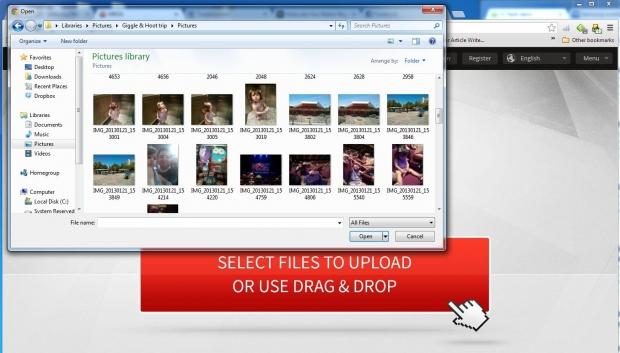
Uploading pictures when you first visit the site is just so simple it's not funny. It literally is drag-and-drop and your files are uploading. You don't even need to register if you don't wish to do that. I tested out MEGA using some pictures of my daughter and my wife on our trip to the city to go and see the Giggle and Hoot concert - which I'm sure you can see in the picture below.
 11
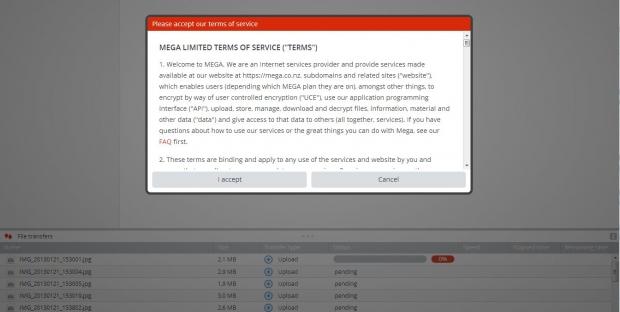
11All you need to do is get the folder, select the files you want to upload, and voila - the uploading process will begin! Just before the files begin uploading, you'll be greeted with MEGA's Limited Terms of Service. This will explain a bunch of legal mumbo jumbo if you want to read it, but if you're like most people - myself included - you'll just click "I accept" and roll on through.
 11
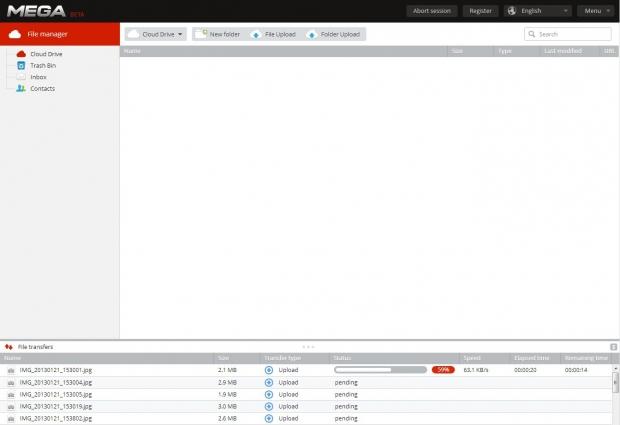
11Once you've accepted this, it will then begin uploading your files and you'll be free to walk around MEGA. Once you've dragged and dropped your files to be uploaded, this is what you'll be greeted with - lots of white space.
 11
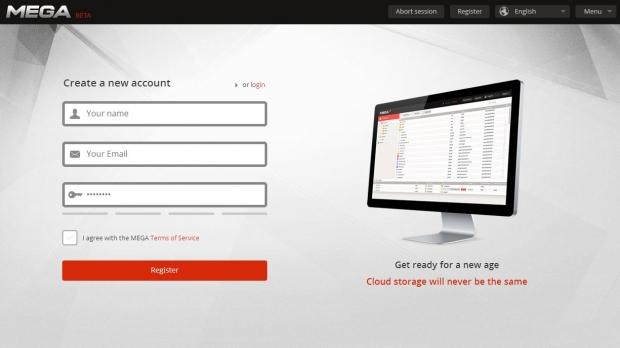
11In the top right, you can click "Register", where you can register an account. The registration process is again, simple, requiring just your name, e-mail address and a password. There are four tiers of passwords to ensure that the password strength is high, like most sites these days.
 11
11Once you've registered, you'll need to confirm your registration from the e-mail you'll receive.
 11
11Welcome to MEGA! The site will then create your 2048-bit RSA public/private key pair.
 11
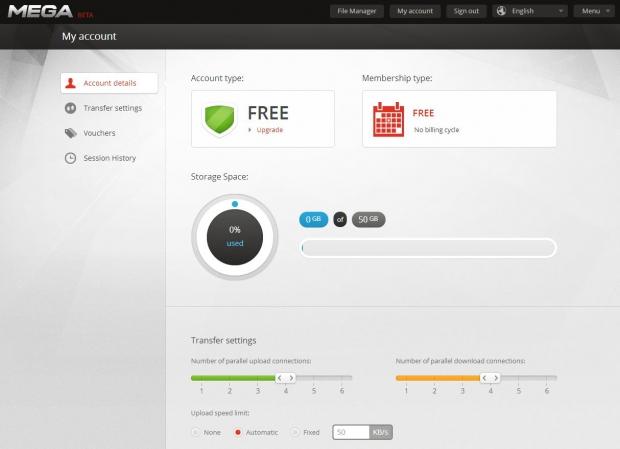
11Once you've finished all of this, you'll see the 'My account' screen pop up with various options. From here, you can control your Transfer Settings - increasing or decreasing the amount of parallel upload and download connections based on your Internet connection. You can also set an upload speed limit of 'automatic', or 'fixed' - where you can select a speed at a certain KB/sec transfer rate.
 11
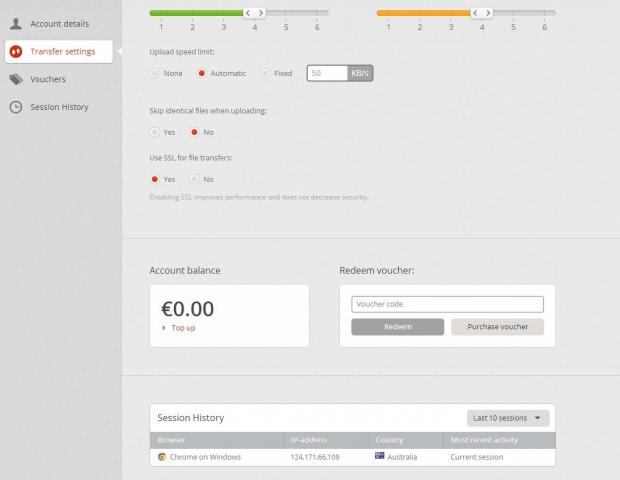
11Options are included for skipping identical files when uploading, so that you don't double up on the same files over and over again. SSL can be enabled (which it is by default).
 11
11The final few options are a display of your account balance, a 'redeem voucher' option where you can either redeem a voucher or purchase one and finally, Session History which will show your last 10 sessions. It'll also display which browser was, or is being used, the IP address of the connection, the country of origin and the most recent activity from that IP address.
Clicking 'Menu' will display the below options.
 11
11Final Thoughts
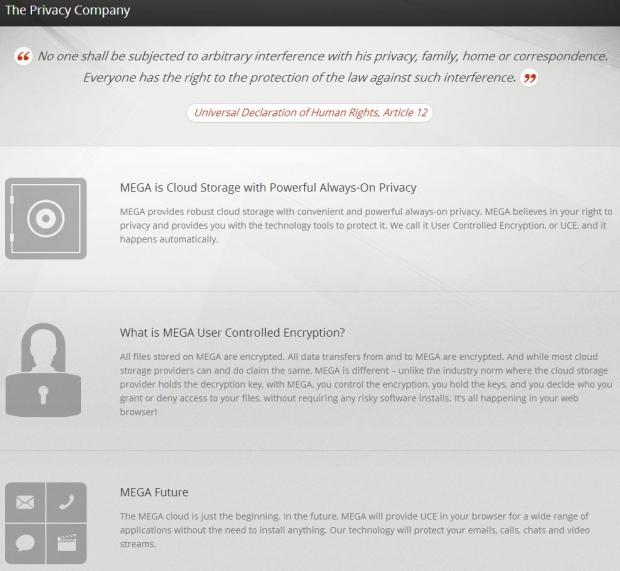 11
11I use cloud storage quite a bit, and split my time and storage between Dropbox and Google Drive. I have a lot of my work on my Dropbox account, as well as personal photos and videos, and on my Drive account, I tend to keep more documents and invoices. I haven't yet moved it all into a single source, but I will be doing that in the coming months.
I want to see where Dotcom and his team take MEGA, and I'll make my decision from there. Right now, Dropbox is the most convenient because of its various mobile apps and integration into Windows and OS X. I have virtually all operating systems in my possession, so it's nice to be able to flick between Windows, OS X or Android and not have to worry - got an iOS-based device? You're looked after, of course.
MEGA needs to spread its tentacles into the mobile world before it can really take off, and I think that will be step two in Dotcom's plan to piss off the powers that be. For a 'beta', MEGA is doing quite well - it looks nice, it's super simple, and quick (for most, and now that some of the fanfare has faded). It has a versatile set of options, and will only grow into something much more powerful over time.
I think something like MEGA could eventually push people that would never use the cloud, to actually use the cloud. It'll always be more of an 'underground' thing, as it'll never be acquired by someone like Facebook or Google who have huge ties into the defense departments and the government.
This is what makes MEGA different - it's anti-government, anti-spying and totally pro-privacy. This is what the draw card is to MEGA, and something worth really pushing when explaining it to your friends or family. Do I recommend MEGA? Sure - it's free with 50GB included, so why not? Would I recommend purchasing cloud storage from Dotcom's new cash cow? Not right now. I think it's great, but without mobile apps in this smart device heavy world - it's a hard call, a mega hard call.
 United
States: Find other tech and computer products like this
over at
United
States: Find other tech and computer products like this
over at  United
Kingdom: Find other tech and computer products like this
over at
United
Kingdom: Find other tech and computer products like this
over at  Australia:
Find other tech and computer products like this over at
Australia:
Find other tech and computer products like this over at  Canada:
Find other tech and computer products like this over at
Canada:
Find other tech and computer products like this over at  Deutschland:
Finde andere Technik- und Computerprodukte wie dieses auf
Deutschland:
Finde andere Technik- und Computerprodukte wie dieses auf  Commodore 64 PC runs AI to generate images: 20 minutes per 90 iterations for 64 pixels
 Synopsys and Samsung achieve production tapeout of next-gen Exynos SoC on new 3nm process node
 Windows 11 could get some big changes: Start menu 'companions' and Copilot in Settings
 The iPhone 16 Pro could have a 20% brighter display than your boring old iPhone 15 Pro
 New iPhone 16 dummy unit leak shows off its refreshed camera design and more
 Corsair 6500X Mid-Tower Dual Chamber Chassis Review
 Corsair MP700 Pro SE 4TB SSD Review - As Fast as They Come
 Corsair MP600 Mini 2024 Edition 1TB SSD Review - Fastest Tiny Drive on the Planet
 Lexar SL500 1TB Portable SSD Review - The best of native USB
 Corsair Platform:6 Elevate Modular Desk Review
 True Lies (1997) 4K Blu-ray Review
 Fractal Design North XL Full-Tower Chassis Review
 Western Digital WD Gold 24TB HDD Review - High-Capacity Masterpiece
 AOC U27G3X 27-inch Gaming Monitor Review - 4K 160Hz for $500
 MSI Vector GP68HX Gaming Laptop Review
 Building the Ultimate Home Entertainment Server with an ASUSTOR NAS and Viper Gaming NVMe SSDs
 Everything you need to know about the latest ASUS NUC Mini PCs - NUC 14 Pro and ROG NUC
 How to Overclock Your GPU and Boost Your PC Gaming with ASUS GPU Tweak III
 ASUS's AMD Radeon RX 7000 Series GPU lineup has something for every gamer
 ASUS OLED Premium Care defends the ROG Swift OLED PG32UCDM gaming monitor from burn-in