

Introduction
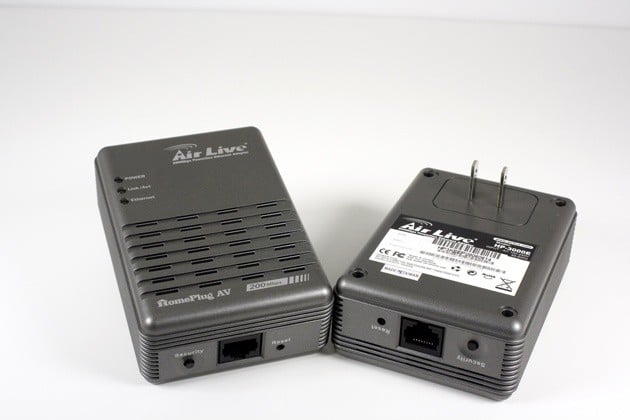
Power line networking adapters are really nothing new. They have been in use in Europe and the Pacific for years. This is due mainly to the way buildings are constructed (and the large number of older stone and brick buildings) where you can end up with a large wireless dead zone in your own home. Enter the power line adapter. It can use the electrical circuits in your home to create a LAN connection. Power line adapters have been making their way over to the U.S. as well.
The adoption of power line has been slow in the U.S. mostly due to the wood and gypsum board construction in houses. There are still places where older steel and stone construction interferes with wireless signals and it is there that we see the most significant market. Power line adapters like the HP-3000E are also becoming popular with people concerned about wireless security.
The Air Live HP-3000E is very typical of your basic starter kit. It features two 200Mbps power line adapters, two CAT-5 cables and the configuration software needed to setup your power line network. It can get you up and running in a few minutes with a secure physical connection to even the most remote parts of your house.
The Package
The packaging of the HP-3000E contains most of the information you would need to understand what you are buying. Air Live has even hinted at a few extra features to sweeten the deal.

The back of the box has a list of contents in multiple languages.

Unusually, the top of the box has a diagram showing how the HP-3000E creates the network; it also has a list of expected features.

Once you open the box you will find your two adapters, a software CD-ROM, two CAT-5 cables and a multi-language quick start guide. This is pretty much all you will need to get started.

The Adapters
The two HP-3000E adapters that arrive with your Air Live kit are again typical of the standard power line adapters. They are boxy, have a single RJ-45 port on the bottom, two prongs for a standard AC outlet and on the front they have lights to indicate various operations.
Where the Air Live differs is that it also provides a security button on the left side of the RJ-45 port for a quick security configuration. We will cover this shortly in the setup and installation section.

The lights on the front provide basic information like Power, Link and Ethernet connection status.

The RJ-45 port is in the center of the bottom side with the Reset and Security buttons on either side.

On the back we find information that will be important to the setup. There is a password written here that you will need to copy down when you get ready to connect.

One thing to note here, while the TRENDNet TPL-302E2K stated plainly not to use their kit with a surge protector (and indeed it would not work when plugged into one), I found that the Air Live would work connected to a standard surge protector, making it a little more flexible to use.
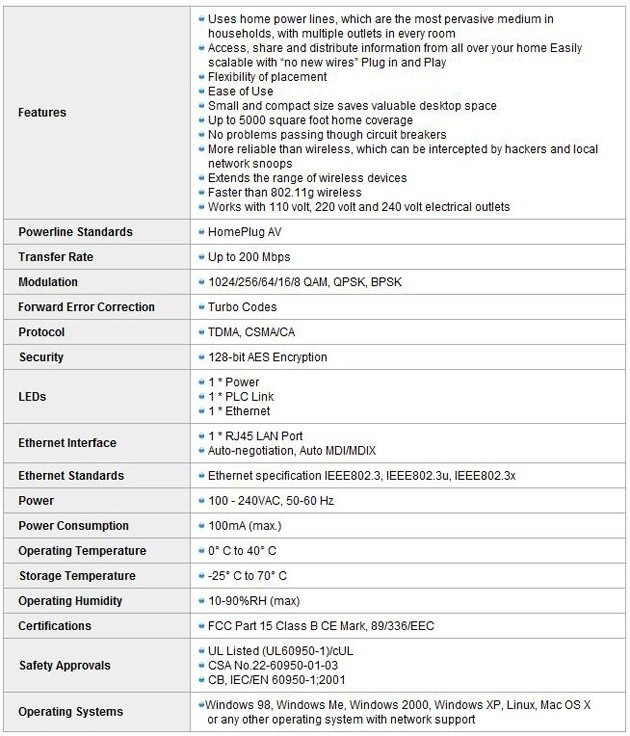
The specifications look good on paper, at least.
Setup and Installation
Setup was accomplished through the use of the HomePlug AV Utility found on the included CD-ROM. You need to connect at least one HP-3000E to your home network as well as being plugged into an AC outlet; the other can simply be plugged into an AC outlet for now. Once you do that it will show up as the local adapter.
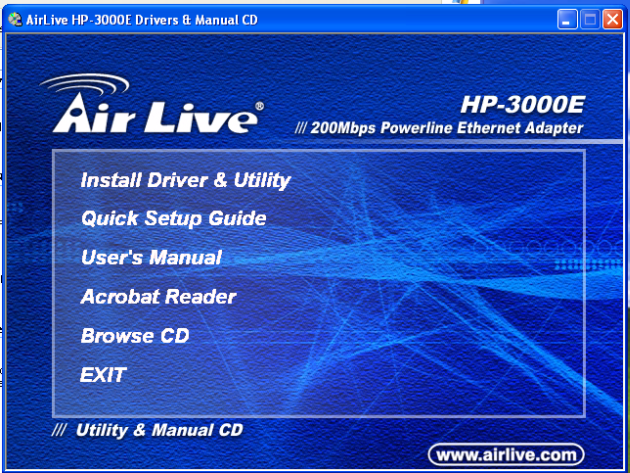
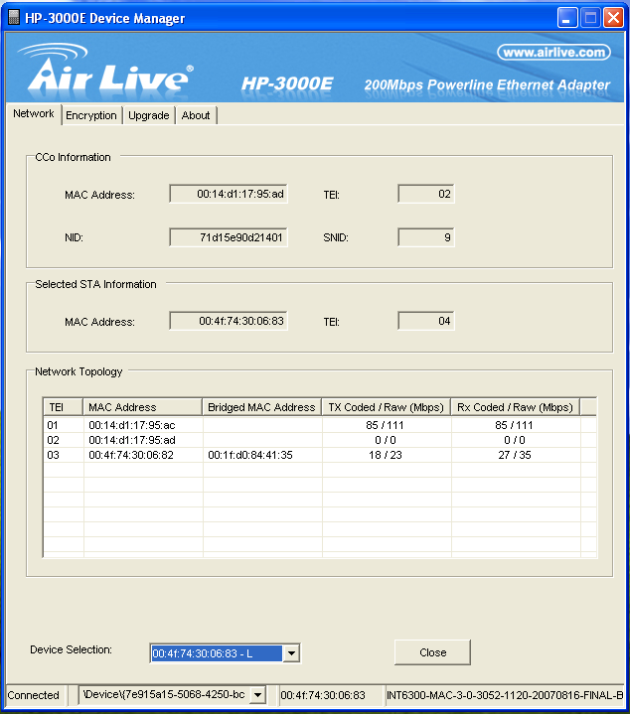
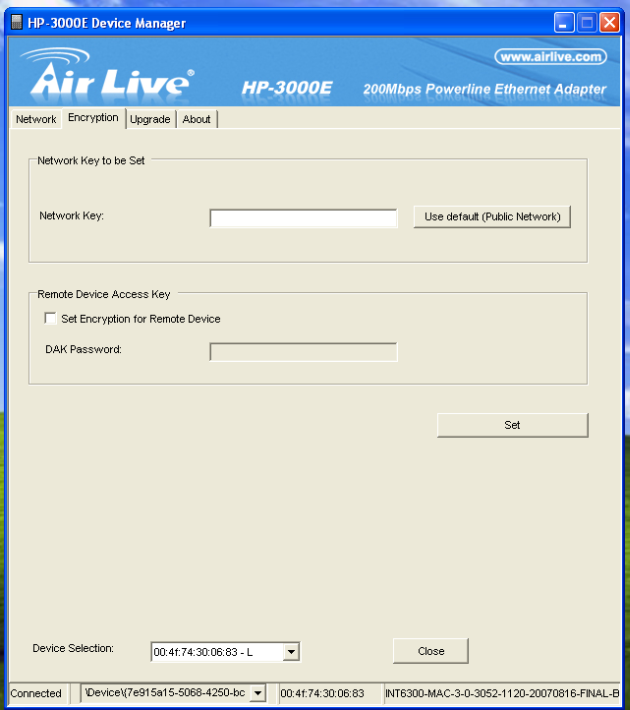
You will need to move to the encryption tab at this point and type in the name for your power line network. You will need to remember this if you want to add more adapters in the future. Next, choose an encryption key; it should be 24 characters (numbers, letters symbols) and this will be to protect your network. Make sure you check the "Set Encryption for the Remote Device" check box and click "set". From there you should now be able to see the remote adapter, set the same network ID and encryption password here and your network is up and running.
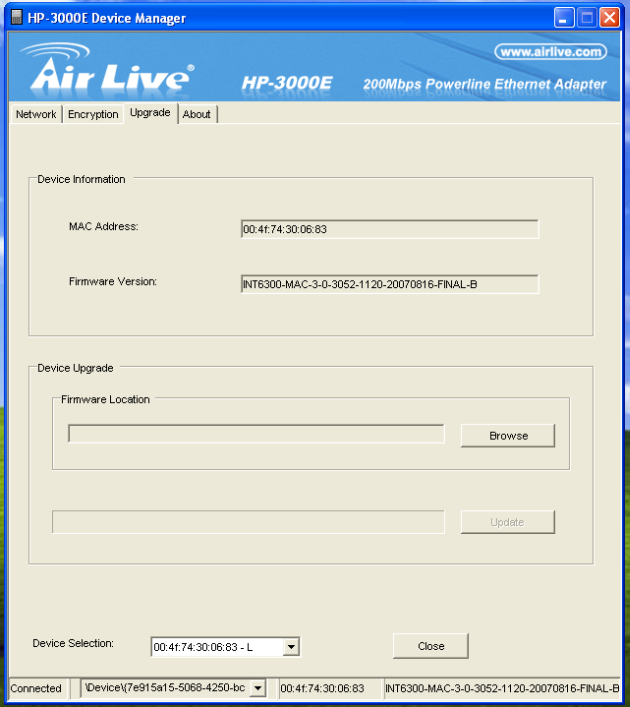
Firmware can be updated through the HomePlug application using the Upgrade Tab.
While I was working with the Air Live kit I noticed that the software used to setup both kits is basically the same. It was so similar that I began to wonder if I could combine the two into the same network.

As you can see, both applications report the devices in the same manner and both need the same network ID and encryption key. After much tinkering around I found that by setting up each of the four adapters as the local device, using the same network ID and a simple encryption key, I was able to get all four talking on the same power line network.
The adapters remember the network name and the encryption key for each new "local" device. Once you have all four set up you can adjust the encryption key to something stronger if you prefer.
Testing
We used PerformanceTest 6.1 by PassMark which you can find out more information about here. It has a handy Advanced Networking section which is perfect for our testing.
Doing our best to emulate a real-world performance scenario, I setup a HTPC (Windows Vista Ultimate (32-Bit), Intel Core 2 Duo E8200, 4GB DDR2, Intel DG45ID) and the client PC was an ASUS G2S -X1. The results were gathered by sending data from the ASUS notebook to the HTPC system at the same distance with different adapters and through the power line network, then determining the average transmission speed.
We compared the Air Live HP-3000E adapter set against the TRENDNet TPL-302E2K, TP-Link TL-WN821N and the TRENDNet TEW-645UB adapter on the ASUS G2S X1.
- Connection Speed
The Air Live HP-3000E connects at 200Mbps; this is its maximum theoretical speed.
While this does limit you in some ways, it is still above the requirements for most data needs and more than enough for SD and even HD video streaming. I did notice a slight fluctuation of speed when running on a surge protector, as the HP-3000E only connected at 100Mbps. There were also very large stutter issues when on the surge protector across all units in the set.
- Bandwidth
For my bandwidth tests I used Passmark in addition to streaming HD and SD video to the system from a QNAP TS-201 NAS (2x 1TB Seagate HDD). I streamed 720p video with 5.1 AC3 sound.
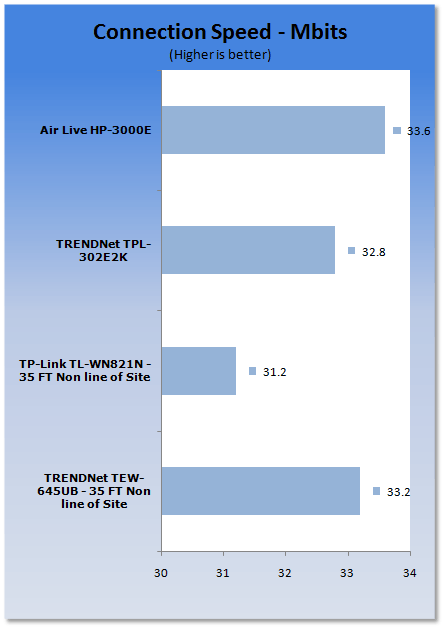
*signal travelling through wet wall and main house electrical panel
I was impressed that the HP-3000E allowed for seamless streaming of HD video and it even slightly outperformed the TPL-302E2K kit.
Final Thoughts
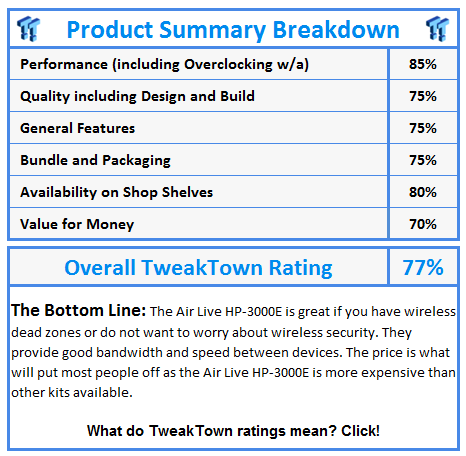
I have had my doubts about power line adapters due to their slower 200Mbps maximum speeds. However, after working with a couple of sets I have changed my mind about them. I still highly recommend a surge protector with an RJ-45 connection; this will help in the event of a surge through the power lines. The HP-3000E from Air Live is a very nice kit. The setup utility is very easy to use and the adapters are a nice neutral color so they will not stand out (unless they are out in plain view).
Performance was great, even allowing for HD video to be streamed through them without stutter. The Air Live kit is more expensive than some of the other kits out and this puts it off as there is not a noticeable performance gain between the kits. There was also no QoS ability with the Air Live version of the Power Line setup utility; this is sort of a letdown as it could be helpful for managing traffic like gaming and streaming video.
 United
States: Find other tech and computer products like this
over at
United
States: Find other tech and computer products like this
over at  United
Kingdom: Find other tech and computer products like this
over at
United
Kingdom: Find other tech and computer products like this
over at  Australia:
Find other tech and computer products like this over at
Australia:
Find other tech and computer products like this over at  Canada:
Find other tech and computer products like this over at
Canada:
Find other tech and computer products like this over at  Deutschland:
Finde andere Technik- und Computerprodukte wie dieses auf
Deutschland:
Finde andere Technik- und Computerprodukte wie dieses auf  Windows 10 users: Get ready to be bugged about creating a Microsoft Account
 TT Show Episode 31 - AI-Powered iPhone and PS5 Pro and an AI-Generated Romantic Comedy
 NASA is about to make Treasure Planet real with a solar sail mission
 AI discovers famous painting wasn't entirely painted by the credited artist
 Dubai government responds to claims cloud seeding caused historic flooding
 FlexiSpot C7B-Mesh Ergonomic Office Chair Review
 Samsung G8 34-inch QD-OLED Gaming Monitor Review - 175Hz for $900
 ASRock NUCBOX-155H Mini PC Review
 NuPhy Air96 V2 Wireless Mechanical Keyboard Review
 TEAM T-FORCE Siren DUO360 RGB Liquid CPU Cooler Review
 AVerMedia Live Streamer ULTRA HD Review
 AVerMedia Live Gamer 4K 2.1 Review
 XPG Invader X Mid-Tower Chassis Review
 Intel Core i9-14900KS CPU Review
 Arbiter Polar 65 Magnetic Gaming Keyboard Review
 Everything you need to know about the latest ASUS NUC Mini PCs - NUC 14 Pro and ROG NUC
 How to Overclock Your GPU and Boost Your PC Gaming with ASUS GPU Tweak III
 ASUS's AMD Radeon RX 7000 Series GPU lineup has something for every gamer
 ASUS OLED Premium Care defends the ROG Swift OLED PG32UCDM gaming monitor from burn-in
 Patriot Viper Xtreme 5 Engineering Prototype 48GB Dual-Channel Memory Kit Preview