

BF1942 Tweak Guide - Introduction
Introduction
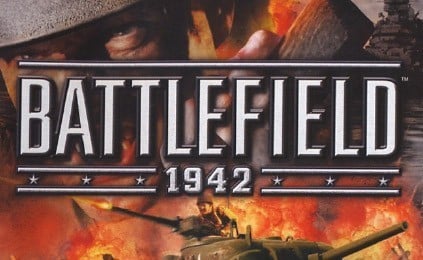
If there's one game that captures the enormity of scale and the many forms of combat which took place during WWII, it's Battlefield 1942. From sniping to planting explosives or firing heavy artillery, through to commandeering a jeep, tank, plane...you name it, BF1942 has got it. The gameplay is right there to back up the scope of the game, making you work as part of a team to pull off the inevitable victory.
The various theatres of war are incredibly expansive, and yet with so much happening on the ground, in the water and in the air, the powerful Refractor 2 game engine still manages to do a great job of rendering it all beautifully, putting you convincingly in the midst of all the action. It comes at a cost though - BF1942 is very system intensive, and it takes a bit of effort to get it running smoothly out of the box on all but the fastest of systems.
Along comes this guide, which brings together all the performance tweaks, tips and .con file settings, along with troubleshooting help and handy reference material like the console commands and working No-CD/blood patch links - all to make sure you get BF1942 running at its very best on your machine. Take a wander through the guide and hopefully I can help you enjoy this amazing game even more.

Note: The guide has been updated for the latest Official BF1942 Patch (Version 1.6.19). Make sure to check back regularly for updates and remember the tweaks and settings in this guide refer to the latest official version of BF1942, so if there are any differences between this guide and your BF1942, it's likely you have a different version.
BF1942 Tweak Guide - Essentials
The Essentials

Each time I write a game guide I stress the same thing first up: Optimize your system. Yes, you've heard it all before. Yes, I sound like your mother. No, I'm not going to stop nagging you about it - just do it and you'll see what a difference it makes. I have seen so many people resolve what they think are unsolvable problems by doing the basics. And I don't just mean updating drivers (which of course you should do). I mean the whole deal...going through your settings and making sure they're all tweaked for maximum performance and stability.
How do you do that...how do you know your system is optimized in all aspects? Here's the starting point: my System Optimization Guide for Gamers. I specifically wrote the guide to cover everything from the basics to links for even the most advanced users. From downloading and flashing the right BIOS to a "clean install" of the drivers and stability testing an overclocked machine, to links to tweaking guides for each and every member of the Windows family, including my own one-stop WinXP Tweak Guide.
Read it, do it, come back when you're done.
Troubleshooting
Ok, you're pretty sure your system is completely optimized and yet you're still having problems in BF1942. It's understandable given the game is system intensive and has known issues with some configurations. The first thing to do is make sure you have the latest patch (see Patches section) and you've read the rest of this guide for recommended settings. If the answer to both of these is "I've done that and still no joy" then below are some common problems and solutions which may be useful to you.
General System Issues - I mention this again because BF1942's performance is highly influenced by the general system environment. In fact this is the number one cause of stuttering, slow framerates and long load times. Background programs - especially those hidden apps which load on startup - and virus scanners in particular often lead to stuttering every few seconds and pauses in the game. Disable virus scanners completely, along with as many startup programs/background programs/processes as you possibly can. Instructions on how to do this properly are in my WinXP Guide (even non-XP users should look at it, because the information is general enough to apply to other Windows OS).
Memory Issues - BF1942 is a memory hog in all respects, so for starters if you have 256MB of RAM or less then expect some performance issues regardless of tweaking unless you set everything quite low, especially sound. For those with 512MB of RAM, you have enough to run the game smoothly, but it's imperative that you optimize your file cache and virtual memory sizes. All of these are covered - surprise, surprise - in my WinXP Guide. Ideally 768MB of RAM or more will see BF1942 smooth out considerably, even without major tweaks.
Graphics Issues - For starters, you need to upgrade your drivers to the latest versions available, which is the latest Detonators from nVidia, and the latest Catalysts from ATi, as well as DirectX9.0b (see my System Optimization Guide for more details on how to install these). Older ATi graphics cards in particular are known to have some problems with BF1942 (especially Radeon 8500s), but much of this has been resolved with the latest BF1942 Patch and Catalyst 3.4 drivers onwards. However if you still suffer from some "stuttering" problems, then try going into Control Panel>Display>Settings>Advanced>Troubleshoot and setting the Hardware Acceleration slider back 1 notch from the far right. This may even improve general graphics performance outside of BF1942.
For others still having graphics problems such as hard to read/invisible text this can be resolved by firstly updating your drivers and then by turning off forced Anti-Aliasing (found under the Direct3D section of the Display Properties of your graphics card).
Remaining graphics problems are resolved using the settings described in this guide, in particular the use of 32-bit color depth to reduce flickering textures, and changes to sound settings (see below) to improve framerates. And of course, if you've installed a refresh rate fix (such as RefreshForce) - which you should under WinXP/2K - then you'll need to perform the first tweak under the Advanced Tweaking section below otherwise BF1942 won't start up at all.
Sound Issues - If you suffer from missing/crackling sound and/or poor framerates (despite graphics tweaking) then firstly update your sound card driver (see System Optimization Guide again). In particular if you have an Audigy 1 or Audigy 2, go to the Creative Site and download the latest drivers which improve sound quality as well as fps. Next, if you're still having problems, lower the audio quality as recommended in the In-Game settings section below. In particular turn Hardware Acceleration off to resolve missing sounds and improve overall performance. If necessary, lower the audio quality settings even more if framerates are still poor. If you are still having performance problems with sound at its lowest settings, go to Control Panel>Sounds and Audio Devices>Audio, and click on the Advanced button for your default Sound Playback device. Click on the Performance tab and set Hardware Acceleration slider to the far left. This last fix in particular may help those experiencing 'chipmunk' voice effects, especially with onboard audio.
If the above information - and the rest of this guide - has been no help to you and you still suffer problems, then try the following:
- Try the EA Games Support Site which has a surprisingly good user interface and allows you to quickly get to some regularly updated information on particular areas of difficulty.
- Try a Frequently Asked Questions (FAQ) document, which covers similar information to this guide, such as Eric Haine's very useful BF1942 FAQ. Whatever you do though, don't tell me it's more useful than my guide or you'll hurt my feelings.
Editor Note: No PersianImmortal, we do not want that!
- Try getting onto a BF1942 forum, such as the BF1942Files Forums, or the forums on one of the sites listed in the Links section below, where you can discuss these problems with other users with similar configurations.
- Finally, and sadly, if you still have problems after all of this, then perhaps it's a hardware fault (see my System Optimization Guide for ways to diagnose this), or maybe you should consider upgrading a component or two. BF1942 is indicative of how much more resource-intensive the new batch of games will be, so perhaps your machine simply doesn't have the strength to run the game at full tilt, or something is damaged.
BF1942 Tweak Guide - Install & Patches
Correct Installation

If you're experiencing any problems or anomalies with BF1942, it's a good idea to have a good, clean installation of the game to work with. The following covers briefly how to do just that:
- If you need to reinstall BF1942, uninstall it first through Control Panel>Add/Remove programs. Then manually delete the program directory. Then use Regcleaner (download link and instructions in my WinXP Tweak Guide) to completely clean out your registry. Then reboot and reinstall.
- Don't install BF1942 while your PC is highly overclocked. If your machine is overclocked, set it to an overclock you know is completely stable and in particular make sure your CPU is not at its absolute limits. Subtle data corruption can often occur from CPU/RAM that is pushed too far and this can ruin your installation.
- Uninstall the BF1942 Demo if you have it installed. Do this through Control Panel>Add/Remove programs. Then manually go into Windows Explorer and delete the BF1942 Demo directory and all its contents.
- Disable any antivirus programs you have running in the background, such as Norton Antivirus. These are notorious for causing install problems, and the game developers themselves recommend you turn them off completely while installing/playing the game. If in doubt, check my WinXP Guide for details on how to disable programs that load at startup like Nortons. In general, the fewer programs that are running in the background while installing (and playing) BF1942, the better.
After you've done a full installation of BF1942, or even after patching the game, it's essential that you run Windows Defrag. This may or may not take a long time to complete, but it's absolutely necessary if you want smooth gameplay.

Official, No-CD and Blood Patches
There are several different types of patches you can install for BF1942. Each is covered below.
Official Patches
EA Games has released several official patches for BF1942, containing a range of changes, including bug fixes and performance improvements which are important for getting the best performance out of the game. I highly recommend that you download and install the latest patch, Version 1.6.19 from the Official BF1942 Website. Once downloaded, simply run the patch file and it will automatically update your installation of BF1942. Make sure you're not using a No-CD when you run the patch (see below for details). Note that you do not need to download or install any earlier versions of the patch, as version 1.6.19 already contains all the changes from previous patch versions.
Note also that after the patch you may lose all your edited .con file settings, so re-edit those including the vital Videodefault.con file "renderer.allowAllRefreshRates 1" setting, otherwise you may crash to desktop when attempting to run BF1942.
No-CD Patches
Note: With the introduction of Punkbuster anti-cheating software to BF1942, changes to the file structure of BF1942 (including No-CDs) will typically be caught as a "cheat" by Punkbuster. Do not use a No-CD or any other altered files if you want to avoid being booted and even banned while playing online. There are other methods of using BF1942 without your CD in the drive, such as creating a 1:1 image of your BF1942 Disk1 on your hard drive and using Daemon Tools to mount the image. Due to the detailed nature of this procedure and the likelihood for use in piracy, details aren't given here.
As we say here at TweakTown, if a game is worth playing, it's worth buying. That means you'll get no pat on the back from me for using warez. However I do understand how annoying it is for legitimate users of BF1942 to have to keep the game CD in the drive just to play, especially when there's a quick and easy way around it.
Go to GameCopyWorld, and head for the Battlefield 1942 Section, or alternatively try the BF1942 section of Megagames. Find the No-CD version which matches the latest BF1942 version (e.g. BF1942 v1.6.19 Fixed EXE). Download it to an empty folder, then follow these instructions to correctly install the No-CD:
1. Extract the files from the archive you've downloaded using WinZip, WinRar or WinAce.
2. Go to the directory where you installed BF1942 (typically C:\Program Files\EA GAMES\Battlefield 1942), and rename the original BF1942.exe file there to something else, e.g. BF1942.Real_exe. Don't delete or overwrite this file, you'll need it for future upgrades through patches.
3. Copy the No-CD patched BF1942.exe and the BF1942.org files into the same directory as the existing (but renamed) BF1942.exe.
4. Go to the directory where the original Mod.dll file sits (typically C:\Program Files\EA GAMES\Battlefield 1942\Mods\BF1942) and rename it to something like Mod.Real_dll, making sure you don't delete or overwrite it. Copy the No-CD patched Mod.dll into this directory.
5. If you have the Road to Rome expansion pack installed, go to the new XPack1 directory (typically C:\Program Files\EA GAMES\Battlefield 1942\Mods\XPack1) and rename the existing Mod.dll file there and replace it with the new No-CD Mod.dll file.
6. If you have the Secret Weapons of WWII expansion pack installed, go to the XPack2 directory (typically C:\Program Files\EA GAMES\Battlefield 1942\Mods\XPack2) and rename the existing Mod.dll file there and replace it with the new No-CD Mod.dll file.
If there are any .reg files or otherwise as part of the No-CD package, don't use them as they're designed for stripped-down pirated versions of BF1942. Only follow the steps above and everything should work.
Now remove your original CD from the drive and put it safely away. The next time you run BF1942 it won't check the CD drive and you'll load up much faster. You can also connect to a server and as long as you have a legitimate CD Key, you'll be able to play on the internet without the CD either.
Some things to note are that each No-CD patch will only work with the version indicated. That is, a version 1.45 No-CD patch won't work with version 1.6.19 of BF1942 for example, so don't bother trying. As patches are released for the game, you'll need to delete the existing No-CD patched BF1942.exe, BF1942.org and Mod.dll files. Then rename the original BF1942.exe back to BF1942.exe, download and apply the patch, then check back at Gamecopyworld to get the latest No-CD file to match your new program version and go through steps above again. Attempting to apply a patch over the No-CD version of BF1942.exe may result in errors and will usually fail.

Blood Patch
A blood patch is a modification which allows you to see blood when you shoot other players. By default BF1942 doesn't show any blood to lessen the realism of the violence. If you think you can handle a bit of the ol' raspberry jam then you can download a blood patch from here. Installation is simple, just download the file, extract the contents and run the installer.exe file and the next time you start up BF1942, you'll see blood from wounds. If it's not to your taste, or it gives you problems for some reason, you can easily remove it by running the uninstaller.exe.
And just a final word of warning: aside from the patches and the reliable sources for them linked to above, be very careful what you download and install. Some patches or modifications can actually be trojans (to damage/steal information from your PC) or can even ruin full versions of BF1942.
BF1942 Tweak Guide - In-Game Settings
In-Game Settings
To get into the In-game settings screens, press the Options button from the main menu. Beneath it you'll see four buttons appear: Controls, Customize, Video and Sound. Once you've created/loaded a profile you can change these settings. Each is covered in detail below:

Controls
Here you can assign keys/buttons to each function, from the common settings through to vehicle-specific ones. Make sure you remember to press the little arrow at the bottom of each box to see the 2nd page of commands. Also note that the Mouse (keyboard) sensitivity and Invert mouse settings are separate for each function. That is, your Air mouse sensitivity settings can be set differently to your Infantry mouse sensitivity settings. The further to the right you take the slider, the more sensitive your mouse to movements. If Invert mouse is selected, moving your mouse forward will look/move down and pulling it back will look/move up.
Once you've finished assigning all the settings don't forget to press the Save button.
Customize
This screen will allow you to configure the on-screen settings for your profile. These are shown below, with performance impacts noted:
Playername - This is the name displayed for your character to other players and in the player listing screen.
Tooltip - With this setting selected you'll see hints and tips whenever you go near certain items or perform certain actions. This is useful if you're new to BF1942, but for most people this should be unselected. Leave it off for a slight fps improvement.
Radio Tooltip - If you have the Radio command buttons showing at the top of the screen (toggle them off/on in-game with F8), selecting this option will show text under each radio button. Turn it off for a slight improvement in fps, and while you're at it, turn off the Radio buttons themselves for an fps boost.
Static Minimap - With this selected, the minimap in the top right corner will not rotate as you turn around. Unselecting this option will allow the map to rotate. No impact on performance either way.
Minimap Transparency - Determines how transparent the minimap is against the background. I recommend a high level of transparency (i.e. around 20%) so you can see the whole screen. Has negligible impact on performance.
Crosshair Color - Determines the color of your crosshair. I recommend choosing a color which stands out from the background to help your aim. Has no impact on performance.
Again select the Save button to lock in your changes.

Video
Video Performance - Ignore this box. Don't use the pre-set performance levels, as you can achieve better results customizing the settings below.
Display Mode - This allows you to choose the resolutions, color depths and frequency your graphics card/monitor combination supports, e.g. 1280x960[resolution] x32[color depth] @ 85[frequency]. Resolution is important in determining how clear the picture is on your screen - However the higher the resolution, the lower your performance. The color depth can be set to either 16-bit or 32-bit, with 16-bit being faster. I highly recommend 32-bit as not only does it give richer colors, 16-bit color is known to cause issues at times with flickering textures. Finally, the frequency is the number of times per second your monitor screen refreshes itself - the higher the better. If you can't see Frequency, or it's set at 60Hz for all resolutions, see the Advanced Tweaking section for the fix.
Graphics Quality - There are three settings on this slider: Low, Medium and High. The higher the graphics quality the more complex shapes and objects will be (more polygons are displayed), but the lower your performance. I recommend Medium or above for a good balance of performance and realism, unless you have 256MB of RAM or less, in which case set to Low.
Effects Quality - Has Low, Medium and High settings, with the higher the setting the more effects displayed, but the lower your performance. Again, Medium or higher is recommended unless you have 256MB of RAM or less, in which case set to Low.
Environment Mapping - When enabled, shows environmental effects on weapons and vehicles. However there is virtually no difference with it enabled or disabled, so disable it if you need more fps.
Lightmaps - When enabled, shows more detailed shadows on and within buildings and structures. Again, there is minimal noticeable graphics quality decrease with this option disabled, so disable it if you need more fps.
Shadows - When enabled shows complex dynamic (moving) shadows for soldiers and vehicles. You won't see these shadows if you disable this option, however fixed objects (like trees and buildings) will still cast their shadows, and you'll get a performance improvement without any noticeable drop in graphics quality.
Texture Quality - The higher the percentage, the crisper and more detailed the textures will look. However the higher the texture quality, the longer the load times and the more texture memory will be used to load these detailed textures. If you have a 32MB graphics card and 256MB of RAM I highly recommend lowering the texture quality to around 50% or less to noticeably improve performance, particularly if there's any 'stuttering' problems (see Troubleshooting section).
View Distance - The higher the percentage, the more of your surroundings you can see, but the lower your performance for it. This setting affects gameplay a great deal, because if an opposing player has a higher view distance than you, they'll see you first and thus have the advantage. I recommend leaving this at or near the 100% mark. Lower other settings first to gain fps before lowering this.
Alternative Spawn Interface - This changes the spawn point selection interface whenever you bring it up. Selecting this option will disable the background scenery while you choose your spawn point. It can improve performance slightly, especially if you have a laggy mouse during spawn point selection, so I recommend selecting it if you need the boost.
Don't forget to hit the Save button before exiting this screen.
BF1942 Tweak Guide - In-Game Settings (Part 2)
In-Game Settings (Continued)

Sound
Disable All Sounds - When selected will disable all sounds in the game. I recommend against selecting this unless you're absolutely desperate for a performance boost and/or you have horrendous sound problems. Gameplay is all but impossible with no sound.
Master Volume - This controls the overall volume of the game, including sound effects, music and voices. Set to taste, has no effect on performance.
Music - When selected, plays background music during the in-game menus. Deselecting it gives a slight performance boost for those with 512MB of RAM or less.
Music Volume - This controls the volume of the music only (if the Music option is selected). Set to taste, has no effect on performance.
Quality - You can choose 11Khz, 22Khz or 44Khz sampling rates for the sound in the game. The lower the setting, the better your overall performance and fps, but the lower the sound quality. In particular, if you have 256MB of RAM or less, choose 22Khz or lower. Further, some people will have sound loss/glitches with higher sample rates, so select 11Khz or 22Khz to resolve these (See Troubleshooting section). Generally I recommend 22Khz for most people as it's a good balance between quality and trouble-free performance.
Sound Detail - Has Low, Medium and High settings. The higher the setting, the more sounds get played but the lower your overall performance. As you lower the sound detail, only the more important sounds will be played (such as your gun firing, vehicles nearby, etc.). I recommend at least Medium sound detail otherwise you will be severely disadvantaged in gameplay (e.g. not hearing approaching players/vehicles). Try lowering Quality and Channels first before lowering this setting if you need a performance boost.
To access the following options, press the small arrow on the bottom right corner of the Sound box.
Hardware Acceleration - When selected, this option will use your sound card (if supported) to play sounds. This should theoretically result in a performance improvement, however some sound cards may experience sound glitches with this option on, such as I did with my Audigy (See the Troubleshooting section), and you may also see a performance decrease. Deselect it in this case and you may even have better performance for it.
Channels - Determines how many channels are used for sounds, ranging from 16 to 64. The more channels, the more separate sounds can be played at once. However, the more channels, the lower your performance and the greater the chance of audio glitches. If you have Hardware Acceleration selected, you may not get a choice of channels as the game will automatically use all available channels on your card. I recommend if you have the choice, to set number of channels to 32 (or even 16) for best sound quality/performance balance, particularly if experiencing audio glitches.
English Dialog - When selected, plays back all your team's voices (including your own) in English, and enemy voices in their native tongues. When deselected, you and your team will shout out orders in the native tongue of the team. E.g. if on Axis, your radio commands will be in German (but with English text displayed).
Click the Save button to save your sound options. Note that some sound option changes will not come into effect until the next time you load up BF1942.

Singleplay
While I won't go through all the options available here, the performance-related options are covered below.
Number of Bots - This setting determines how many computer-controlled characters ('bots') will be on your team and the enemy team. The higher the percentage, the greater the number of these bots. The more bots, the more characters may be represented on the screen - hence putting more load on your graphics card, and the more Artificial Intelligence (AI - see below) the computer has to manage, which affects your overall performance and fps.
CPU Time Given to AI - This setting determines how much effort the CPU puts into managing bot AI. The higher the setting, the better the AI, but the lower your performance. When combined with the number of bots (see above), this setting will noticeably impact on your fps in single player. If you have a 1Ghz or lower CPU, set this to the lowest available, particularly if you have a large number of bots. Faster CPUs can raise this setting, but only very fast systems should attempt large bot numbers with high CPU time for AI.

BF1942 Tweak Guide - Advanced Tweaking
Advanced Tweaking

Aside from the in-game settings, you can adjust some additional "hidden" settings and resolve a problem or two through the configuration (.con) files for BF1942. These are all located in various folders, typically under the C:\Program Files\EA GAMES\Battlefield 1942\Mods\bf1942\Settings directory. You can edit these .con files with Wordpad (recommended) or Notepad. Before you change any file, back it up first - that is, copy it and rename it e.g. Videodefault.Real_con. That way if anything goes wrong, you won't lose the original settings and I won't get angry emails.
I cover the settings you can change below, but if a setting can be changed using the in-game menus, I recommend you do it there instead of in the .con files, and I won't cover such settings in this section (See In-Game settings for more details). Also, as a general rule, don't change any of the files in the \Default\ folders, as these hold the game's default settings.
Videodefault.con
renderer.allowAllRefreshRates 1
This is an important setting. By default it is set to 0, however if you have a refresh rate fix installed in WinXP/Win2K (so your refresh rate can exceed 60Hz - which I recommend), then BF1942 will not start up unless you change this setting to 1. I recommend you change it to 1 in any case, as it will improve performance and ease eye strain by utilising the monitor's maximum refresh rate at your chosen resolution.
renderer.useTrilinearFiltering 0
If you're having graphics problems, try inserting this line into the con file to disable trilinear filtering (and use bilinear filtering). When set to 0, bilinear is used. If absent or set to 1, trilinear is used (which is the default). Disabling trilinear can help Radeon users (and some older GeForce card users) in gaining extra performance with no noticeable graphics quality loss.
renderer.setFullScreen 1
If for some reason you want to start BF1942 in a window as opposed to full screen, set this to 0 to do so. This is not recommended however, as you may experience problems.
renderer.fieldOfView 1
The default is 1. Values between 0 up to 1 (e.g. 0.85) will give you a closer (zoomed right in) Field of View (FOV) than normal, while values over 1 (e.g. 1.5) will give you a farther FOV than normal. Experiment with values close to 1 to see if it suits you better than the default.
renderer.globalLodRadius 1
LOD is the Level of Detail. As objects get further away from the camera, the number of polygons rendered by the graphics card will be gradually reduced without any noticeable reduction in detail. This improves performance, particularly with large numbers of objects on the screen. The Global LOD Radius setting determines the radius around the character (imagine a bubble) beyond which LOD starts to reduce (at a rate based on the scale factor below). The higher this setting - given a constant (non-zero) scale factor - the higher the graphics details on objects, but the lower your fps. Increase this setting if you want crisper, more detailed objects around you, but at the cost of some fps. The default is 1, which is the lowest practical setting.
renderer.globalLodRadiusScaleFactor 5
Having set the radius beyond which the Level of Detail begins to drop (see above), the LOD Radius Scale Factor setting determines the rate at which polygons are stripped from objects the further away they are from the camera outside this radius. The default is 5. Values lower than 5 decrease LOD decay (meaning higher graphics quality), values higher than 5 increase it (meaning lower graphics quality). If you want the absolute best level of detail, at the expense of some fps, choose 0, which means no reduction in LOD regardless of distance. The default 5 is a good balance, but experiment with slightly lower or higher values (e.g. 4 or 6) to see which increases your fps at the cost of minimal, if any, noticeable reduction in graphics quality.
console.showstats 0
This option is the same as the one explained in the Console Commands section below. Setting it to 1 will automatically display game engine statistics when BF1942 loads up. You can turn off this display at any time by using the same command in the console with a 0 setting.
renderer.mipmapbias -5
Mipmap bias determines how clear the textures appear. The lower the value, the sharper the textures, with values ranging from -8 to 14. Experiment with different values (note however that values above 0 typically strip away too many textures) to see the impact on visual quality and performance. Note this line doesn't exist in the Videodefault.con file by default, so you'll have to add it if you want to set a custom mipmapbias level at startup.

Default.con
Game.setGameLevelPath Bf1942/Levels/Tobruk/
Determines which level loads up by default as BF1942 is loading. You can change the default name at the end of the directory path to the map you want to load (e.g. Bf1942/Levels/Berlin/). I particularly recommend Berlin because it's the smallest map in total size to load and hence will speed up loading and minimize memory usage at startup. Deleting this line or pointing to a non-existent map loads up Midway by default.
Game.useMenu 1
Turns off the Menu screen on loadup if set to 0. Useful for troubleshooting, as you will now see which files are loading up as BF1942 loads, how much memory is being taken up, and (if the game crashes during loadup) how far the game progressed the load before hitting a problem. Leave at default if not troubleshooting.
Game.useHud 1
Turns off the Heads Up Display (HUD) at loadup if set to 0. This is similar to the console command. Turning off the HUD improves performance but removes important information, so it's recommended you leave the HUD on.
Game.DebugCallbackDisabled 1
When set to 0, this setting allows use of callback functions to debug the program for troubleshooting purposes. Leave it at default of 1 for best performance.
The above two .con files are the main global settings which affect performance. The remaining .con files either do not affect performance or contain settings which can be changed in the In-Game menus, and so won't be covered here. I do not recommend editing any setting you can access through In-Game menus.
Skipping the Introductory Movies
The introductory movies in BF1942 showing the EA and DICE logos and the long main movie sequence are fun to watch the first few times. However they add to memory overhead and certainly add to loadup times. You can quickly and easily skip these movies automatically each time you start BF1942 by right-clicking on your BF1942 game icon and selecting Properties. Then in the Target box you'll see something like: "C:\Program Files\EA GAMES\Battlefield 1942\BF1942.exe". Now simply put a space after the last character and add "+restart 1" (without the quotes).
If for some reason that doesn't work, the second method to skip the intro movies is to go to your Movies folder (typically C:\Program Files\EA GAMES\Battlefield 1942\Movies) and rename the existing .bik movie files to something else. This method may only work if you're using a No-CD patch.
Either way, now each time you run BF1942 you will rapidly be taken directly to the Menu screen where you can load a user profile and get underway in much less time.

BF1942 Tweak Guide - Console Commands
Console Commands

There are a range of useful commands which can be accessed through the game console, or entered into the .con files. To open the console, press the tilde (~) key. To close the console, press ~ again. You can bring up a full list of commands for each category (Console, Game, Chat, Renderer, Sound, Admin, Debug and Profiler) in the console by typing the group name (e.g. Game.) and then pressing the TAB key repeatedly to first see the group list, then the correct usage of the commands.
To use a console command, type the full name of the command and the value required, e.g:
game.setToolTip 1
will turn the Tool Tips on. Using the value 0 in front of the above command will turn the Tool Tips off. This is shown as 1/0 below (called a Boolean value - [bool]), which indicates that using 1 enables a function, 0 disables it. The use of # (or [float]) after a command below means a numeric value is required for the command.
A list of console commands is provided below, grouped into the various categories - although Debug and Profiler categories are not covered. Where known a description of the command is also provided.
Console
Console.showfps 1/0 (When enabled shows your current Frames Per Second (FPS) in the top left corner of the screen)
Console.showstats 1/0 (When enabled shows a range of system performance information)
Game
game.sayTeam (Team chat)
game.sayAll (Global chat)
game.listPlayers (Lists players and their id numbers)
game.listMaps (Lists the maps and number assignments in server rotation)
game.voteMap # (Votes to change the map to the number specified)
game.TKPunish (Punish a TK - works only in Forgive Mode)
game.TKForgive (Forgive a TK - works only in Punish Mode)
game.addPlayerToBuddyList [ID] (Add a user to the buddy list)
game.removePlayerFromBuddyList [ID] (Removes a user from the buddy list)
game.buddyList (Prints a list of your current buddies)
game.voteKickPlayer [ID] (Calls a vote to kick a player. To vote enter this command with the same number)
game.voteKickTeamPlayer [ID] (Same as above but only teammates are allowed to vote)
game.changePlayerName [Name] (Renames your player in-game)
game.dumpNetworkDebugStats 1/0
game.debugCallBackDisabled 1/0 (Allows use of callbacks to get game info)
game.useHUD 1/0 (Toggles the the Head Up Display (HUD))
game.setShadows 1/0 (Toggles shadows on/off)
game.setEnvironmentMapping 1/0 (Toggles Environment Mapping on/off)
game.setToolTip 1/0 (Toggles tool tips on/off)
game.setRadioToolTip 1/0 (Toggles Radio button text on/off)
game.setCrossHairColor # # # (Adjusts crosshair color based on Red Green & Blue values entered)
game.setStaticMiniMap 1/0 (When set to 0 the minimap rotates as you rotate )
game.setMiniMapTransparency # (The higher the number the more transparent)
game.RadioToolTipColor # # # (Adjusts the color of the Radio button text (if on))
game.getIp (Displays IP in the message window)
game.getLevelName (Displays the name of the level)
game.enableFreeCamera 1/0 (Enable/disable the ability to look around while waiting to spawn)
game.killPlayer [ID] (Kills player with the id number - Admin only)
game.disconnect (Disconnects from the server)
game.suicide (Kills your character)
game.setCommonMouseSensitivity # (Sets Common mouse sensitivity)
Air Controls
game.setAirKeyboardSensitivity # (Sets keyboard sensitivity when flying planes)
game.setAirMouseSensitivity # (Sets mouse sensitivity when flying planes)
game.setAirMouseInvert 1/0 (1 for inverted, 0 for default (non-inverted) when flying planes)
Infantry Controls
game.setInfMouseSensitivity # (Sets mouse sensitivity as a soldier)
game.setInfMouseInvert 1/0 (1 for inverted, 0 for default (non-inverted) when a soldier)
Vehicle Controls
game.setLandSeaKeyboardSensitivity # (Sets keyboard sensitivity when using a vehicle)
game.setLandSeaMouseSensitivity # (Sets mouse sensitivity when using a vehicle)
game.setLandSeaMouseInvert 1/0 (1 for inverted, 0 for default (non-inverted) when using a vehicle)
The Following Game Settings are explained in the In-Game Settings section above and perform the same function. Note they cannot be changed in-game in the console. You can edit/insert these settings in the relevant .con files.
game.setConnection 1-4 (Sets the type of connection)
game.setDisableSound 1/0 (Toggles sound on/off)
game.setChannels # (Sets number of sound channels)
game.setMasterVolume # (Sets master volume level)
game.setMenuMusicVolume # (Sets menu volume level)
game.setMusicOnOff 1/0 (Toggles music on/off)
game.setLocalizedDialog 0 (Toggles localized dialog on/off)
game.setQuality # (Sets sound quality)
game.setSoundDetail
game.setHardware #
game.setGameDisplayMode [Width] [Height] [Color Depth] [Refresh Rate] (e.g. 1280 960 32 85 = 1280x960, 32-bit color @ 85Hz )
game.setDetailTexture #
game.setGraphicsQuality #
game.setLightmaps 1/0
game.setRenderWhenSpawnMenu 1
game.setMenuViewdistance #
game.setEffectsQuality #
game.setPerformance #
Chat
chat.ChatMessageSize # (No. of lines for chat messages display)
chat.GameInfoMessageSize # (No. of lines for game info display)
chat.KillMessageSize # (No. of lines for kills info display)
chat.setChatHistory # # # (Sets the no of lines for all 3 message displays at once)
chat.chatInfo (Returns status on how many lines each message window in using)
chat.OldChatListStyle 1/0 (If set to 1, the old v1.2 message window model is used)
chat.OldChatListHistory # (No. of rows used if the old message window model is used)
chat.ignoreRadioText 1/0 (If 1, No radio text is printed)
chat.ignoreRadioAudio 1/0 (If 1, No radio sounds are played)
chat.setIgnoreRadioAudioAndText 1/0 (If 1, both radio sounds and radio text is supressed)
chat.getIgnoreRadioAudioAndText (Prints status for these settings)
chat.addToIgnoreList [ID] (Ignores a specific user's chatting)
chat.removeFromIgnoreList [ID] (Stop ignoring a specific user's chatting)
chat.ignoreList (Returns the list of ignored players)
Renderer
renderer.allowAllRefreshRates 1/0 (Similar to setting in Videodefault.con - see above)
renderer.extrapolateFrame 1/0
renderer.mipMapBias # (Determines how clear the textures appear. The lower the value, the sharper the textures ranging from -8 to 14.)
renderer.setVSyncEnabled 1/0 1/0 (Enables/Disables Vertical Sync. Both boolean values must match for this setting to work, e.g. 0 0 (off) or 1 1 (on))
renderer.getVSyncEnabled (Displays whether Vsync is enabled (1) or disabled (0))
renderer.lockfps # (Attempts to keep FPS at number entered)
renderer.vertexFogEnable 1/0
renderer.wireframe 1/0
renderer.forceSWSkinning 1/0
Sound
The Following settings can't be changed in-game. You can edit/insert these settings in the Sound.con file.
Sound.setDopplerFactor 1/0 (Turns on/off 3D Audio effects)
Sound.setRolloffFactor 1/0 (As above)
Sound.setDistanceFactor 1/0 (As above)
Sound.setPitchChangeRate #
Sound.showSoundInfo 1/0 (Toggles information display about the sound performance)
Sound.drawSoundObjects 1/0 (As above)
Admin
Note, if logged in as a remote admin, to run the following commands you need to use the admin.execremotecommand "command" console function to execute each command successfully.
admin.getRemoteConsoleEnabled (Displays whether remote console is enabled)
admin.enableRemoteConsole [username] [password] # (Enables remote access to a BF1942 Server)
admin.disableRemoteConsole (Disables remote access to a BF1942 Server)
admin.enableRemoteAdmin [password] (Allows a Remote Admin to log into a server)
admin.disableRemoteAdmin (Disables a Remote Admin logging into a server)
admin.execremotecommand "command" (Executes a command (such as those listed here) from remote Admin)
admin.maxAllowedConnectionType [type] (Sets the highest connection type (1-4) allowed to join the server)
admin.voteMapMajority # (Percentage of voters required to change a Map (0 - 1.0))
admin.voteKickPlayerMajority (As above for Votekicks)
admin.voteKickTeamPlayerMajority (As above for Team Votekicks)
admin.enableMapVote 1/0 (Enables/Disables Map voting)
admin.enableKickPlayerVote 1/0 (As above for Votekicks)
admin.enableKickTeamPlayerVote 1/0 (As above for Team Votekicks)
admin.votingTime # (Number of seconds during which players can vote)
admin.kickPlayer [ID] (Admin version of Votekick player)
admin.banPlayer [ID] (Admin permanent Votekick (ban) of player)
admin.changeMap [map name] (Admin changes map to name specified)
admin.addAddressToBanList [IP] (Adds a player's IP address to banned list)
admin.removeAddressFromBanList [IP] (Removes a player's IP address from banned list)
admin.listBannedAdresses (Lists all banned IPs)
admin.clearBanList (Clears all banned ips)
admin.banTime # (Length of time a banned player cannot join server)
admin.tagPlayer [ID]
admin.bandWidthChokeLimit #
admin.allownosecam 1/0 (Allows player to turn off HUD while flying)
admin.externalviews 1/0 (Allows/disallows external camera view and nose cam)
admin.togglegamepause (Enables/Disables pausing)
admin.setTicketRatio #
admin.autoBalanceTeam 1/0 (Enables/Disables Auto team-balancing when teams are uneven)
admin.delayBeforeStartingGame # (Time delay before a game starts)
admin.roundDelayBeforeStartingGame # (Time delay before a new round starts)
admin.soldierFFRatio # (The ratio of damage (e.g. 0.5=50%) done by Friendly Fire)
admin.vehicleFFratio # (As above for vehicle FF)
admin.soldierFFRatioOnSplash # (As above for weapon splash damage)
admin.vehcileFFRatioOnSplash #(As above for vehicle FF splash damage)
admin.kickBack # (How far player is kicked back when hit)
admin.kickBackOnSplash #(As above for splash damage)
admin.timeLimit # (Time limit for match)
admin.scoreLimit # (Score limit for match)
admin.restartMap (Restarts current map)
admin.setNextLevel [map] (Sets the next map to load after current map ends)
admin.timeBeforeRestartMap # (How much time until the map restarts)
admin.SetNrOfRounds # (Sets the number of rounds)
admin.timeToNextWave #
admin.spawnWaveTime #
admin.spawnDelayPenaltyForTK # (The number of extra spawn waves applied)
admin.banPlayerOnTKKick 1/0 (When set to 1, players are also banned when kicked for TK)
admin.nrOrTKToKick # (The number of punished TK's before being kicked)
admin.tkPunishMode 1/0 (0: Punish Mode - Players are punished by default, until the victim forgives the TK, 1: Forgive Mode - Players are forgiven by default, until the victim punishes the TK)
BF1942 Tweak Guide - Maps, Mods & Conclusion
Maps, Mods and Strategy Guides

Battlefield 1942 is quite customizable, and there are many user modifications ("mods") and maps out there for you to download and enjoy. EA Games have already released six additional official maps for BF1942 called Coral Sea, Operation Aberdeen, Battle of Britian, Philippine Islands, Liberation of Caen and Raid on Agheila - which is a map only for owners of the Secret Weapons of WWII expansion pack. All these maps are included as part of the full version of the latest 1.6 Patch, but you can also download all of them maps separately from here.
Secondly, EA Games has released two official expansion packs to BF1942 called Road to Rome and Secret Weapons of WWII, and you can read more about them here.
Aside from those official releases, you can download many free enthusiast-made mods and maps. The most popular of these is the Desert Combat mod, which completely converts BF1942 to the modern Middle East theatre of conflict. Another good mod is the Merciless 1942 mod set which adds a lot more realism to the game. Search through the extensive range of mods and maps at sites such as BF1942Files, or BF42.com, or try one of the sites in the Links section below.
If you need a bit of help in the strategy or gameplay department, there are a whole bunch of strategy guides and tutorials out there. The first place to look is your own hard drive: the readme.txt file that comes with the game (typically in the C:\Program Files\EA GAMES\Battlefield 1942\eReg directory) has some handy hints, including "Flight School 101". From there, you can check out a range of guides featured in this section of Planet Battlefield.

Conclusions
I think that just about does me for tweaks, tips and links. Hopefully I've managed to bring together a range of resources and provide you with some useful information here which helps you get more out of BF1942.
I will continue to keep this guide up-to-date as new BF1942 information comes to hand, and I certainly want your feedback on this guide and how I can improve/add to it. Email me, or drop into our Gaming Forums to let me know what you think.
Credits and Links
I'd like to thank the following sites for providing the BF1942 community with a wealth of information, maps, mods and downloads. I researched much of the information in this guide from these sites, and I recommend you visit them if you enjoy BF1942:
Battlefield 1942 Official Site
BF1942Files
BFCentral
BF1942UK
AusBattlefield
BF1942 Extreme

 United
States: Find other tech and computer products like this
over at
United
States: Find other tech and computer products like this
over at  United
Kingdom: Find other tech and computer products like this
over at
United
Kingdom: Find other tech and computer products like this
over at  Australia:
Find other tech and computer products like this over at
Australia:
Find other tech and computer products like this over at  Canada:
Find other tech and computer products like this over at
Canada:
Find other tech and computer products like this over at  Deutschland:
Finde andere Technik- und Computerprodukte wie dieses auf
Deutschland:
Finde andere Technik- und Computerprodukte wie dieses auf 


 GIGABYTE confirms AMD Ryzen 9000 Series processors are coming soon
 Qualcomm details its Snapdragon X Elite: all SKUs have NPU with 45 TOPS for AI workloads
 There's a capsule toy machine in Japan that spits out Intel Core i7-8700 CPUs for around $3
 NVIDIA is helping Japan build their bleeding-edge ABCI-Q quantum supercomputer with HPC and AI
 TSMC doesn't need ASML's new High-NA EUV lithography machines for its next-gen A16 process
 ACEMAGIC AD08 "Core i9 11900H" Mini PC Review
 Lenovo ThinkPad X1 Carbon Gen 12 Review
 ASUS ROG Swift Pro PG248QP Gaming Monitor Review - Frames, frames, and more frames
 FlexiSpot C7B-Mesh Ergonomic Office Chair Review
 Samsung G8 34-inch QD-OLED Gaming Monitor Review - 175Hz for $900
 ASRock NUCBOX-155H Mini PC Review
 NuPhy Air96 V2 Wireless Mechanical Keyboard Review
 TEAM T-FORCE Siren DUO360 RGB Liquid CPU Cooler Review
 AVerMedia Live Streamer ULTRA HD Review
 AVerMedia Live Gamer 4K 2.1 Review
 Everything you need to know about the latest ASUS NUC Mini PCs - NUC 14 Pro and ROG NUC
 How to Overclock Your GPU and Boost Your PC Gaming with ASUS GPU Tweak III
 ASUS's AMD Radeon RX 7000 Series GPU lineup has something for every gamer
 ASUS OLED Premium Care defends the ROG Swift OLED PG32UCDM gaming monitor from burn-in
 Patriot Viper Xtreme 5 Engineering Prototype 48GB Dual-Channel Memory Kit Preview